





For the majority of evolving companies, sales data exists in one platform, and financial information exists in another. Sales teams monitor deals in a CRM, while financial teams handle payments and invoices in accounting software. When these two platforms do not communicate with one another, the outcome is delayed invoicing, duplicate records, and numbers that never quite match between departments.
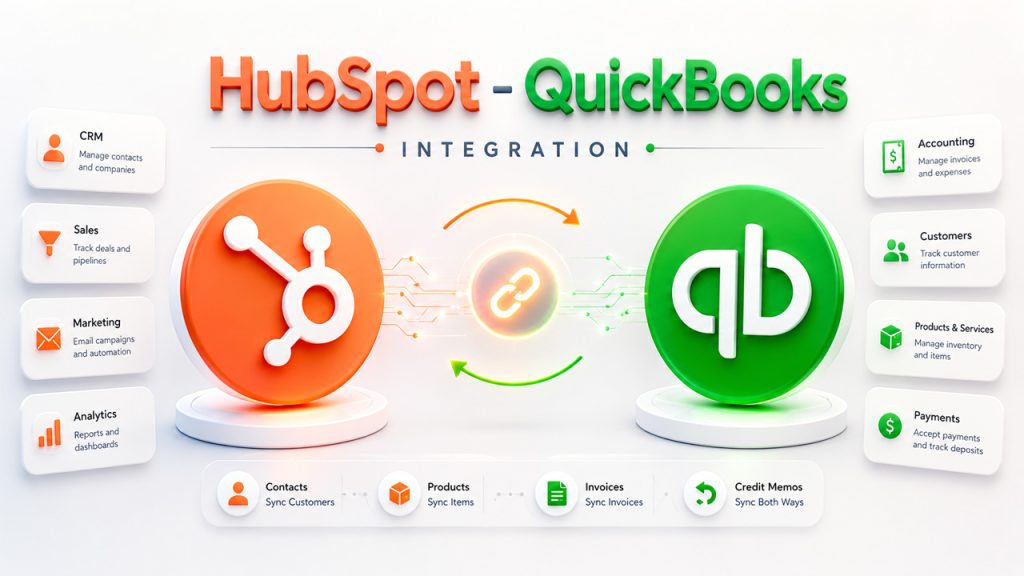
A HubSpot QuickBooks integration solves this precise problem by tethering your customer relationship management platform directly with your accounting tools, so product, contact details, invoices, and payments move automatically between systems instead of being entered twice. It is one of the numerous HubSpot integrations directly available from the Marketplace, and specifically one of the most requested by finance teams.
In this guide, let us walk through what the integration does actually, the advantages it brings to finance and sales teams, how to correctly set it up, and the limitations you should be aware of before completing the integration.
What Is HubSpot QuickBooks Integration?
HubSpot QuickBooks integration can be defined as the connected application that links a HubSpot account with QuickBooks online via automated data synchronization. Once the connection is established, the two platforms exchange data on a defined schedule instead of needing manual updates on either side. It sits along with other native HubSpot features, like deal pipelines, workflows, and reporting dashboards that your finance and sales teams are using already on a daily basis.
The integration provides support to four main record types:
- Contacts, which synchronizes with QuickBooks Customers
- Products, which synchronizes with QuickBooks Products and Services
- Invoices, which directly synchronizes as QuickBooks Invoices
- Credit memos, which offers bidrectional synchronization.
For each such platform, you can select whether the data flows bidirectionally or unidirectionally, and you can decide which platform takes priority if the same record is updated simultaneously at both places. This makes HubSpot and QuickBooks integration greatly flexible to fit distinct team structures, whether finance owns the sales or accounting data to handle customer records from the CRM side.
Advantages of Connecting HubSpot and QuickBooks
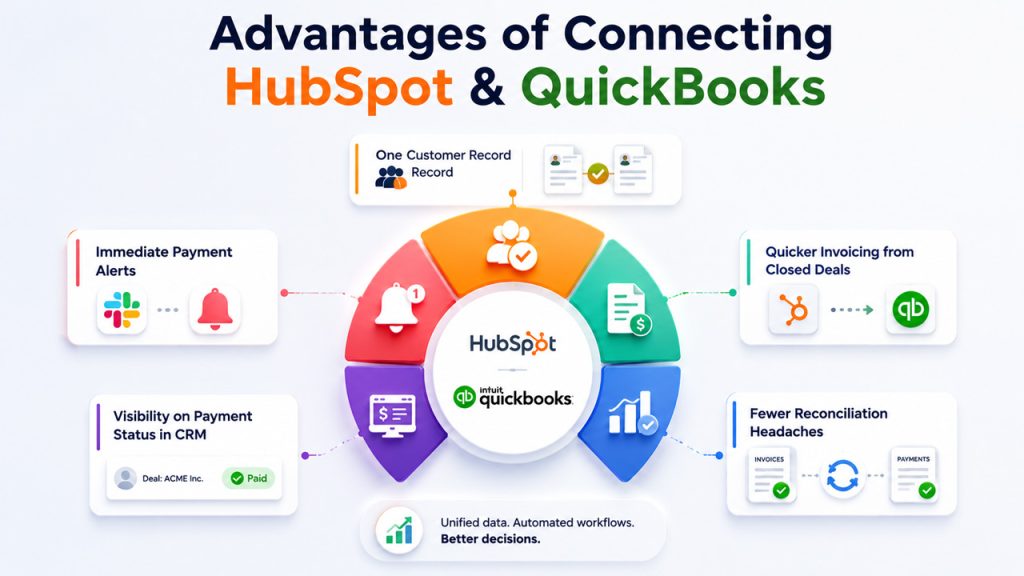
Unifying accounting and CRM data together changes how finance and sales teams work on a daily basis. The most notable advantages involve:
- One customer record instead of two. Without a synchronization, accounting and sales generally hold distinct versions of the same customer. The integration keeps company details and contact aligned across both platforms, so nobody is working from outdated data.
- Quicker Invoicing from Closed Details: Invoices generated in HubSpot from a won deal synchronize to QuickBooks without any manual re-entry, which implies that the finance team is not waiting on administrative work before cashflow.
- Fewer Reconciliation Headaches: Since payments, invoices, and credit memos automatically synchronize, the accounting ledger and sales pipeline draw from similar data, so leadership reports stop disagreeing with one another.
- Visibility on Payment Status Inside the CRM: Account and sales managers can directly see payment details on deal record timeline, without needing to separately log into QuickBooks.
- Immediate Payment Alerts for the Team: Organizations that also implement a HubSpot Slack integration can push overdue notices or payment confirmations straight into a finance or sales channel for visibility in real-time.
Such advantages compound over time. A team that begins with a standard QuickBooks integration with HubSpot for contacts generally expands the sync to cover credit memos and invoicing once the initial setup proves dependable.
How to Establish HubSpot QuickBooks Integration?
Establishing connection involves a few different stages and ensuring that you get the settings and permissions right early on avoids the sync problems down the line.
Before you Begin:
- Confirm that you have App Marketplace or Super Admin permissions in HubSpot, since these are needed for app installation.
- Keep note of the fact that if QuickBooks sandbox account cannot be connected; you will require a live QuickBooks Online account.
- It is advisable to be in consultation with your legal and accounting teams on whether automated invoice syncing aligns with your present financial processes before turning it on.
Steps to Tether the Application:
- In HubSpot, click on the Marketplace icon present in the top navigation bar and choose “HubSpot Marketplace.”
- Search for QuickBooks Online and choose from the results.
- Enter your QuickBooks Online login details and select “Install.”
- You will be redirected to Guide Setup, a one-page flow that walks you through setting up Contact, Invoice, and Product syncs.
Configuring the Sync Itself:
Once it is installed, proceed to Settings, then go to Integrations, then Connected Apps, and choose QuickBooks Online. From the tab “CRM syncs”, you can establish sync direction for every object, select data conflict resolution rules, modify field mappings, and apply sync filters to control which records go between systems. Adding custom field mappings apart from the defaults needs a Data Hub Starter, Professional, or Enterprise subscription, so it is worth checking your present HubSpot pricing tier before promising stakeholder for advanced field-level synchronization.
Once active, changes being made in HubSpot generally synchronize to QuickBooks within a few minutes, while changes being made in QuickBooks synchronize back to HubSpot roughly every 30 odd minutes. A manual synchronize option is also available if you require present data instantly.
Common Applications of the Integration
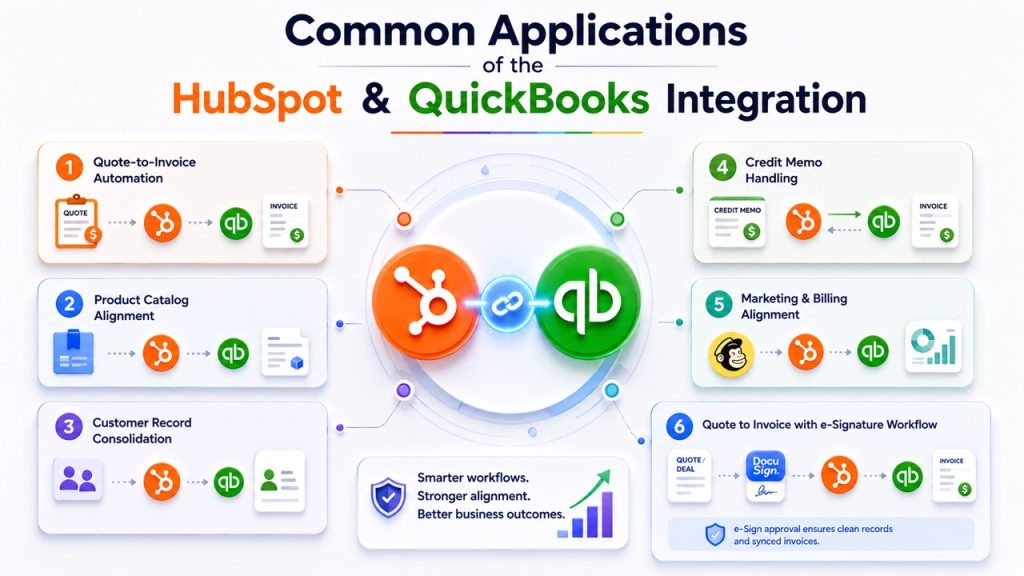
A HubSpot QuickBooks integration that is well-configured provides support to everyday workflows beyond basic record syncing:
- Quote-to-invoice automation: Sales representatives directly create invoices from a closed quote or deal in HubSpot, which then synchronize to QuickBooks without finance requiring them to recreate them.
- Product catalog alignment: Synchronizing products from QuickBooks into HubSpot makes sure that whatever a representative select on a quote aligns with the correct income and expense accounts on the accounting side.
- Customer record consolidation: Synchronizing all QuickBooks customers into HubSpot as contacts provides sales a single and accurate source of truth for who they are creating the billings.
- Credit memo handling: Credits and refunds issued in either system correctly reflect on both sides, minimizing the need for manual adjustment after the fact.
- Marketing and billing alignment. Teams that run a HubSpot Mailchimp integration along with this setup ensure that customer lifecycle and email segmentation remain consistent with precise billing status, without individual manual updates.
- Quote to Invoice Automation: Sales representatives create invoices directly from a closed deal or quote in HubSpot, which then synchronize to QuickBooks without the finance team needing them to recreate them. Businesses that also implement a HubSpot DocuSign integration can direct the same route via e-signature approval first, so the deal only gets converted to invoice once the contract has been signed, providing finance team a clean paper trail along with synced invoice.
Each of these applications minimizes the amount of manual handoff between finance and sales, which is usually the source of friction in companies running accounting software and CRM separately.
Best Practices and Limitations to Keep in Mind
No integration is without its share of disadvantages and understanding the limits of this one aids in avoiding sync errors later.
- Some Invoice Edits Are Limited: Pricing, line items, payments, pricing, and tax information on a HubSpot-created invoice cannot be edited from within QuickBooks Online. Such changes must happen in HubSpot for the sync to succeed.
- Non-U.S. Accounts Face Constraints in Terms of Tax: Most QuickBooks Online accounts outside the United States need invoices to include tax such as GST or VAT, and since HubSpot invoices cannot be generated with in-built tax, this can limit the usability for global accounts.
- Revenue Generation Is Not Supported: HubSpot invoices do not support adding service dates to line items, which revenue recognition feature of QuickBooks Online needs.
- Split Payments Do Not Synchronize: If you apply a single QuickBooks payment across numerous devices; it will not carry over to HubSpot.
- Processing Fees Require Manual Entry: Fees from payment processors utilized in HubSpot do not create an accounting expense automatically in QuickBooks, so these generally need to be separately logged.
Some setup habits aid in preventing friction: switch off the custom transaction number setting in QuickBooks Online before connecting, lock closed accounting periods so historical information cannot be changed, and add SKUs to QuickBooks products that you want to synchronize so they correctly match on the HubSpot side. If your accounting workflow is greatly specialized and such limitations impact a large share of your invoicing volume, it might be worth comparing HubSpot alternatives before investing further setup time, though most businesses find the native synchronization sufficient once correctly configured.
Conclusion
HubSpot QuickBooks integration, which is once properly configured, provides finance and sales teams with an accurate and holistic view of invoices, customers, and payments instead of two siloed systems. While specific limitations related invoice editing, tax handling, and revenue recognition are worth planning around, the core sync for products, contacts, invoices, and credit memos covers the most of daily requirements for the majority of businesses that connects their accounting and CRM platforms.
Frequently Asked Questions : HubSpot QuickBooks Integration
Yes, HubSpot QuickBooks integration is possible. The native integration is specifically designed for QuickBooks Online, providing effective bidirectional synchronization to close the gap between your sales and finance teams.
No. HubSpot-generated invoices do not support adding tax currently. If you need to apply VAT taxes or Sales, the invoice must be directly generated in QuickBooks.
The official integration provides support to only QuickBooks Online (QBO). It does not support QuickBooks Desktop natively, though third-party middleware options might be available.
Generally, integrations are built to synchronize new data from the moment the connection is established. Customer records or historical invoices will not automatically backfill.