



★
(0 Reviews)
SuiteCRM Drive Migrator – Product Launch
$0.00
Product Description
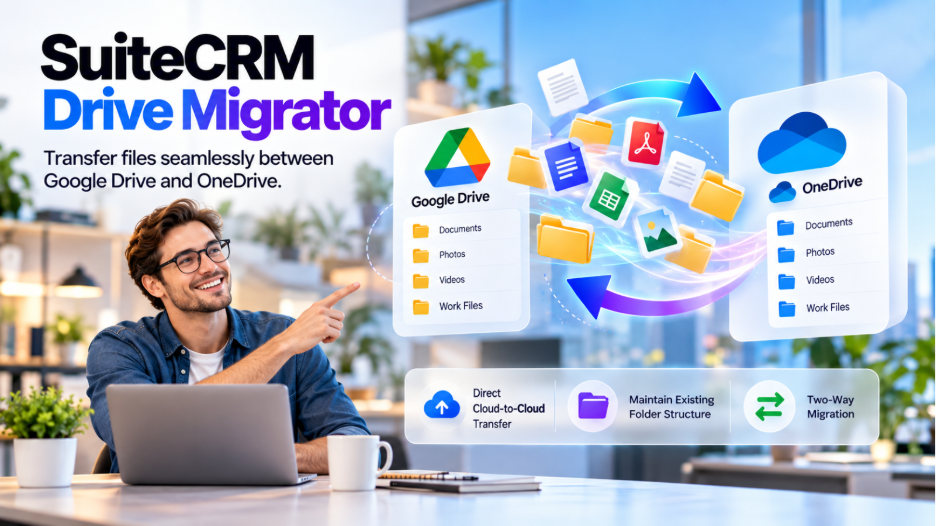
SuiteCRM Drive Migrator makes it much easier to transfer files and folders between Google Drive and Microsoft OneDrive, without the need for manual downloads and re-uploads. The migrator provides a simple and reliable way to move your files, whether you are filling up Google storage, moving to OneDrive, consolidating your cloud files, or managing data across multiple platforms.
With this two-way migration, users can transfer data from Google Drive to OneDrive or from OneDrive to Google Drive, while maintaining a folder organization. Users need to select the files or folders they need, start the migration, and let the tool handle the transfer in the background. SuiteCRM Drive Migrator is designed for reliable drive-to-drive migration, and it supports large file transfers, automatic retries, Google Workspace file conversion, and migration history tracking, enabling users to have greater control and visibility throughout the process.
✅Real-Life Example
Imagine your Google Drive is nearing its storage limit because years of photos, videos, documents, and email attachments have accumulated. Instead of downloading each file to OneDrive manually, SuiteCRM Drive Migrator lets users select the required folders and transfer them directly from Google Drive to OneDrive.
✅Simplify Cloud Migration and Keep Your Files Organized
Designed for reliable cloud-to-cloud migration, SuiteCRM Drive Migrator supports large file transfers, automatic retries, Google Workspace file conversion, and migration history tracking, giving you greater control and visibility throughout the process.
Most Popular
Check out these related extensions


Key Features
Discover what makes this product stand out
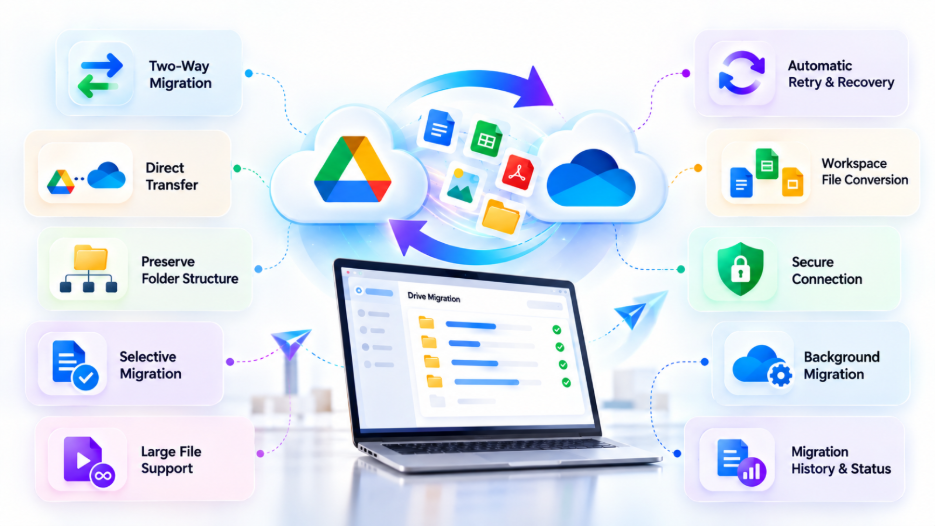
✅ Two-Way Cloud Migration
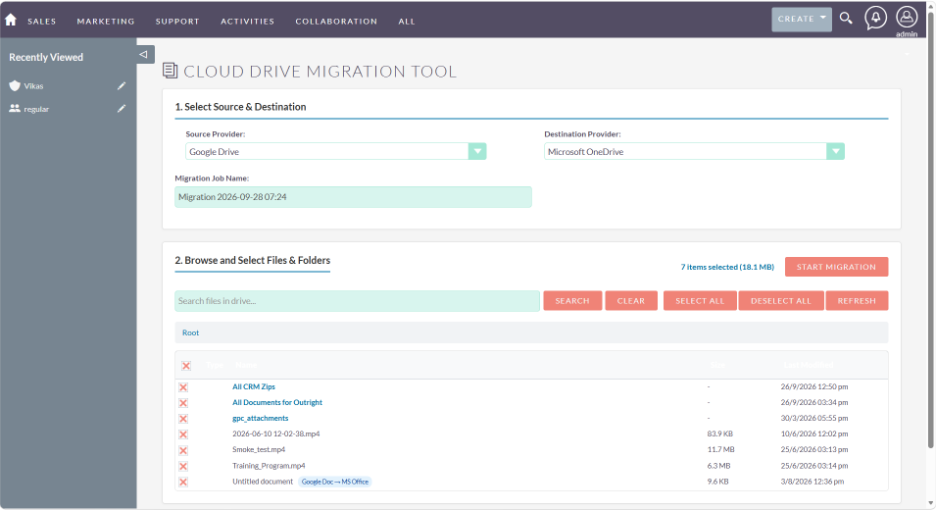
Seamlessly move files and folders between Google Drive and Microsoft OneDrive. Migrate in either direction based on your storage, collaboration, or cloud management needs.
✅ Direct Drive-to-Drive Transfer
Transfer files directly between cloud storage platforms without downloading everything to your computer and uploading it again.
✅ Folder Structure Preservation
Maintain your existing folder organization during migration, making it easier to locate and manage files after the transfer.
✅ Selective File & Folder Migration
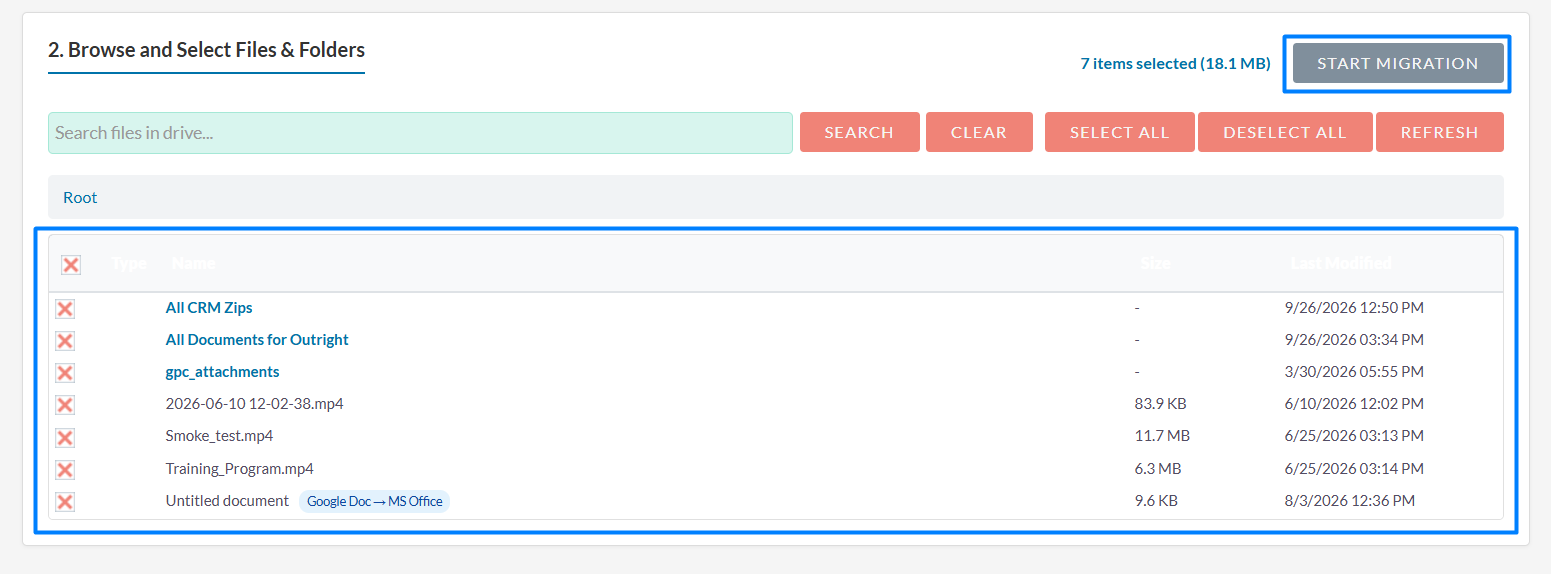
Choose exactly what you want to migrate. Browse your source storage and select individual files or complete folders instead of moving everything.
✅ Large File Support
Transfer large videos, documents, and other sizeable files reliably using chunked file processing, helping minimize failures during large transfers.
✅ Automatic Retry & Recovery
Temporary network interruptions don't necessarily mean starting over. The migrator automatically retries interrupted transfers to improve migration reliability.
✅ Google Workspace File Conversion
Google-native files such as Docs, Sheets, and Slides can be converted into compatible formats when migrating to OneDrive, helping ensure your files remain accessible.
✅ Secure Account Connection
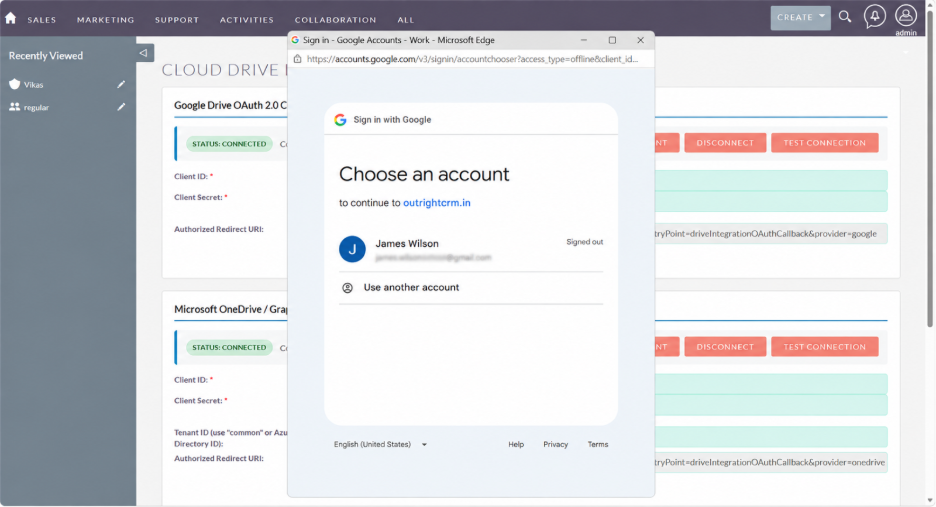
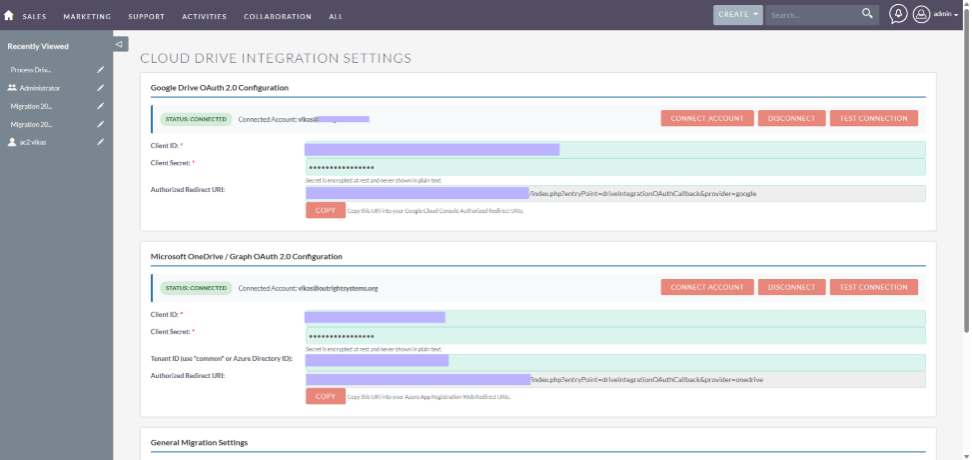
Connect your Google and Microsoft accounts through their official authentication flows, helping keep your login credentials protected.
✅ Background Migration
Start your migration and continue with other tasks while the transfer runs in the background, without requiring constant monitoring.
✅ Migration History & Status
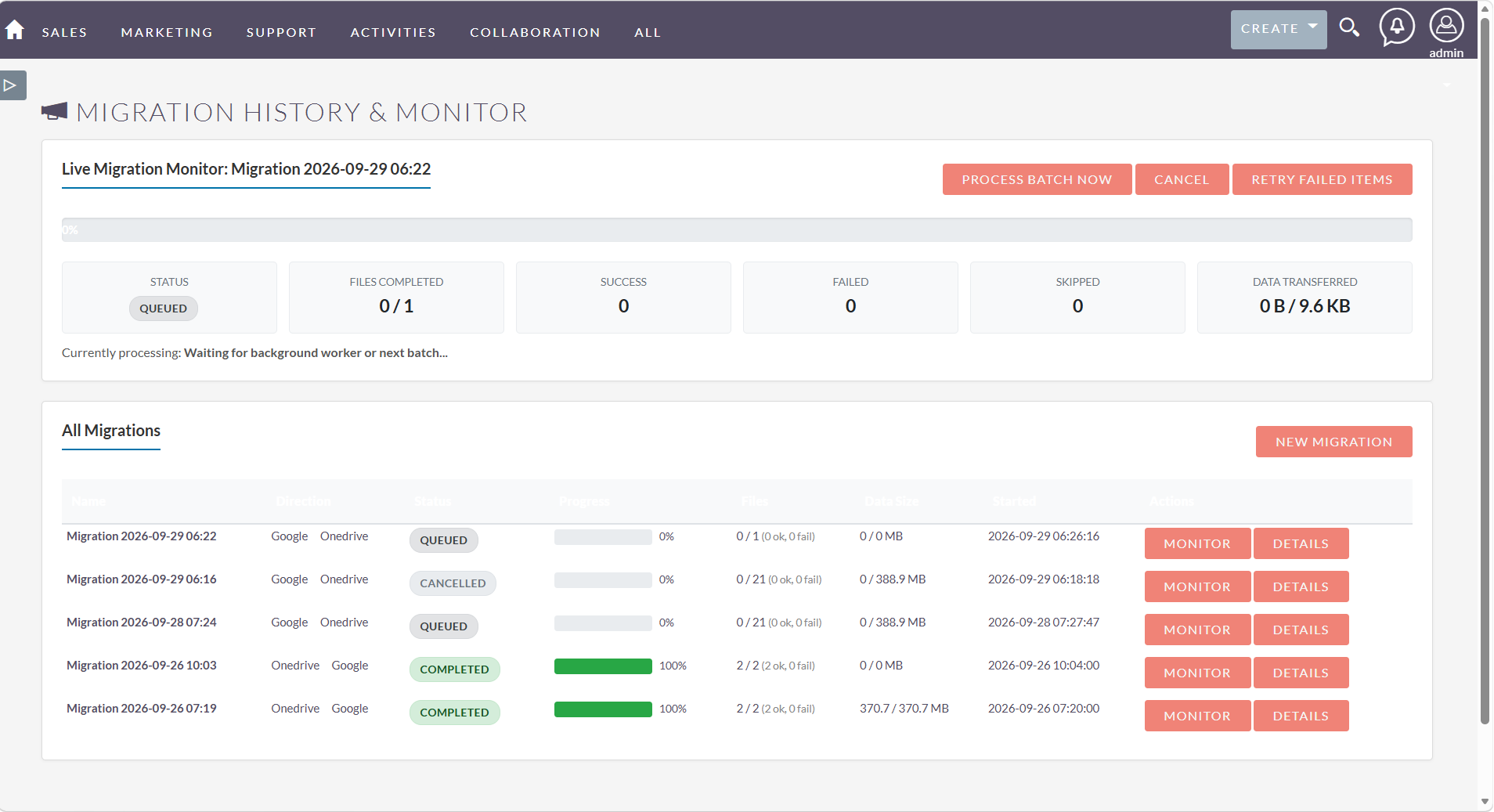
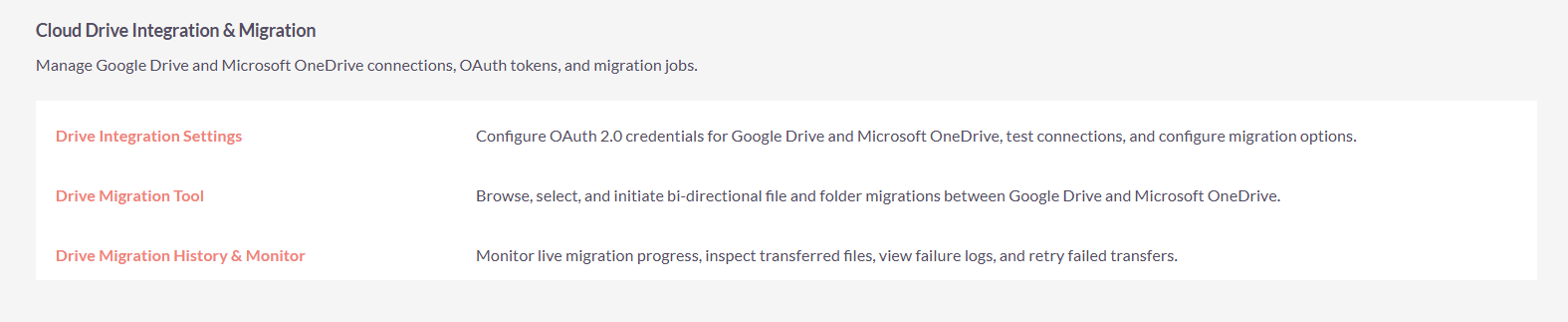
Review migration activity through a clear history log. Track what was transferred and identify files or items that may require attention.
Visual Showcase
See the product in action through screenshots

1
2
3
4
5
6
Product Videos
Watch our product in action
Coming Soon
User Guide
Learn how to use and configure the system step by step


FAQs
Question? Look here.
Can I migrate files from Google Drive to OneDrive?
Yes, with SuiteCRM Data Migrator, users can migrate files from Google Drive to OneDrive. It allows users to move documents, photos, videos, and folders directly to OneDrive.
Does Google Drive storage affect Gmail?
Yes, Google Drive storage significantly affects Gmail. For personal Google accounts, storage is shared across Gmail, Google Drive, and Google Photos.
Can I select specific files and folders for migration?
Yes, you can select specific files and folders for migration. You can browse your source storage and select the specific files or folders you want to transfer instead of migrating your entire cloud account.
Do I need to keep my browser open during migration?
No, you do not need to keep your browser open during migration. The migration is designed to run in the background, so you don't have to continuously monitor the process or keep watching a progress screen.
Is my Google or Microsoft password stored by the migrator?
No, your Google or Microsoft password is not stored by the migrator. The tool uses the respective providers' official authentication flows to connect your accounts, rather than requiring you to enter your cloud account password into an unrelated form.