





Ubuntu is utilized by people all around the world. Ubuntu can be defined as an open-source operating system (OS) that is completely free-to-use and compatible with numerous devices including laptops, Personal Computers (PCs), smartphones, tablets, servers, and the cloud. People utilize Ubuntu as a seamless operating system and are broadly utilized as a low-maintenance, user-friendly compact, and development-based environment and support. Ubuntu is basically a Linux distribution that has evolved from Debian and is made up of free and open-source software mostly. Often, while you use Ubuntu, you can face buggy or screen flickering problems. So, in this blog, let us learn what Ubuntu screen flickering problems are and how you can resolve them.
What Is Ubuntu Screen Flickering Issue?
Ubuntu screen flickering is a common display error that leads to continuous and rapid blackouts, screen flashes, or glitching. Oftentimes, it occurs in Ubuntu 22.04/24.04, generally triggered by compatible graphic drivers (specifically NVIDIA), power saving features of NVIDIA, Kernal updates, or incorrect refresh rates. Let us see a few examples and common causes and scenarios.
Ubuntu Screen Flickering Examples
- System/Startup Login: Flickering happens while you are starting the screen or while you are on the login screen.
- Mouse Interaction: You see screen flashes when you move your cursor over specific pixels.
- Wake from Suspend: Display remains black or flickers once it wakes up from hibernation.
- External Monitor: The second monitor also flickers, specifically when you are utilizing docking station or high resolution.
Common Causes and Scenarios
- Intel PSR (Panel Self Refresh): Intel iGPUs also have a power saving feature that generally makes flickers occur.
- Graphic Drivers: The presence of improperly configured or outdated Intel or Nvidia drivers.
- Kernel Incompatibility: Particular Linux Kernel versions can cause problems with specific hardware.
- X11/Wayland Issues: Transitioning between X11 and Wayland servers.
- Mismatch in Refresh Rate: Track refresh rates not aligned with settings.
Read More: How to Install SuiteCRM 8 on Ubuntu Linux: A Step by Step Guide
How to Resolve the Ubuntu Screen Flickering Issue?
Screen flickering in Ubuntu can happen because of different issues like incorrect refresh rates, display driver problems, or compatibility problems with desktop platforms.
Check Whether There Are Any System Updates:
Kernel issues or outdated drivers can lead to problems such as screen flickering. System updates can generally resolve the issue.
You can open the terminal and launch the below-mentioned commands:
- sudo Apt Update
- sudo Apt Upgrade
- sudo Reboot
Reinstall or Update Graphic Drivers:
Updating or installing the right drivers for your GPU may solve the problem.
For NVIDIA GPUs:
You can first check whether proprietary NVIDIA drivers are installed or not:
- Ubuntu-drivers devices:
If they are not installed, you can easily install the required drivers through:
- sudo ubuntu-drivers autoinstall
- sudo Reboot
For AMD GPUs:
AMD drivers are open source and must be bundled with the updates of the system. If you are utilizing an extremely recent GPU model, you might want to update to the newest version of the Mesa drivers:
- sudo apt install mesa-utils
- sudo Reboot
For Intel Graphics:
Intel graphics are generally bundled with the Kernel. So, you need to make sure that your system remains updated.
Disable Hardware Acceleration:
Sometimes, hardware acceleration can trigger screen flickering. You can look to disable it to see if it can fix the issue:
- For Chromium or Google Chrome: You can open Chrome settings, go to the system and then disable Use hardware acceleration whenever available.
- For Wayland/GNOME Desktop: A few users have reported that once you disable hardware acceleration in GNOME desktop, it can solve your problem. You can open your terminal and run the command:
gsettings set org.genome.desktop.interface enable animations false
Transition Between Wayland and X11:
Ubuntu enables you to move back and forth between two display server protocols: Wayland and X11. You can solve screen flickering by transitioning to other protocol.
Switching can be done by implementing the following steps:
- Sign out of the present session.
- On your login screen, select your resume.
- Before you enter your password, select the gear icon on the lower right corner.
- Choose Ubuntu (Xorg) to move to X11 or Ubuntu.
Adjust the Refresh Rate of the Screen:
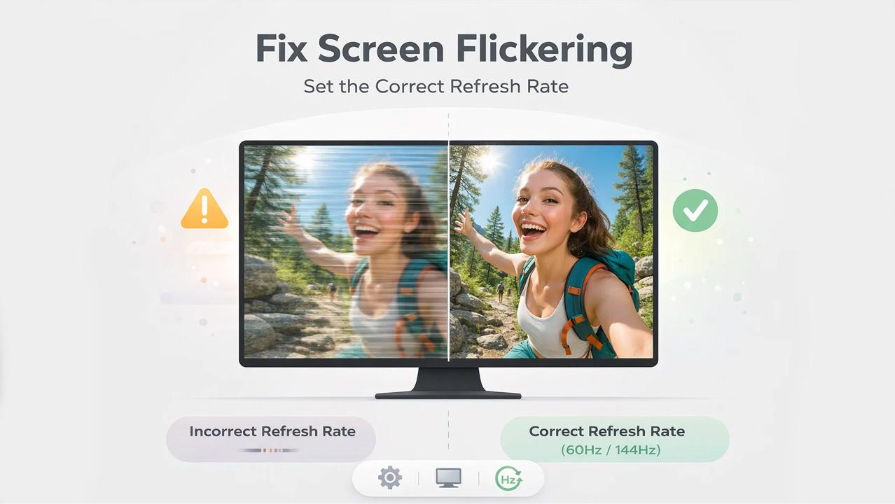
- Incorrect refresh rates can trigger screen flickering. Make sure that your monitor is set to the precise refresh rate.
- Open Settings and then go to Displays.
- Check the option “Refresh Rate” and ensure that it aligns with the specifications of your monitor (e.g., 144Hz or 60Hz).
Check the Display Cable Connections:
Faulty or lose display cables can lead to screen flickering. Make sure that your monitor cables (DisplayPort, HDMI, etc.) are connected properly to both computer and the monitor.
Display Features of Power Saving:
Specific power-saving features can trigger screen flickering, specifically on Laptops:
For Intel GPUs: Disable power saving mode by adding a Kernel boot parameter.
- You can open a terminal and run the following command:
sudo nano /etc/default/grub
- Look for the line that begins with GRUB_CMDLine_Linux_Default and include intel_idle.max_cstate=1 to it. Examples include:
GRUB_CMDLINE_Linux_Default=”quiet_splash_intel_idle.max_cstate=1 to it.
- Next, you need to save the file and update your GRUB configuration.
sudo update-grub
sudo reboot
Find clues in logs:
If none of the above steps fix the problem for you, you can check the system logs to find more details:
You can open the terminal and run the following command:
- Dmesg | grep -i error
Find any relevant error message that can provide you deeper insight into the problem:
In addition, you can check out the log file of Xorg (if you are utilizing X11):
cat /var/log/Xorg.O.log
Test with a Distinct Version of a Kernel:
Sometimes, newer kernels trigger regressions that can cause problems like screen flickering. You can try starting up an older kernel version to check if the problem lingers long.
- Restart your platform and then hold your Shift key to start the GRUB menu.
- Choose Ubuntu advanced options.
- Select a version of your previous kernel and see whether the screen flickering problem is solved or not.
Reset GNOME Settings
If the problem is particular to the desktop environment of GNOME, you can reset the settings to default to fix the problem:
Open your terminal and launch the command:
Deconf reset -f /org/gnome
How Can You Prevent Ubuntu Screen Flickering in the Future?
While fixing screen flickering is significant, being proactive can aid you prevent the problem altogether. Here are some right practices to ensure that your Ubuntu display keeps on running smoothly without any problems.
Consistently Update Your System: Keeping your system updated and ensuring driver updates is one of the most efficient ways to avoid screen flickering. Driver releases, and Kernel patches regularly involve bug fixes that address issues related to display. You can make it a habit to launch the following:
- sudo apt upgrade && sudo apt update
Prevent Abrupt Upgrades in Kernel: Most kernel upgrades can introduce regression sometimes that can impact the stability of your display. Before upgrading, go through community forums such as Ubuntu subreddit and Ask Ubuntu to check whether users have reported similar display-related or flickering issues with the new kernel version.
Utilize Stable Driver Versions: For AMD GPU or NVIDIA users, always go for stable or tested driver versions over the latest experimental ones. You can handle driver versions through the Software & Updates and then select Additional Drivers tab in Ubuntu settings.
Track Your Power Settings: If you are working with a laptop, aggressive settings of power-saving can often trigger display flickering, specifically after waking from sleep. Setting up your power profile to Balanced instead of Power Saver can make a notable difference.
Select the Right Display Protocol: If you continuously face Ubuntu screen flickering issue on Wayland, consider switching to X11 permanently, which can provide wider hardware compatibility. Establish X11 as your default session makes sure that you do not have to switch manually after each login.
Periodically Inspect Hardware: Aging or loose display cables are generally the most common and overlooked cause of display issues. Periodically inspect your HDMI or DisplayPort connections and replace worn-out cables to make sure that the issue is not hardware related.
Through implementation of such proactive measures can help you greatly minimize the possibilities of encountering Ubuntu screen flickering and enjoying a more consistent and stable Ubuntu display experience.
Ubuntu screen flickering is just one of the many issues users can face. If your system is also facing sluggishness or performance drops along with different display issues, check out the detailed blog on Ubuntu Best Practices For Common Issues or Sudden Slow down! to ensure that your system runs at its best version.
Conclusion
Ubuntu screen flickering can impact your work on Ubuntu greatly, causing deep frustration. However, it is a fixable issue if you adopt the right approach. Irrespective of whether the underlying issue is an outdated driver, a conflicting kernel version, incorrect refresh rates, a loose cable, the solutions mentioned above in this article provide you with a clear path to a stable display. By remaining consistent with system updates and tracking your hardware settings, you can ensure a seamless Ubuntu experience. If the problem persists after trying out all the fixes, check system logs or switch back to a previous kernel version must point you in the correct direction.
Want to learn more? Check out our guide on Why and How to Migrate Bulk Ubuntu EC2 from AWS to Azure? for a smooth cloud transition. Our guide can help you run Ubuntu seamlessly on cloud servers.