






If you've ever wondered why an important email “never arrived,” your storage might be the real culprit, not your inbox.
What Is Google Drive Storage?
Google Drive storage is the amount of space, or storage, available to you in your Google Drive account. This is the cloud storage space that Google gives you to store various types of information like files, documents, photos, videos, and other types of data in the cloud storage Every free Google account comes with 15 GB of storage shared across Google Drive, Gmail, and Google Photos. When this shared space fills up, understanding effective CRM document management best practices can help you organize your files and identify what needs to be moved or archived. So, your Drive files don't occupy all that storage space, and there are other things like large uploads, email attachments, and photo backups that quickly fill up the free storage. If you need to move your files to another storage platform, SuiteCRM Drive Migrator can help simplify the migration process.
The Problem Nobody Warns You About
Google gives every free account 15 GB of Google Drive storage, and that space isn't just for email. It's shared across Gmail, Google Drive, and Google Photos combined. The moment your photo backups, saved videos, or years of attachments fill that shared pool, something has to give. Usually, it's the thing you rely on most: your ability to receive email.
Once your storage hits its limit, Gmail simply stops accepting new messages. There's no loud warning that people actually notice; senders just get a bounce-back, and you have no idea anything went wrong until it's too late. A client reply, a job offer, an invoice, a password reset link-gone, because your storage quietly filled up weeks earlier.
This hits hardest for anyone with automatic photo and video backup turned on. Photos and videos are large by nature, and they pile up fast without you doing anything at all. Within months, sometimes weeks, if you shoot a lot of video, your entire 15 GB can be gone.
The usual options aren't great: spend hours manually downloading files one by one and hoping you don't miss anything, or pay Google every month just to keep receiving mail you've already been receiving for free.
The Solution: Move Your Files, Both Ways
If you want to migrate Google Drive to OneDrive, you don't need to manually download files to your computer and re-upload them somewhere else. This tool helps you manage your Google Drive storage by moving your files directly between cloud storage providers, in either direction, with no manual download-and-reupload step at all.
Google Drive ⇄ Microsoft OneDrive
Google Drive → OneDrive
A Google Drive to OneDrive migration can free up the storage that's blocking your Gmail. Move your photos, videos, documents, and folders straight into OneDrive, preserving your original folder structure. So your Google account has room to breathe and your emails start arriving normally again.
OneDrive → Google Drive
Going the other way works just as well. If you're consolidating onto Google, switching providers, or just prefer having everything in one place, the same tool pulls your files from OneDrive and places them safely into Google Drive.
Either direction, the process is the same: connect both accounts once, choose what to move, and let it run. No juggling downloads, no duplicate folders, no guesswork about what made it across.
Why It's Actually Simple to Use
You don't need to be technical to use this. Here's what the experience looks like in practice:
1 Authenticate Your Google Drive: Provide your Google Drive details and authenticate the account by login into your Google account, from which you want to move the files.
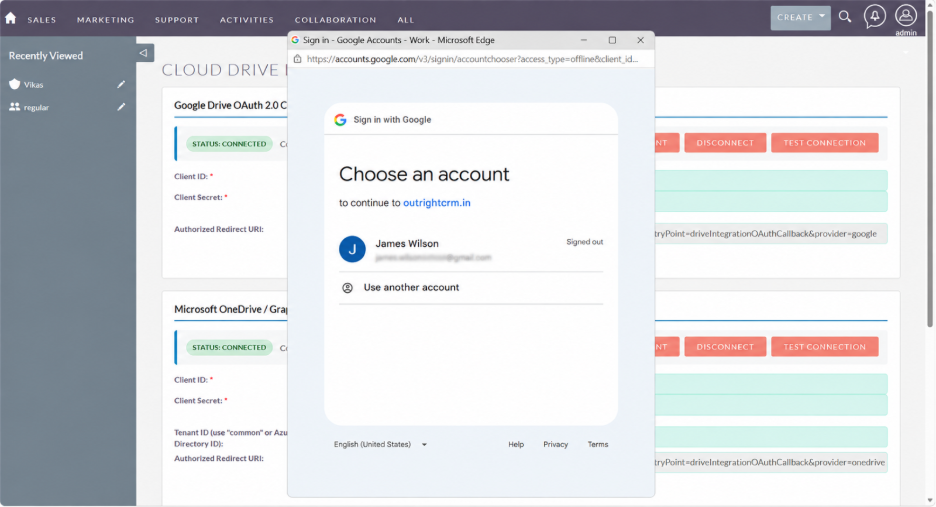
2. Connect your accounts once. Securely sign in to both Google and Microsoft through their official login screens. No passwords typed into random forms, nothing stored insecurely.
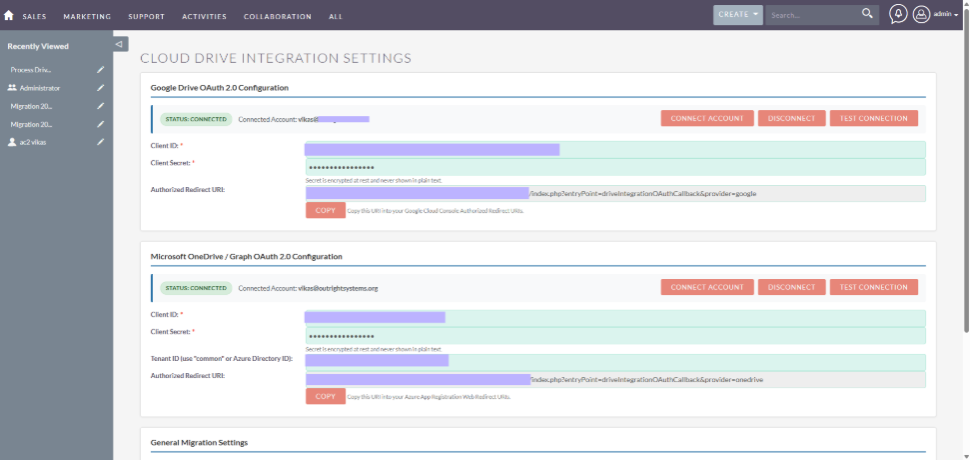
3. Browse and choose what to move. A simple folder browser shows exactly what's in your source account, so you pick by selecting what gets migrated instead of guessing.
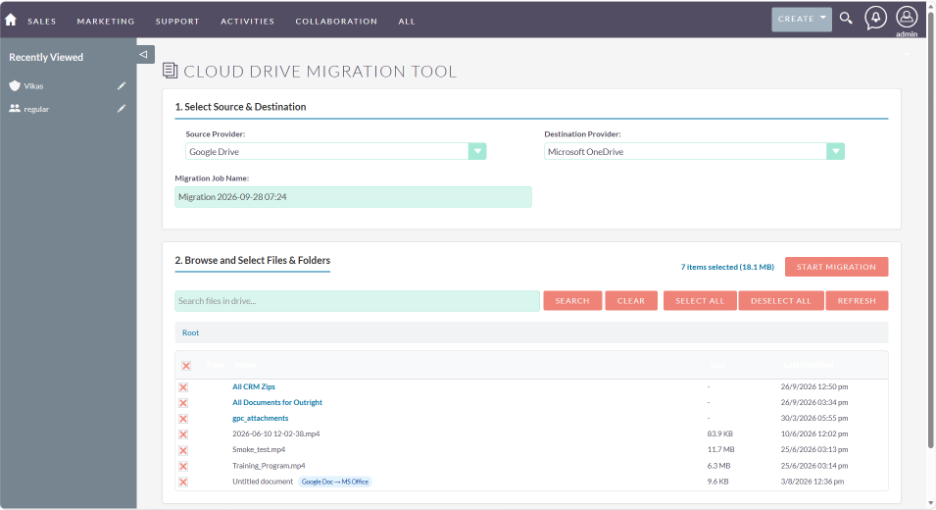
4. Start it, then walk away. Migration runs in the background. You don't need to keep a tab open or watch a progress bar.
5. Large files aren't a problem. Big videos and attachments transfer in chunks, so even sizeable files move reliably without failing halfway through.
6. Interruptions recover on their own. A dropped connection or temporary hiccup doesn't mean starting over. The tool retries automatically.
7. Nothing disappears silently. Google-native files like Docs, Sheets, and Slides are automatically converted into compatible formats. If something genuinely can't convert, you're told exactly why.
8. See exactly what happened. A clear history log shows what moved, when, and whether anything needs your attention.
The Bottom Line
You shouldn't have to pay every month to keep your email flowing, and you shouldn't have to sit down for a weekend of manually downloading thousands of files one at a time. Google Drive Storage safely and automatically migrates files to and from Google Drive and OneDrive, freeing up space without the headache of manual downloads. Routine Google Drive cleanup will also reduce the risk to Gmail and help you store files that matter. Transfer those hefty videos, old photos, and tricky-to-manage documents and folders to free up space, improve file management, or simply get your Gmail account up to speed, all with an easy, reliable migration process.
Free your storage. Keep your inbox open.
Two-way migration between Google Drive and OneDrive — set it up once, let it run.
FAQs About Google Drive Storage
Google Drive provides 15 GB of free storage for each account. This space is shared across Gmail, Google Drive, and Google Photos.
When your storage reaches its limit, Gmail may stop receiving new emails. You may also be unable to upload new files or create additional content in Drive.
You can move large files, photos, videos, and folders to another cloud storage service such as OneDrive. This lets you keep your files while reducing the space used in your Google account.
Yes. You can transfer files from OneDrive to Google Drive when you want to consolidate your files or switch to Google for your cloud storage needs.