





If you ever had an experience with working on a professional audio project, you know that quality of audio is extremely important. Irrespective of whether you are editing a podcast, creating some music, or submitting files to a platform for broadcasting, understanding “how to convert MP3 to WAV” is an important skill. In this guide, let us walk you through all aspects starting from comprehending the two formats to utilizing the right tools available to smoothly perform this conversion.
What Is MP3 and What Is WAV?
Before you delve into the process of conversion, it is valuable to understand what these formats are and why you would ever want to switch between them.
MP3 (MPEG-1 Audio Layer III)
MP3 is one of the most broadly utilized digital audio formats in the world. Developed early in the 1990s by the Moving Picture Experts Group (MPEG) with one main goal: minimizing the size of file without making the loss of audio quality too obvious to the average listener.
- MP3 utilizes lossy compression, which implies that some audio data is discarded permanently during the process of encoding.
- A general 3-minute song developed in MP3 format takes about 3-10 MB space as per the bitrate.
- MP3 is important for sharing, streaming, and casual listening because of its near-universal compatibility and compact size.
WAV (Waveform Audio File Format)
WAV, an acronym for Waveform Audio File Format, can be defined as an uncompressed audio format developed jointly by IBM and Microsoft in the early 1990s. Contrary to MP3, WAV retains all of the original data without needing any compression.
- WAV utilizes lossless audio, implying that no sound data is ever lost during storage.
- A song around 3-minute long in WAV format can take around 30-40 MB of storage space.
- WAV is the most-preferred format for music production, professional audio editing, and CD mastering.
Why Should You Convert MP3 to WAV?
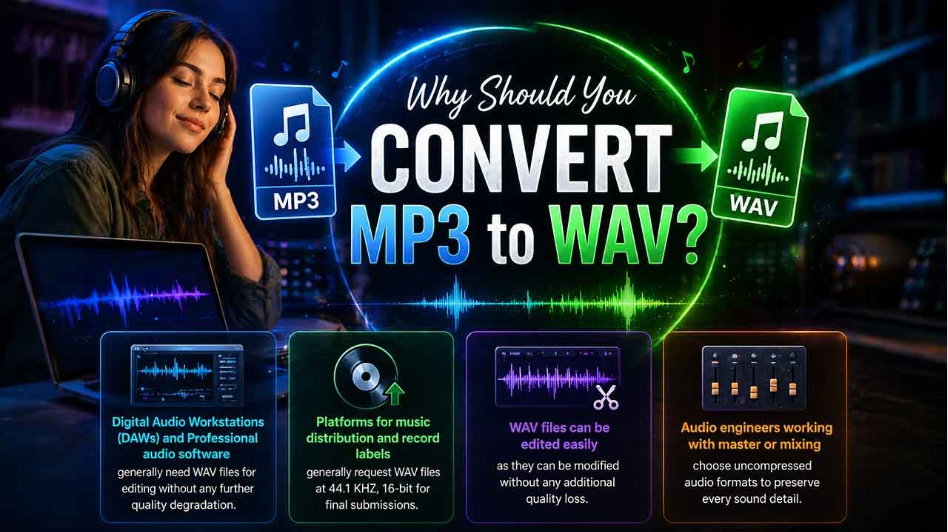
There are numerous practical reasons to convert MP3 to WAV:
- Digital Audio Workstations (DAWs) and Professional audio software generally need WAV files for editing without any further quality degradation.
- Platforms for music distribution and record labels generally request WAV files at 44.1 KHZ, 16-bit for final submissions.
- WAV files can be edited easily as they can be modified without any additional quality loss.
- Audio engineers working with master or mixing choose uncompressed audio formats to preserve every sound detail.
Process to Convert MP3 to WAV Through Online Tools?
Online converters are the simplest option for users who require a fast MP3 to WAV conversion without any software installation. Such tools are often browser-based, free to use, and needs no technical expertise.
Key Steps to Convert MP3 to WAV Online
- Open a dependable online converter like “FreeConvert,” “Convertico,” or “CloudConvert” in your web browser.
- Select the “Upload” button or the “Choose File” button and then choose the MP3 file from your device. A few tools also enable you to import files from Dropbox or Google Drive.
- Choose WAV as the format of output from the available options of audio format.
- Adjust optional settings like bitrate, sample rate, or audio channels if the tool provides them.
- Select the “Convert” button to start the process of conversion.
- Once it is complete, select the “Download” button to save “WAV” file to your device.
Key Things You Have to Keep in Mind
- You need to avoid uploading confidential or sensitive files to digital platforms.
- Free online platforms can have a few file size limits (generally between 100-500 MB per file).
- Such tools are suitable for occasional conversions but might not be practical for batch or large-scale processing requirements.
How to Convert MP3 to WAV Through Desktop Software?
For users who require a lot more control over audio settings or often work with audio files, desktop software becomes a more dependable option. Let us see the three broadly utilized tools for converting MP3 files to WAV on your computer.
1. Audacity (Free, Open-Source)
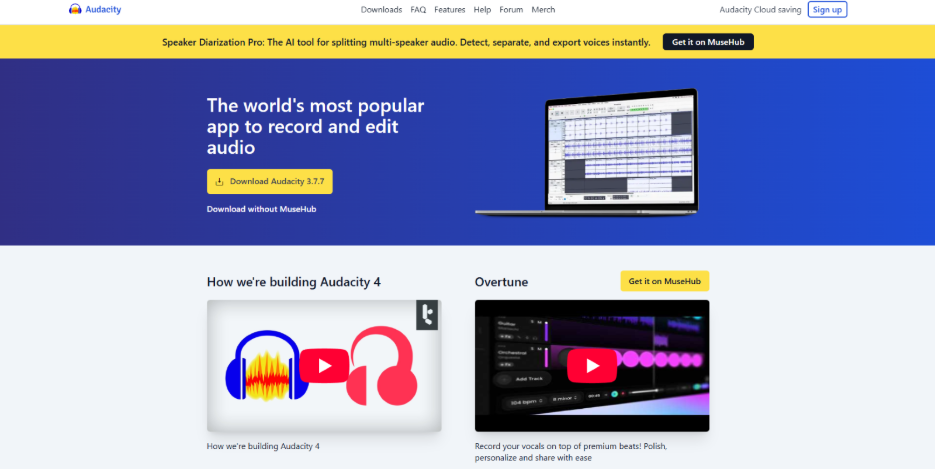
Audacity is an open-source and free audio editor available for macOS, Windows, and Linux. It is one of the most reliable tools for the conversion of audio formats.
Steps:
- You can download and install “Audacity” from the official website of “Audacity.”
- You can open the application and then go to “File” and then select “Open” to import your MP3 file.
- Once it is loaded, you can go to “File”, and then select “Export Audio.”
- Go to the export dialog, choose “WAV (Microsoft)” as the format of output.
- Select your destination folder and select “Export” to save the “WAV” file.
2. VLC Media Player (Free)
VLC Media Player is not just a tool for playing media. It also involves an in-built feature for conversion.
Steps:
- Open “VLC Media Player” and go to “Media > Convert/Save.”
- Select “Add” and choose your “MP3 file.”
- Select button “Convert/Save.”
- Go to the window “Convert,” open the dropdown “Profile” and choose “Audio – WAV.”
- Select a destination file path and choose “Start” to start the MP3 to WAV conversion.
3. Apple/iTunes (macOS and Windows)
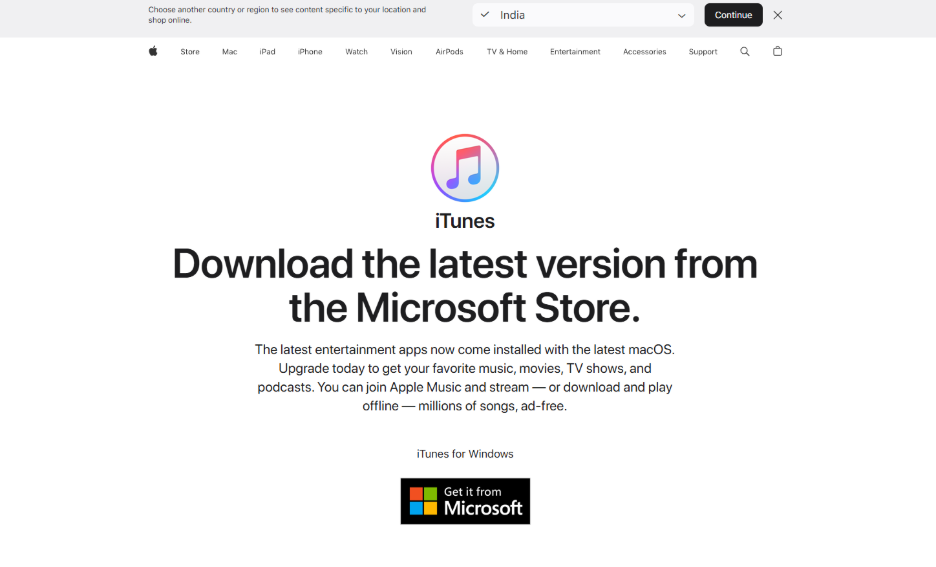
iTunes (now known as Apple Music on macOS) gives you a simple way to convert MP3 to WAV for users that are already existing in the Apple ecosystem.
Steps:
- Open “Apple Music or iTunes” and proceed to add your “MP3 file” to your library.
- Next, you need to go to “Edit” and then select “Preferences” (on Windows) or select “iTunes” and then “Preferences” (on Mac).
- Under the tab “General,” select “Import Settings” and choose “WAV Encoder.”
- Select “OK,” then you have to right-click on the MP3 file in your library and select “Create WAV Version.”
- The “WAV file” that gets converted will show up alongside the original in your library.
Process to Convert MP3 to WAV Through Command-Line (FFmpeg)
For sophisticated developers and users, FFmpeg is a robust open-source platform that performs “MP3 to WAV conversion” through the command line with top-level precision and quality output.
Steps:
- You need to install FFmpeg on your platform. On macOS, you can do this through Homebrew; on Windows, you can download it through the official FFmpeg website.
- Open a command or terminal prompt and go to the folder that contains your MP3 file.
- Launch the below-mentioned command:
ffmpeg -i filename.mp3 outputfilename.wav
- FFmpeg can process the file and save the “WAV output” in the same directory.
FFmpeg provides support to custom bitrate settings, batch conversion, and sample rate adjustments, making it a top choice for professionals managing large volumes of audio file conversion.
Conclusion
Understanding how to convert MP3 to WAV is simple once you have the right platform for your requirements. Digital converters such as FreeConvert and Convertico are useful for fast and one-off conversions. Desktop apps such as VLC and Audacity provide better control and are ideal for consistent use. For sophisticated users, FFmpeg ensures the highest precision and flexibility.
The important takeaway is this: while MP3 is useful for everyday streaming and listening, WAV is a gold standard for professional audio work. Irrespective of whether you are submitting music to a level, working in a DAW, or editing a podcast, converting your MP3 files to WAV format makes sure that you are working with top-level audio quality.
Select the method that aligns with your workflow in the best way and begin converting your MP3 files to WAV today.
Read More: If you are a musician who is looking to further improve your tracks, it will be worth to look at “Noisee AI.” It is an AI-driven music video generator that can convert your professional audio into impressive visuals.
Related post