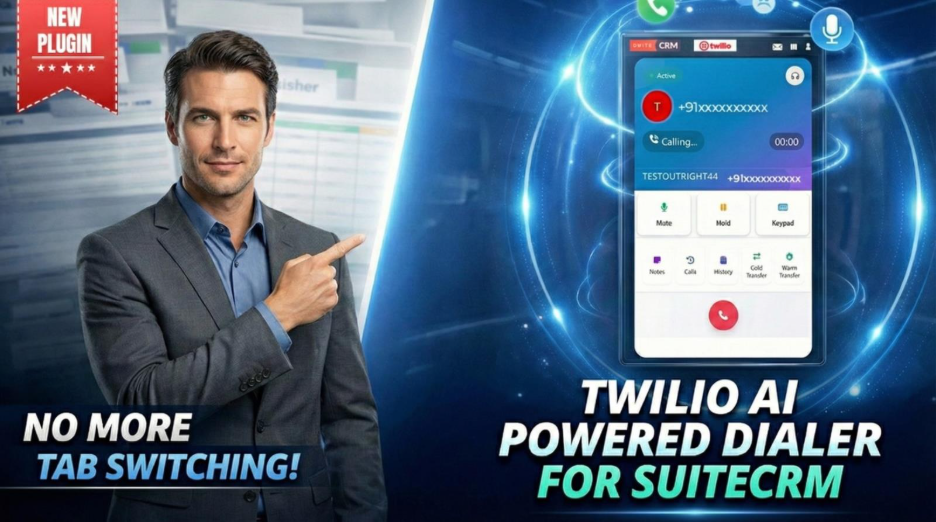






Integrating the Twilio AI-Powered Dialer with SuiteCRM goes beyond simply enabling calls—it’s about creating a dependable, CRM-embedded calling solution where every conversation is tracked, relevant, and operational.
A well-configured dialer encourages agents to make and receive calls with ease. Every call is automatically logged to the right CRM records, voicemails are triggered as expected, and calls are transferred without disrupting the conversation flow. Nevertheless, an incomplete or misconfigured setup can result in missed opportunities, uncaptured interactions, or agents being unable to reach customers.
In this comprehensive guide, you will learn how to set up the Twilio AI-powered Dialer for SuiteCRM, why each configuration step matters, and how it contributes to a smoother and more efficient calling experience.
Why Pre-Configuration Essentials Matter
Before you set up the dialer, a few key things need to be ready. These essentials are critical, as each one significantly affects call connectivity and overall reliability.
You should have:
- A working SuiteCRM environment
- An active Twilio account
- Twilio phone number
- Twilio credentials, such as Account SID, Auth Token, and Phone SID
- Twilio API credentials for advanced usage:
- API Key SID
- API Key Secret
By preparing everything in place, you can start with the configuration process. Without proper configuration, SuiteCRM fails to authenticate with Twilio, which means outbound calls won’t start, inbound calls won’t route properly, and call logs won’t update accurately in the CRM.
Navigating Twilio CTI Configuration
All dialer functionality is managed through the Twilio Settings section inside SuiteCRM. This section serves as the central hub for integrating Twilio numbers with CRM users, modules, and call workflows.
Accessing Create CTI Settings redirects you to the configuration screen where:
- Inbound and outbound call behavior is configured
- Phone numbers are assigned and mapped to agents
- User Interface behavior and audio handling are tailored
If CTI settings are not configured correctly, the validation attempt fails, and the system displays a “Failed Attempt” message, along with key issues highlighting why the Twilio configuration could not be verified.
Below are the common reasons for CTI validation failure:
Twilio Configuration Settings Not Valid -> Check These Things
- You must have https in the URL
- Check All 4 keys and put them back
- localhost will not work
Why CTI Configuration Is Crucial
Each CTI configuration plays a significant role in ensuring a smooth and efficient calling system. This configuration setting ensures that when an agent initiates a call:
- The right number is used
- The assigned agent receives the call
- The call details are automatically logged in the dedicated CRM module
Managing Dialer Identity & CTI Setup
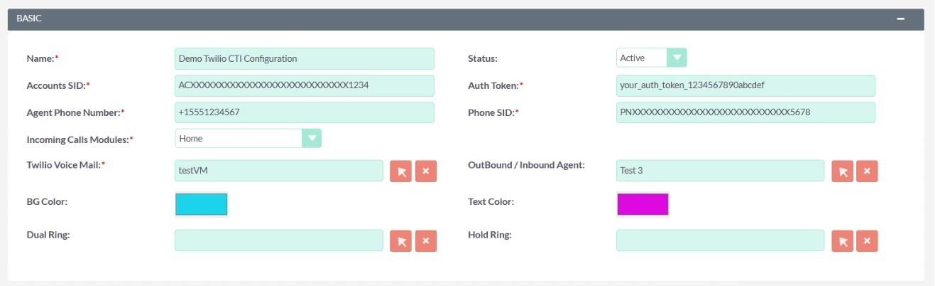
Naming the CTI Setting
A recognizable name is assigned to each CTI setting, which is not just a label—it allows admins to identify configurations when handling multiple teams, locations, or processes. Entering a clear name mitigates confusion and ensures agents are mapped to the correct number.
Configure Twilio Credentials
These credentials help build trust between SuiteCRM and Twilio, fostering secure and reliable communication. This includes the Account SID and Auth Token for authenticating API requests, along with the phone SID to ensure calls are initiated through the right Twilio number.
Activating or Pausing the Dialer
The CTI Status determines if a number is Active (agents can make and receive calls instantly) or Inactive (the number is disabled for calling while keeping the configuration intact). This is the crucial step that empowers agents to control dialer availability without disrupting existing settings, processes, and workflows.
Incoming Call Management
Twilio AI-Powered Dialer for SuiteCRM currently offers 6 Call Modules for logging inbound calls. Selecting the correct module based on your business rules is crucial to define where inbound calls are logged and matched in the CRM. This step ensures all incoming calls are linked with associated CRM records, and every call activity is searchable later.
Contact Name Profile Icon Customization
The Twilio AI-Powered Dialer for SuiteCRM allows agents to personalize the profile badge by customizing its background and text colors. This feature is mainly important in environments where agents manage multiple processes or when multiple processes are active at once. This provides agents with quick visual recognition, helping maintain clarity and reduce confusion.
Settings Voicemail Tune
Configuring voicemail ensures no call goes unanswered, even when agents are not available. By creating a voicemail, callers are greeted with a professional response, and it ensures a consistent customer experience.
Dual Ring Configuration
Setting dual ring allows incoming calls to ring on both the system and the connected sound device. This improves pickup rates and prevents risks of missed leads due to system delays.
Hold Ring
Hold ring enhances the caller experience during pauses by avoiding dead silence and indicating that the call is still active. With poor hold handling, however, calls may drop prematurely or leave callers frustrated.
Advanced Twilio Configuration

Using API Key SID, API Key Secret, and TwiML App SID enables:
- Secure API access
- Advanced IVR
- AI-driven call routing
- Smarter automation logic
The API Key SID and API Key Secret credentials are accessed through the Twilio Account dashboard, while the TwiML App SID is auto-created once the details are saved. Together, these settings future-proof the dialer and enable businesses to scale beyond basic calling.
Smart Inbound/Outbound Number Mapping
The My Outbound Partner Agent subpanel defines which agent makes calls using a specific Twilio number, while My Inbound Partner Agent routes incoming calls to the assigned user based on priority. This results in clear call ownership, precise call routing, and dependable activity logging for each call managed in the CRM.
Reviewing and Managing CTI Configurations (See CTI Settings)
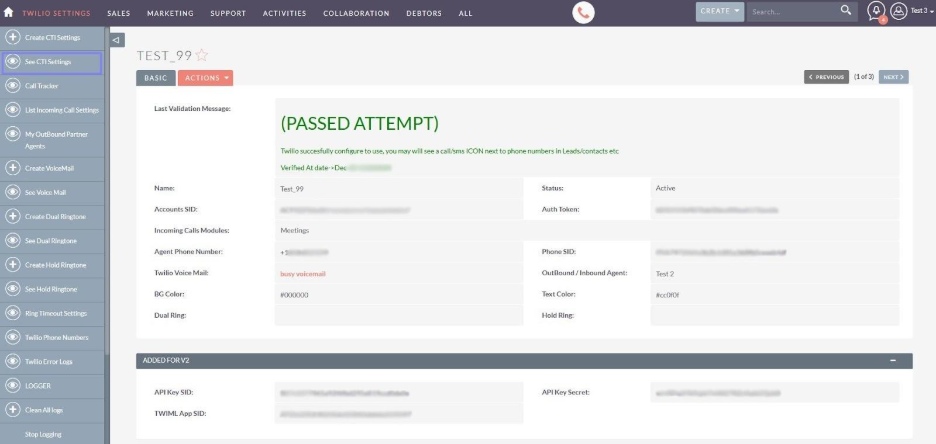
Once CTI settings are created, they appear under the See CTI Settings section. This screen provides a centralized view of all active and inactive dialer configurations mapped to Twilio phone numbers.
From here, administrators can:
- View which agent phone number is linked to which user
- Verify whether the CTI configuration is Active or Inactive
- Confirm the assigned voicemail and inbound/outbound number mapping
This view acts as the control center for your dialer setup. If a CTI setting is inactive or incorrectly mapped, agents will either fail to receive calls or outbound calls may route through the wrong number. Regularly reviewing this section helps prevent silent calling failures and misrouted conversations.
Monitoring Call Activity with Call Tracker
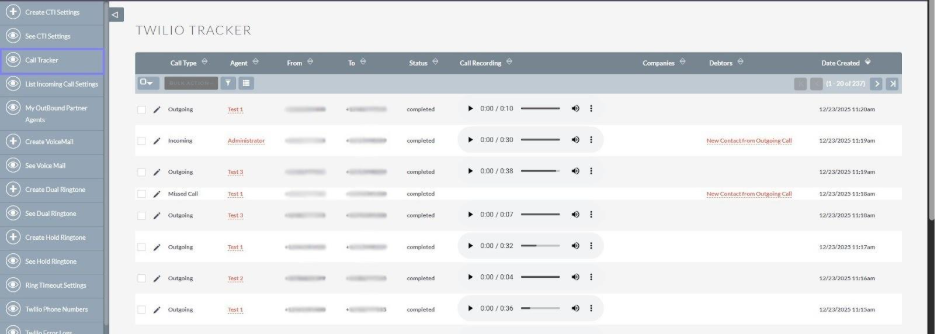
The Call Tracker section logs every call that flows through the dialer—both inbound and outbound.
Each record captures:
- Call type (Incoming or Outgoing)
- Agent handling the call
- Caller and receiver numbers
- Call status (completed, missed, rejected)
- Call recording playback
- Date and time of the call
Call Tracker is critical for visibility and accountability. Without this, teams lose insight into call performance, conversation history, and compliance records. It also helps managers audit calls, resolve disputes, and review recordings for training or quality assurance.
Creating Voicemail Configurations
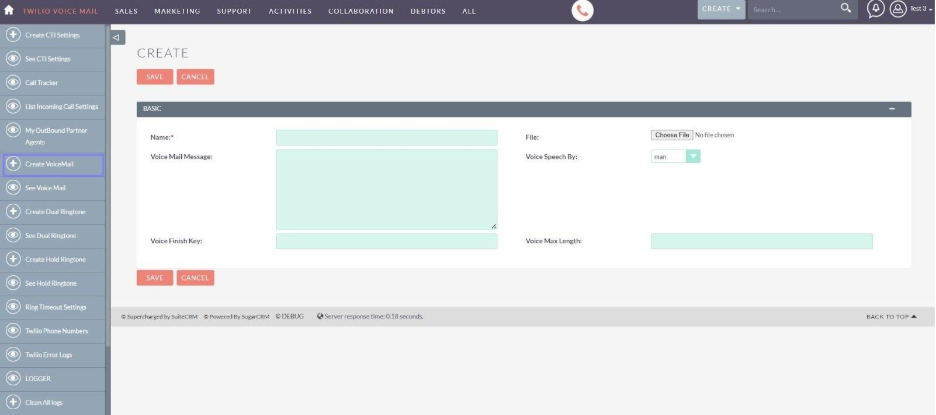
When agents are unavailable or calls go unanswered, voicemail ensures no opportunity is lost. The Create Voice Mail screen allows you to define how missed calls are handled.
Here, you configure:
- Voicemail name (used for identification)
- Voice message text or uploaded audio file
- Voice type (male/female)
- Maximum voicemail duration
- Finish key for callers to submit their message
Without a properly configured voicemail, callers may disconnect without leaving a message. A clear, professional voicemail reassures callers and ensures follow-ups are captured directly inside SuiteCRM instead of being lost outside the system.
Creating a Dual Ring for Incoming Calls
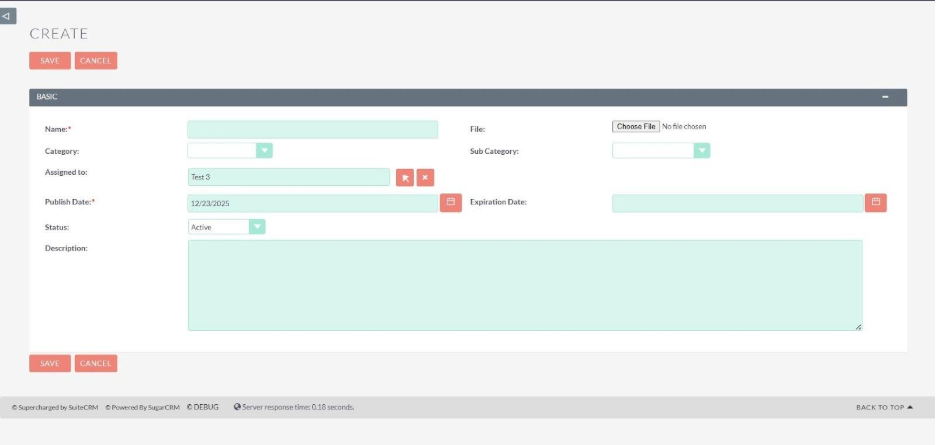
The Create Dual Ring option allows administrators to upload custom audio files that play when an incoming call is received.
Dual ring enables calls to:
- Ring inside the SuiteCRM dialer interface
- Ring simultaneously on connected devices, if applicable
In busy calling environments, a single ring can be missed. Dual ring support ensures agents never miss inbound calls, especially when using multiple device handling multiple conversations or switching between tasks.
Configure Hold Ring
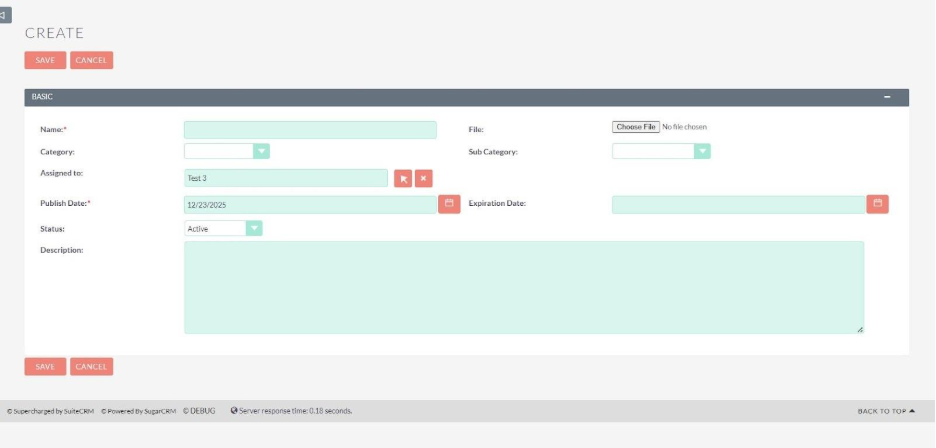
When agents place a caller on hold, silence is the fastest way to lose trust. The Hold Ring ensures callers hear a professional audio message or music instead of dead air.
A properly configured hold ring:
- Reassures callers that the call is still active
- Reduces hang-ups during hold time
- Maintains a smooth, professional calling experience
Without a hold ring, callers may assume the call was dropped and disconnect prematurely. Once created, this hold ring becomes selectable inside CTI settings.
Configure Ring Timeout Settings
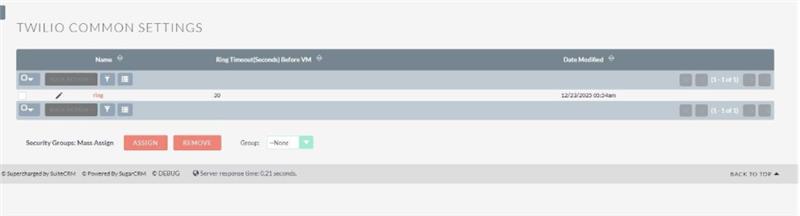
Ring Timeout Settings define how long a call rings before it moves to voicemail. This directly impacts missed calls, agent workload, and caller satisfaction. Ring timeout settings help you balance agent availability with caller patience. This also ensures unanswered calls route correctly to voicemail and prevents excessive ringing that frustrates callers
How Ring Timeout works
You define a ring duration (in seconds), and if the agent doesn’t answer within this time:
- The call automatically moves to voicemail
- The voicemail configured in CTI settings is triggered
This setting works hand-in-hand with voicemail configuration, dual ring behavior, and agent availability.
Best practice
- Support teams: Slightly longer ring time to allow agents to respond
- Sales teams: Shorter ring time to avoid losing hot leads
Conclusion:
Setting up the Twilio AI-Powered Dialer for SuiteCRM is more than just a technical setup—it lays out the foundation for offering fast, contextual, and high-quality conversations right inside your CRM. Whether it’s linking Twilio credentials, mapping agents, or configuring voicemails, hold rings, ring timeouts, and advanced API settings, every step helps ensure calls are reliable, traceable, and customer-friendly.
Proper configuration empowers agents to provide a comprehensive calling experience where inbound and outbound calls, notes, transfers, and call logs remain fully synchronized with CRM records. This results in fewer missed calls, improved caller integrity, and enables teams to focus on genuine conversations instead of switching tools or removing call gaps. With efficient setups in place, the SuiteCRM environment stays fully synchronized to manage real-world calling scenarios—support, sales, and follow-ups seamlessly.