






Spending a lot of time online makes you vulnerable to diverse threats. Thus, it makes it quite difficult to safeguard your privacy. Therefore, ensuring that your apps remain invisible on your phone is quite easy. In this blog, you will get a detailed guide on how to hide apps on Android. To further boost your security, you can install a reliable VPN to ensure that your connection remains encrypted. This safeguards digital privacy and prevents prying users from snooping on your data.
Detailed Process to Hide Apps on Android
In this blog, let us understand the five distinct ways to hide apps on Android, from leveraging built-in settings to specialized app-hinder apps. If you are an iOS user, you can explore our dedicated blog on how to hide apps on an iOS phone.
Utilizing the in-Build Settings to Hide Apps on Android
On numerous Android apps, you can easily hide apps by performing the following steps:
- Open Settings.
- Find and select the option “Home Screen.”
- Then, choose the option “Hide Apps.”
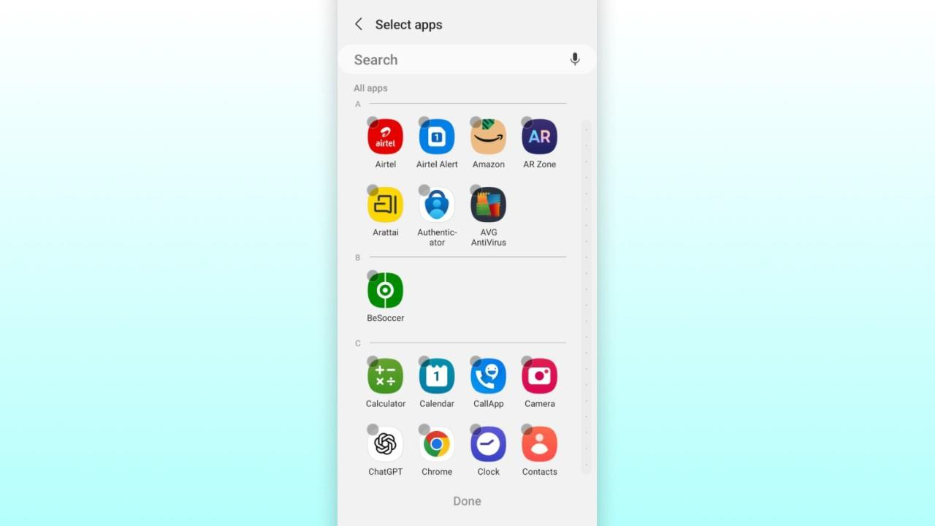
- After that, select the apps that you wish to hide.
- Next, select “Done.”
- All the apps that you hide will move to the “Hidden Apps” section.
Utilize App-hider Apps
You can also easily install app-hider software to hide apps on your Android phone. The most effective app hider apps are available on Google Play directly. Let us check out the app-hider apps that you can use for Androids:
HideU: Calculator Lock
The HideU app allows you to keep it disguised as an ordinary calculator app. However, instead of working as a calculator, it enables you to keep media, apps, and files hidden from others. Any app that you store inside HideU will not appear anywhere else. You can easily lock all the apps that you want to hide with a digital pin.
Calculator Vault: App Hider
Calculator Vault also shows up as a calculator. In settings, it appears with the name “Calculator+” and when you check recent apps, it appears as “Calculator Vault.” You also have the option to lock it with a secure password with all your hidden apps safely stored inside.
Calculator: Hide Photos and Apps
As the name itself suggests, it also appears as a normal calculator app on your phone. You can secure and hide photos, private apps, files, videos, and notes.
Have a Secure Folder to Hide and Lock Apps
In the majority of Android phones, you will find a secure folder or similar-looking folder in your phone. For instance, in Samsung devices, the feature is known as “Secure Folder” where you can quite easily hide photos, files, and other data.
On Xiaomi devices, there is a similar feature known as Dual apps that can clone apps. Dual apps do not completely hide apps, but cloning Android apps extensively help you to hide confidential data or account details that you do not want anyone else to see. If you implement distinct instances of a single app, each having a different account, you can easily display the less private one that lets you protect your data without appearing too paranoid.
While such folders can hide data effectively from any user who is utilizing your phone, it is important to safeguard Android phones from malware and hackers that can be launched from hundreds or thousands of miles away. A robust solution such as Avast Mobile Security aids in detecting malicious apps before you can install them and aids you in securing your devices from other types of online threats like viruses.
Utilize a Private Mode or Guest Account to Hide Apps
The feature of Guest Mode added in numerous Android devices allows you to share devices safely with another person by hiding sensitive data and apps on your personal devices. You can easily create a Guest Account and transition between guest and personal profiles. Perform the following steps:
- In Settings, find and select the option “Users.”
- Select the option “Allow Multiple Users.”
- Select “Guest,” which will prompt your phone to create a clean profile.
- To confirm, select the option “Switch to Guest.”
- To return back to your main profile, select "Users” in Settings and choose “Exit Guest Mode.” Select “Exit” to confirm.
- In Samsung phones or tablets, select “Settings” and then tap “Accounts and Backup.” Then, select “Users” and then hit “Guest.”
You can prefer to add a new user so that the user has his own personal space when he or she is using your phone.
Disable Apps to Hide Them
Android app permissions give you an option to disable apps, which is another way to hide apps. This is a helpful way to hide an app that cannot be uninstalled without rooting your system.
Disabling apps in your Android phone prevents them from utilizing the resources of your phone. This also allows you to prevent these apps from refreshing automatically, which impacts battery consumption and performance. However, since the apps have not been uninstalled, they will still appear in the settings.
How to Disable Apps on Android?
Disable Android Apps from Home Screen
- From your home screen, find your app.
- Then, press and hold the app for a few seconds.
- A pop-up menu will appear. Choose the option “Disable” from the available options.
- The app will automatically get hidden, and the background app usage will also be limited.
Disable Android Apps Through Settings
- Choose “Settings” and then select “Apps.”
- Choose the Android app that you prefer to disable.
- Select the option “Disable.”
How to Hide Apps on Samsung Devices?
Samsung phones have numerous in-built processes to hide apps. One of the simplest methods is through the Hide apps feature on Samsung. In order to do this, you can go to Settings, then Home Screen, and then Apps screen. Then, you can select which apps you prefer to hide.
The in-built feature of “Secure Folder” of Samsung is another method of hiding apps that you do not want anyone else to see or apps that contain sensitive details such as trading or banking apps.
Fig 1: Finding Home Screen Option in Settings
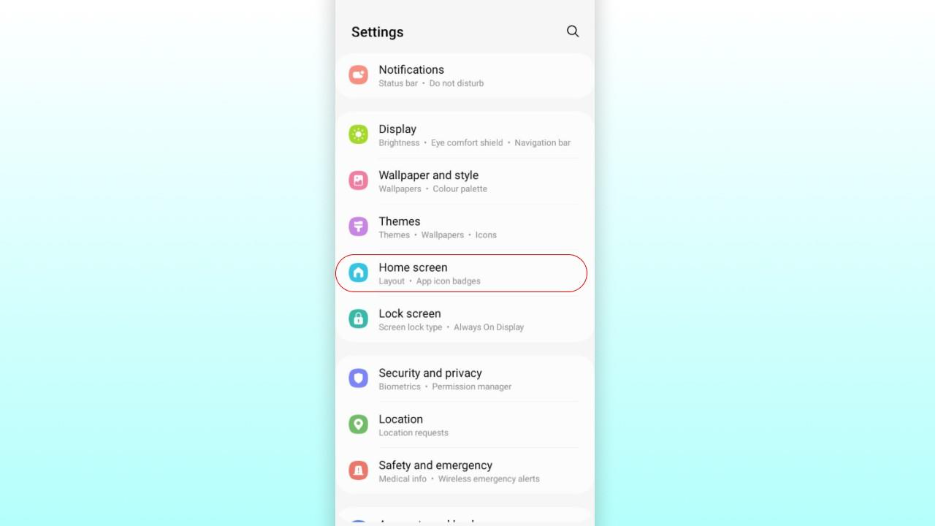
Fig2: Finding option “Hide apps on Home and Apps Screens”
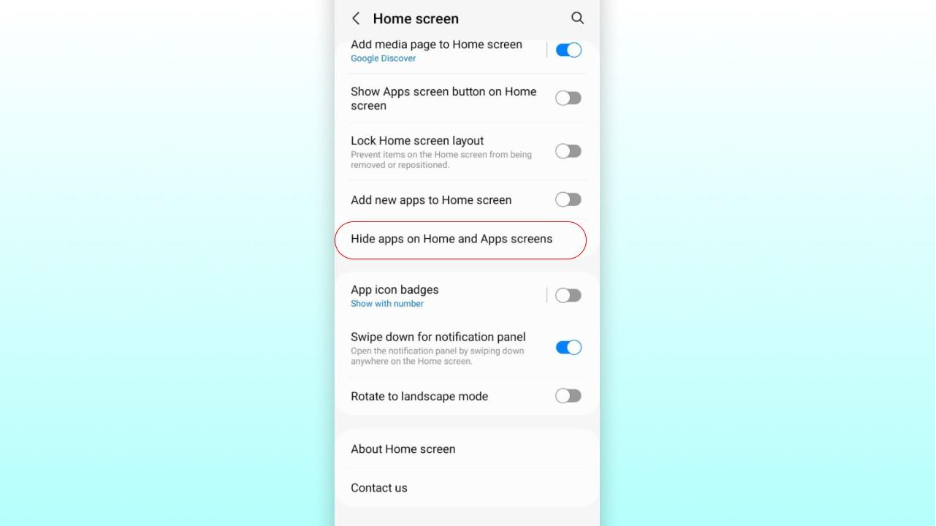
Fig: Selecting Apps to Hide
Process to Hide Apps on Samsung Devices Through Secure Folder Feature
- First, open “Settings”, and then select “Security and Privacy,” tap “More Security Options”, select “Secure Folder.” Next, sign in or create a folder with your Samsung account.
- Choose the “Secure” folder on your home screen and tap “+.”
- After that, select the apps that you want to hide, and all the selected apps will go to the secure folder.
- You can view all the hidden apps in your locked Secure Folder. Keep note of the fact that you can see a few of the hidden apps in your Android settings.
How to Hide Android Apps on Other Devices?
Nowadays, the smartphone market offers distinct choices in Android phones such as Vivo, Xiaomi, Oppo, or OnePlus devices.
Xiaomi:
Select “Settings” and then tap “Apps.”
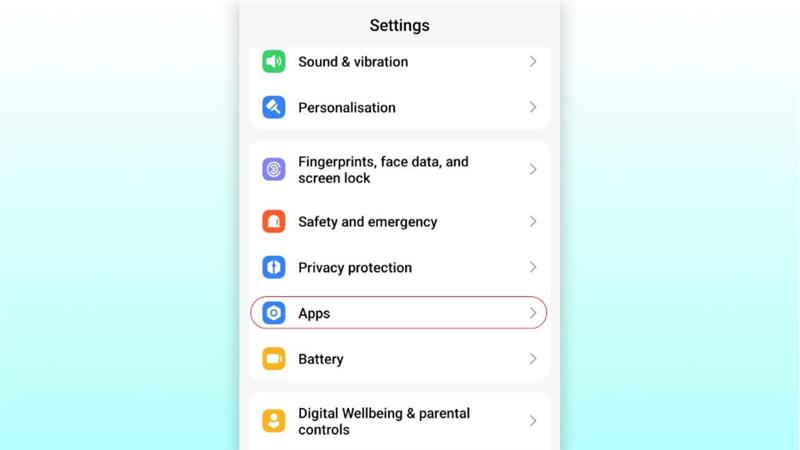
- Choose “App Lock” and then select “Turn On.”
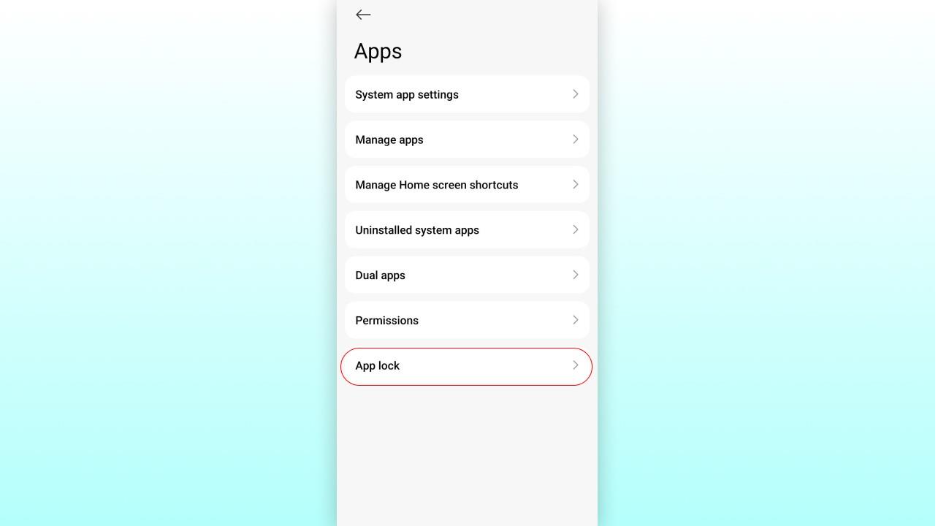

- Provide a passcode that you can use to unlock all your Android apps.
- To confirm, select “Use App Lock.”
- Toggle on the apps that you prefer to hide through “App Lock.”
Now, doing this will not remove the apps from your Xiaomi home screen. Instead, such apps now need a passcode, effectively hiding your data and content from prying users.
How to Hide Apps on
- Open your “Security” app.
- After that, scroll down and select “Hide Apps.”
- Select the apps that you want to hide.
- To look for your hidden apps, proceed back to privacy and app encryption, then select “View Hidden Apps.”
Oppo:
- Open “Settings” and then select “Settings and Privacy.”
- Then, proceed to scroll down to the page and then select “Hide Apps.”
- After that, toggle on the app that you need to hide.
- You will be asked to set up a security password. This will be the access code to access all your hidden apps.
- Then, you can return to hide more apps.
- In order to hide more apps, you can open your dialer keypad and provide your access code.
OnePlus:
- Open “Settings” and then select “Privacy.”
- Choose “Hide Apps.”
- In the pop-up box, select “Settings,” and provide your password and security question to lock your hidden apps.
- Next, toggle on the app that you need to hide. You will be asked to provide an access code.
- Browse through the list of apps and choose the apps that you want to hide.
- To bring back your hidden apps, open the dialer code and provide your access code.
The Hide Apps feature enables you to hide your Android apps, and they will not show up on the home screen of your phone and will also not show up in recent tasks. However, in some Android settings, you can still see these hidden apps. However, you can rest assured that if you have locked these hidden apps, no user can access it without providing the passcode.
Endnote
Safeguarding your privacy on Android devices requires hiding your sensitive apps from home screen. Android provides numerous methods to hide apps, including in-built settings, secure folders, and third-party hiders. Go to the Settings, then find Home Screen, and then select “Hide Apps” to utilize the native functionality. Samsung users can utilize Secure Folders for much better protection. Alternative solutions also exist including app-hider apps such as Calculator Vault or HideU, which show up in your phones as calculator apps. Guest Mode offers an added level of security if you regularly share your phone with others. For complete protection, use a combination of all these methods and activate a secure VPN to ensure secure connection and comprehensive digital privacy.