





Recently, if you have been wondering “Why can't I speed YouTube videos anymore?” then, you will be glad to know that you are not the only one. Across community threads and forums, users have been asking the same question. Apparently, they have observed that playback speed feature of YouTube stops responding suddenly, disappears, or resets itself without any warning.
This issue might not look like a big deal. However, it can disrupt your routine. Whether you depend on speed controls for tutorials, online lectures, podcasts, or long-form content. The encouraging thing about this is that in most cases, the problem is quite fixable. Understanding its causes is the most basic step.
What Is YouTube Playback Speed Control?
YouTube playback speed control is an in-built feature that enables viewers to adjust the videos’ speed, changing how slow or fast a video plays. The given speed range varies between 0.25x (quarter speed) to 2x (double speed). The 1x is the normal default speed.
Process to Access YouTube Playback Speed Control on Desktop
- Select the gear icon (Settings) visible at the bottom right of the video player.
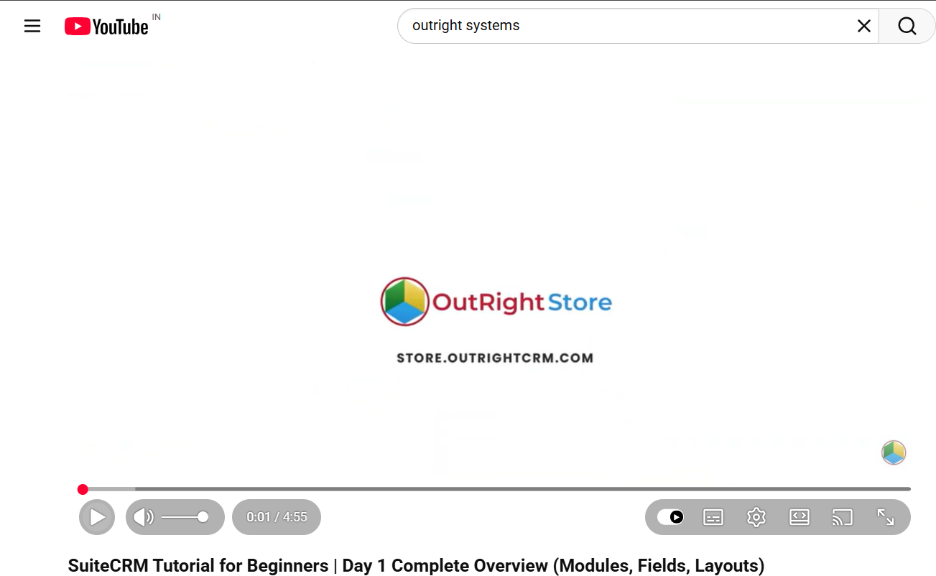
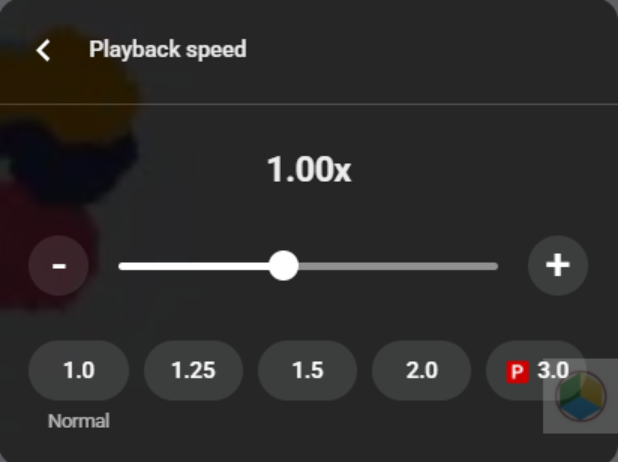
A pop-up menu will appear. Select the option “Playback Speed.”
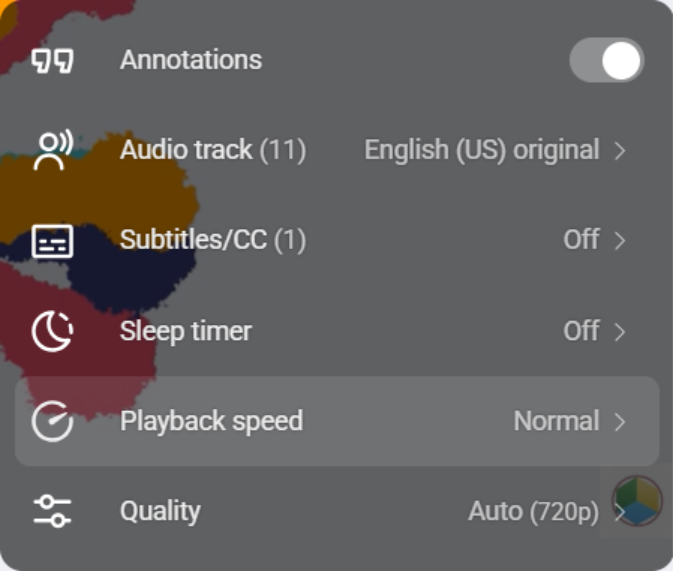
Most videos run at the standard “1.00x” speed. You can move the slider to choose your preferred playback speed.
Process to Access YouTube Playback Speed Control on the Mobile App:
- Proceed to tap anywhere on the video as it plays to trigger the playback controls.
- Select the three-dot menu (⋮) or the Settings gear
- Choose the option “Playback Speed” and select your preferred speed.
You will find this feature available across the majority of devices when you are utilizing the basic YouTube player. However, under certain conditions, whether it is content-related or technical, it can stop it from working as it should.
Why Can't I Speed Up YouTube Videos Anymore? Common Causes
Being familiar with the root cause can aid you to apply the right fix without trying incorrect steps that can waste your time.
1. YouTube Bugs on the Side of the Platform
Sometimes, the problem has nothing to do with your device. Last year, in August, a bug found in the YouTube Android app triggered the playback speed settings to immediately reset to 1x even after selecting the preferred speed. This affected a large number of Android users around the world, while desktop and iOS users remained unaffected. YouTube also acknowledged the bug and rolled out a fix a day after and advised the users to restart the YouTube app to get playback control functionality back.
This proves that YouTube speed control failures do occur on YouTube’s end from time-to-time and needs no local action beyond just waiting for a patch.
2. Corrupted Browser Cache and Cookies
Both the browsers and YouTube app store data temporarily to speed up the loading. Over time, this cache can become corrupted or outdated, triggering interface elements such as the playback speed menu to fail. The player can be extracting stylesheets or old scripts from local cache that do not match the updated backend of YouTube, which results in UI elements getting stuck.
Fix: Clear cookies and cache in your browser.
- In Chrome: Go to Settings, then choose “Privacy and Security,” and after that, select “Delete Browsing Data.”
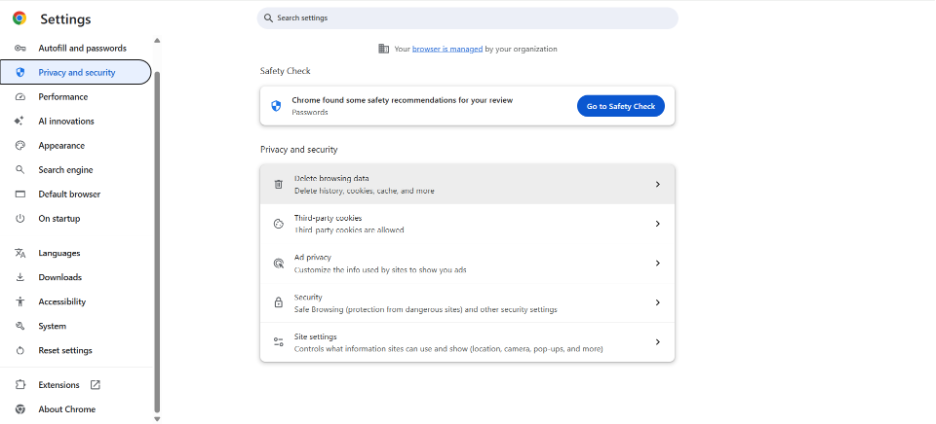
Choose “Cached Images and Files” and then go to, “Cookies” and select “Delete Data.”
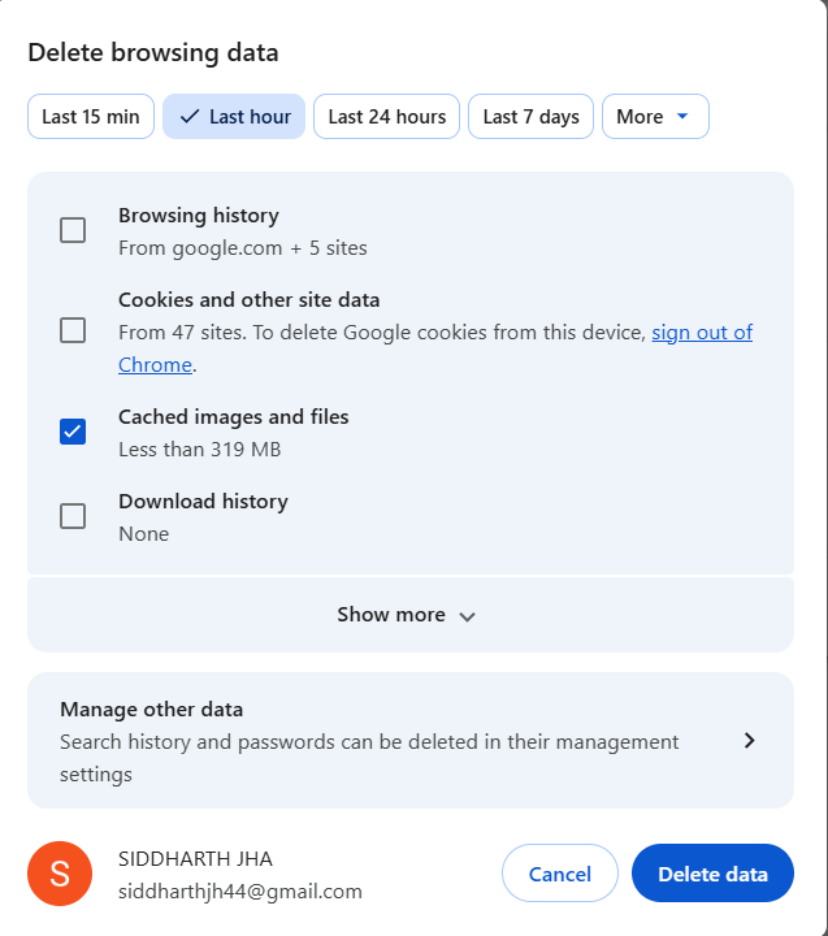
- Reload your YouTube and proceed to speed controls.
3. Outdated YouTube App or Browser:
Browsers frequently get updated to provide improved performance and resolve bugs. A browser that gets outdated can cause YouTube videos to slowly load or not play at all. The same is true for the YouTube playback speed features.
Fix: Ensure regular updates on the browser or YouTube app to make sure you are using its latest version. This equally applies to “Firefox”, “Chrome”, “Safari”, “Edge”, and the YouTube mobile app on both iOS and Android.
This is especially relevant for YouTube TV users. There are other features such as recording features on YouTube app that depend on having a fully functional and updated app. The same rule applies to playback speed controls.
4. Conflicting Browser Extensions
If you see that the YouTube Playback Speed works fine in the Incognito windows but not in your regular, an extension is almost certainly the main problem. Video downloaders, Ad blockers, and enhancement tools can interfere with the player controls of YouTube.
Fix:
- Launch YouTube in the Private/Incognito window.
- If speed controls are operational there, a browser extension is responsible.
- You need to disable extensions one at a time through the extension window of your browser to recognize the conflict.
5. Restrictions Related to Type of Content
Not all videos on YouTube enable you to make adjustments to your playback speed. Ads are restricted intentionally. You can neither skip them instantly nor increase their speed. Similarly, a few live streams may make playback controls disabled depending on the settings of the broadcaster. If you see the speed option working fine on other videos but not just one particular video, this is likely to be the main reason.
In addition, specific content types such as live streams or a few embedded videos can have playback speed controls by default disabled to ascertain intended viewing experience for the specific content. A useful solution here is to organize your content better. If you frequently watch lecture series or tutorials, understanding “How to Make a Playlist on YouTube?” enables you to organize your videos in one place, minimizing the possibility of accidentally landing on restricted or embedded versions.
6. Conflicts in Hardware Acceleration
Enabling or disabling hardware acceleration in your browser can resolve problems related to YouTube speed control. YouTube can unexpectedly behave when the GPU does not properly interact with the rendering engine of the browser.
Fix: On your Chrome, you need to go “Settings,” then choose “System,” and then select “Toggle Off Use Hardware Acceleration When Available,” and after that, “Relaunch.”
7. Platform or Device Limitations
Playback speed might not be available on all streaming devices and smart TVs. On the watch page of the video, choose “Settings,” and then “Speed” to see whether the option is present on your device. Game consoles and embedded browsers in some non-standard environments may also have limited HTML5 control support.
Step-by-Step: How to Resolve Speed Control Issues of YouTube?
Go through these steps in this order. Most of the users fix the issue within the first three steps:
Step 1 — Refresh the Page or Restart the App: Completely close YouTube on mobile (remove it from recent apps) or proceed to refresh the tab on your desktop devices. So many temporary glitches get fixed within this step only.
Step 2 — Remove “Cookies and Cache.” Browser steps are mentioned above. On your phone, you can proceed to “Settings,” then select “Apps” and then choose “YouTube” and then “Clear Cache.”
Step 3 — Test the feature “playback speed” using the “Incognito Mode.” After that, you can open the private window and proceed to YouTube. Here, if there are no problems with the “playback speed”, the main cause is likely the browser extension.
Step 4 — Update Your App or Browser. An outdated YouTube app or outdated browser is one of the most neglected causes of YouTube speed settings not working properly.
Step 5 — Make sure that “Hardware Acceleration” is disabled. Toggle off the “hardware acceleration” in your browser settings and relaunch. After that, test “YouTube video speed controls” again.
Step 6 — Check whether video type supports any changes in speed or not. Confirm that you are watching any live stream match, advertisement, or video hosted on a third-party site. Then, directly open the video on YouTube.com to rule this out.
Step 7 — Utilize “a Browser Extension as a Workaround” extensions like “YouTube Playback Speed Control”, which is available on the Chrome Web Store. This enables users to control the “YouTube Playback Speed” utilizing the keyboard shortcuts such as “+” to increase or decrease the speed. Such extensions support HTML5 video players and work as a reliable workaround when native controls become unresponsive.
Read More: If repetitive or irrelevant channels keep on cluttering your recommendations while you look for a quick fix, knowing how to block a YouTube channel can keep your feed more focused and cleaner.
Conclusion
Why can't I speed up YouTube videos anymore? The answer generally falls into one of the numerous categories: a temporary bug in the platform from YouTube itself, a corrupted browser cache, an outdated app, a conflicted extension, or a content restriction on the particular video being watched.
The most efficient approach is to begin with the straightforward fixes. You can refresh the page, clear your cache, and test the playback speed controls in the Incognito mode. If these fixes do not restore your YouTube video speed controls, you can move on to updating your app or browser, toggling acceleration of the hardware, and checking whether the type of control provides support to “YouTube Playback Speed” changes or not.
For users who urgently require speed control, a browser extension becomes a dependable short-term solution while any underlying problem is resolved. With the perfect solution in place, your “YouTube Speed Settings” must be restored fully.
Read More: Apart from fixing video speed controls, YouTube also consistently checks content authenticity. Check out what YouTube View Bot and why using one causes serious risks to your channel.