






Suppose you open your browser and see a word gets underlined in red because you spelled it wrong, an ad that should be there just isn’t, and your saved password fills itself in without you typing a single letter. You didn’t do any of that. Then who or what did? It is a browser extension that did it. And there are chances that you’ve got a handful of them installed in your system without giving it much thought.
The point of this blog is not to scare you or tell you that extensions are bad. Most of them are genuinely useful. However, that’s only one part of the story. The other part of the story is skipped past too quickly, which is the permissions that you agree to when you click “install.” That one click decides how much an extension can see and do inside your browser. And most of us never read it to the end.
So, let's slow down and actually understand what these little tools are, how they work, and how to use them without handing over more access than you meant to.
What Is a Browser Extension?
A browser extension is a small piece of software that adds a feature to your web browser. It doesn't run on its own. It lives inside your browser and amplifies what your browser can do.
Let's understand this way: suppose your browser is a plain apartment. An extension is furniture that you bring in to make it work better for you. For instance, a password manager is like a lockbox, an ad blocker is like curtains that block out noise from outside, and a grammar checker is like a friend that is reading over your shoulder.
People usually use three words in the same sense: extension, add-on, and plug-in. They're close; however, they are not identical.
- Extensions and add-ons are basically the same thing. Different browsers just use different names for it.
- Plug-ins are older technology, like Adobe Flash or Java applets. Most modern browsers have phased these out completely because they were slow and full of security holes.
So, when someone says "add-on" today, they almost always mean what we now call an extension.
How Browser Extensions Work
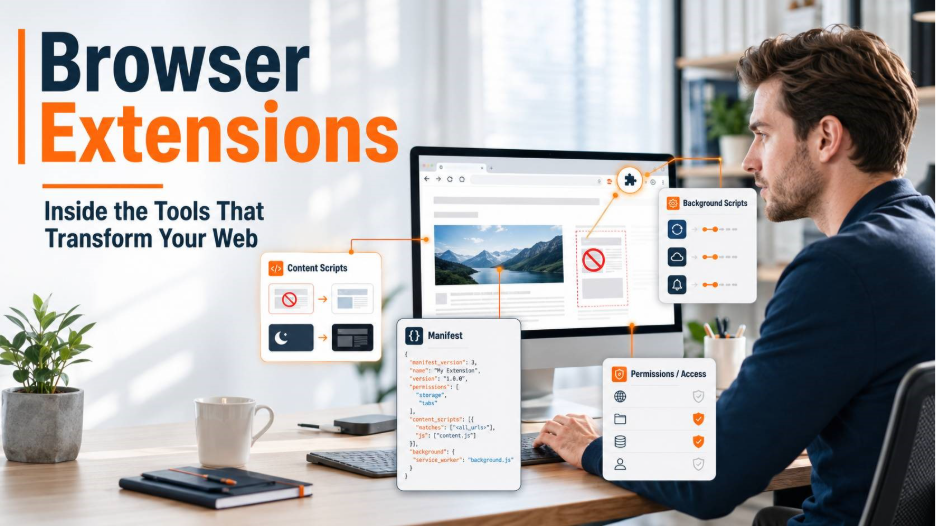
This part may sound technical or complex, but it really isn’t once you break it down. Every extension is mostly built using the same basic building blocks as websites like HTML, CSS, and JavaScript. The same tools that make a webpage look and behave a certain way also make an extension work.
At the center of every extension is a small file called a manifest. This file tells the browser three things: what the extension is called, what files it needs to run, and what permissions it wants. That last part is the one that matters most to you as a user.
Extensions typically run in two ways:
- Content Scripts: These are the codes that run directly inside the webpage you're looking at. This is how an ad blocker removes ads or how a dark mode extension changes a site's colors.
- Background Scripts: These are the codes that quietly run behind the scenes, even when you're not actively looking at that tab. This is how an extension checks for updates, syncs your data, or watches for certain triggers.
Some extensions need very little access. For instance, a simple color-picker tool barely touches anything. Others, like password managers, need to read login forms across many different websites. So naturally, they ask for more permission and access. This is the trade-off. If you want more features, you’ll have to provide more access. And that’s exactly where things start to get a little more serious.
Are Browser Extensions Safe to Use?
Honestly, most of the extensions are safe. However, a real and growing number of them are not, and with the digital advancements, the risk has been increasing, not shrinking.
The good extensions genuinely help you, such as a password manager can make your logins stronger, an ad blocker can make pages load faster and feel cleaner, and a writing tool can catch mistakes before you hit send.
However, cybercriminals have figured out a way to use extensions to sneak into your browser quietly. A few tactic they commonly use:
- They publish a fake extension in an official store, disguised as something useful.
- They take over a developer's account and push out a harmful update to an extension people already trust.
- They buy an existing, popular extension, keep the name and look the same, and then quietly slip in bad code later.
What makes them dangerous is that extensions don’t behave like typical software. They live inside your browser, so many security tools don’t keep an eye on them the way they watch other apps on your device. This makes it much easier for a browser extension threat to go unnoticed for a while.
This is exactly why cyber threat protection has become less about reacting after damage is done and more about catching risky behavior early.
Signs of a Malicious Browser Extension
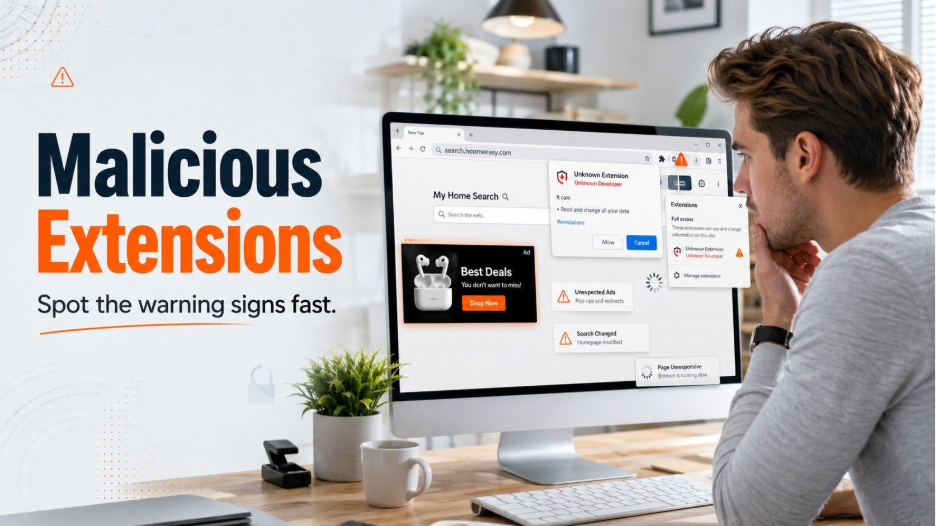
Malicious extensions rarely announce themselves. They usually just sit quietly and behave until they don't. Here's what should make you pause:
- Extension Requests Unnecessary Permissions: A simple calculator extension need not read everything on every website you visit. So, when the permissions don’t match what the tool does, question this mismatch immediately.
- You Don’t Remember Installing the Extension: Malicious extensions often sneak into your browser. So, if you don’t remember adding it yourself, remove it without a thought.
- Browser Becomes Slow or Behaves Abnormally: If odd things start happening out of sudden, such as extra lag, random crashes, or pages loading oddly, this means something is running quietly in the background.
- Homepage or Search Engine Changes Automatically: This almost never happens by accident. Something reset it deliberately, and that something usually has more control over your browser than you'd like.
- Unexpected Ads Start Appearing on Websites: If you start seeing ads on sites that usually don’t run it, this is your sign that an adware is hiding inside an extension. It is one of the easiest red flags to notice.
- Recent Extension Update Causes Unusual Changes: Extensions can be sold or hijacked. Something trustworthy today can turn into something else tomorrow.
- No Verifiable Information About the Developer: There is no website, no support page, or clear identity about the developer who built the extension. Treat it with caution because legitimate developers don't hide their work.
None of these signs alone means panic. But two or three together is a strong reason to remove the extension and move on.
What Malicious Browser Extensions Can Access
This is the part people underestimate the most. If an extension is granted broad permissions, it can potentially see far more than most people realize.
| What It Can Access | What That Actually Means |
| Browsing history | Every website you've visited, and sometimes the full content of the pages |
| Login forms and typed data | Anything you type into a form, including usernames and passwords |
| Session cookies | The data that keeps you logged in, which can let someone access your account without ever knowing your password |
| Clipboard contents | Anything you've copied, including passwords you paste manually |
| All websites you visit | Full access across your entire browsing activity, not just one site |
Session cookies and login data are also why practices like Auth0 authentication exist, to add a layer of protection even if a password gets exposed.
Common Types and Examples of Browser Extensions
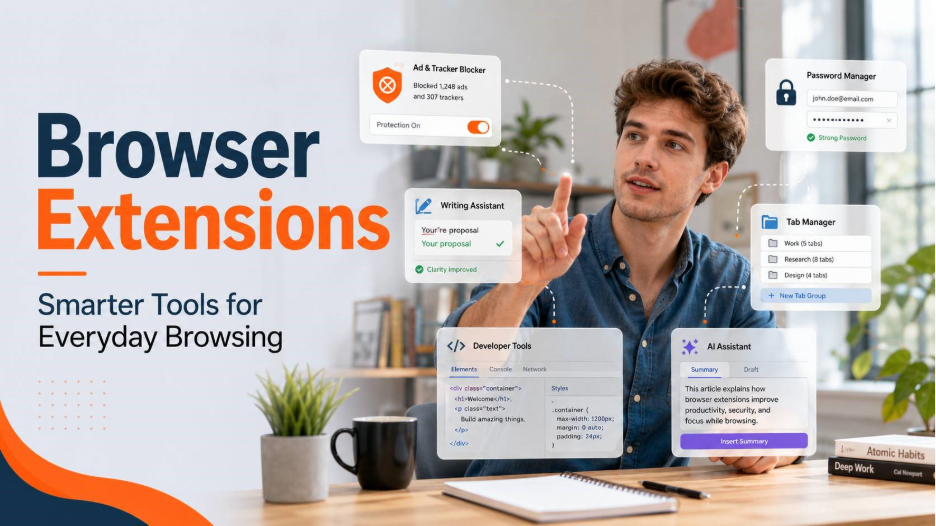
Most extensions people actually use every day are completely harmless and genuinely helpful. A few common categories:
- Ad and tracker blockers, like uBlock Origin. These remove ads and tracking scripts, making pages load faster and feel a lot less cluttered.
- Password managers, like 1Password or LastPass. They store your logins securely and autofill them, so you don’t have to reuse the same weak password everywhere.
- Writing assistants, like Grammarly. They check your spelling and grammar in real time, right as you type, across most websites.
- Developer tools, like React DevTools. These help programmers inspect and debug websites while they're building or testing them.
- Productivity tools, like tab managers. They round up your messy pile of open tabs into one organized list, so your browser stops feeling chaotic.
- AI-powered assistants, a newer category. These summarize long pages or help draft text without making you leave the tab you're on.
People remember those extensions that genuinely solve the problem that they run into repeatedly like SEO Chrome extensions that marketers rely on daily to save time. That daily usefulness is what makes extensions so common, and exactly why they deserve a closer look before you install one.
How to Use Browser Extensions Safely
You don't need to avoid extensions altogether. You just need a simple habit around them.
- Install Extensions Only from Official Browser Stores: Use Chrome Web Store, Firefox Add-ons, or Microsoft Edge Add-ons to install extensions or add-one. Avoid random links that promise a "free" version elsewhere.
- Check Extension Permissions Before Installing: If a simple tool asks for access to your clipboard or every website you visit, proceed with caution.
- Verify the Developer and User Reviews: Enquire about the developer before installing an extension. A real website, a support page, and genuine reviews over time are good signs. A wall of vague five-star reviews is not.
- Remove Unused Browser Extensions Regularly: Every few months, go through your extensions and remove anything that you haven't used lately or don’t recall installing it.
- Review Extension Updates Carefully: Some of the worst incidents come from a trusted extension quietly changing after an update, not from something shady on day one. Keep an eye on updates and the changes it brings.
- Use Trusted Extensions for Passwords and Sensitive Data: If you use a password manager, get it directly from the official provider, not bundled with something else.
None of this takes more than a few minutes. But it makes the difference between an extension that helps you and one that quietly works against you.
Conclusion
Browser extensions have become an important part of how we all use the internet. They save significant hours, remove friction, and often make browsing experiences more pleasant.
However, the story was never really about the extension itself. It's about the permission you gave it, often without reading it. A browser extension is only as trustworthy as the access it's holding. The good news is that this is something you can actually control. A few minutes of checking, before you click install, is usually all it takes to keep the useful tools and skip the risky ones.
When used thoughtfully, extensions are a small addition that makes your browser work better for you, not against you.
Frequently Asked Questions (FAQs)
A browser extension is a small add-on that changes what your browser can do. It's built using web technologies and runs inside your browser, not as a separate app.
Most are safe, especially from official stores. Some carry real risks, though, especially ones asking for broad, unnecessary permissions. Always check what an extension can access before installing.
Extensions are the modern standard used by browsers today. Plug-ins, like old Flash or Java tools, are outdated technology that most browsers have removed entirely.
Yes, if it has broad permissions and reads form data. That's why permission-checking matters more than the extension's rating or popularity.
Open your browser's extensions menu, find the one you want gone, and select remove. It takes seconds and instantly reduces your browser's risk.