



Don't want to see any specific YouTube channel, or don't want any channel to pop up in your kid's account? Or the thought “how do I block a YouTube channel” also crossed your mind? Now you can block any YouTube channel instantly, in just a few easy steps.
YouTube is among the most popular video streaming platforms worldwide, with an estimated 200 million videos uploaded daily, according to YouTube itself. Although YouTube follows a sophisticated algorithm, which aims to offer each viewer or user more personalized recommendations, it is possible that some unrelated video recommendations pop up in the feed.
How Does the YouTube Algorithm Work?
The algorithm of YouTube is a personalized recommendation system that predicts and selects videos for the viewers, which are most likely to click. The YouTube algorithm acts as a "pull" mechanism and ranks content based on high click-through rates and audience engagement.
- Viewer-Centric Focus: The algorithm focuses on maximizing user satisfaction. It uses various metrics, such as surveys and engagement, to prioritize content.
- Performance Testing: The newer videos uploaded to YouTube are generally tested with a smaller audience, and based on their performance, they are promoted to a broader audience base.
- Personalized Recommendations: The homepage recommendations or "Suggested" sidebars are personalized based on the past behaviors of the user, along with what they watch and on which devices.
Why Does YouTube Suggest Irrelevant Videos?
Sometimes, the YouTube algorithm suggests irrelevant videos, mainly to test new content or check the broader user interests. The algorithm generally balances the personalized suggestions with exploration, pushing low-view videos to gauge engagement.
- Testing New Contents: Sometimes, YouTube acts in a discovery mode, recommending new and low-view videos to a smaller group of audiences. These steps are mainly done to check the performance of the new video, so that it can be promoted to a larger audience base.
- Weak Data Signal: If the algorithm has less data on the user to work on, based on the varied interests or limited watch history, it pushes new and irrelevant videos to check the broader user's interest.
- Short-Term Testing: The algorithm also occasionally prioritizes testing engagement with different types of content, which generally adhere to the known preferences of the users.
Read More: How to Convert YouTube to MP3 Legally: Best Free Tools in 2026, a complete guide on how to convert a YouTube video to the MP3 format, without breaking any law.
How do I Block a YouTube Channel from a Desktop?
To block a YouTube channel from your desktop, you can follow any of the following methods:
Method 1: Remove from Recommendations
The removal of a YouTube channel from the recommendations is considered the easiest method to block a YouTube channel from appearing. This method removes the video and channel directly from the recommendation or suggestion list on the homepage.
- Step 1: Go to the YouTube homepage.
- Step 2: Locate the video from the recommendation list you want to block.
- Step 3: Click on three vertical dots, which are located next to the video title.
- Step 4: Click on "Don't recommend channel".
Method 2: Blocking From Commenting or Blocking a Channel Page.
This method focuses on blocking a YouTube channel from commenting on your posts. With this method, you can also block a YouTube channel you don't want to see.
- Step 1: Go to the channel page you want to block.
- Step 2: Click on the About tab.
- Step 3: Click on the Flag icon.
- Step 4: Select "Block User."
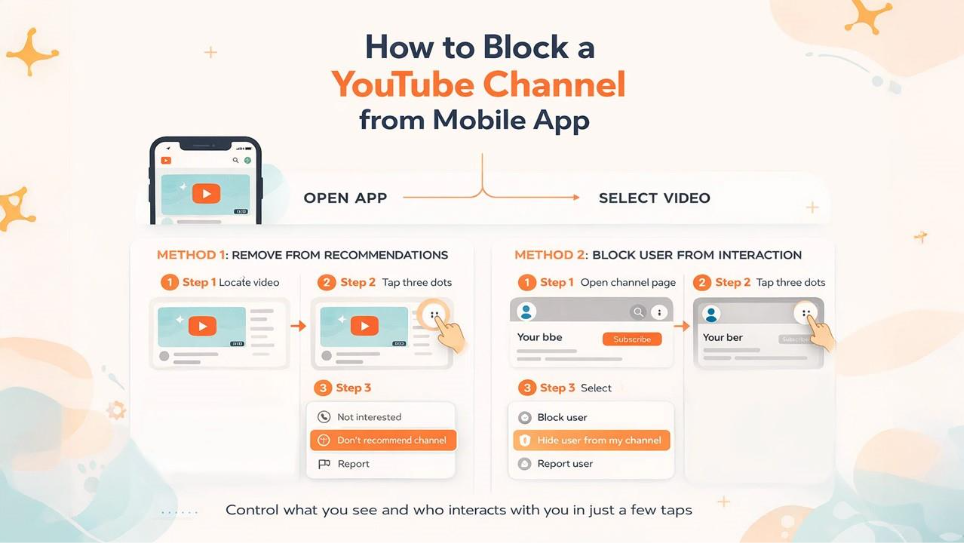
How do I Block a YouTube Channel from a Mobile App?
To block a YouTube channel from the YouTube Mobile App, you can follow any of the following methods:
Method 1: Removal from Recommendation
Removing any YouTube channel from recommendations is the easiest method of blocking any channel you don't want to see in the future. The method includes three easy steps, which are:
- Step 1: Open the YouTube app and locate the video you want to block.
- Step 2: Tap on three vertical dots below the title of the video.
- Step 3: Select "Don't recommend channel".
Method 2: Block User from Interaction.
The block users from interaction method of removing a YouTube channel permanently blocks the channel from commenting or interacting in the future. This method includes three easy steps, which are:
- Step 1: Go to the page of the YouTube channel you want to block.
- Step 2: Tap on three vertical dots in the top right corner.
- Step 3: Select "Hide user from my channel" to permanently block the YouTube channel.
How do I Block a YouTube Channel for a Kid’s Account
To block a YouTube channel from the kid's account, you can follow either of the two methods, which are as follows:
Method 1: Blocking Channel Using the YouTube Kids App.
The first method for blocking any channel using the YouTube Kids App includes five steps, which permanently block any specific channel from popping up in your kid's account.
- Step 1: Open YouTube Kids and enter the child's profile.
- Step 2: Locate the video and click on the three vertical dots on the video.
- Step 3: Tap on "Block".
- Step 4: Select "Block Entire Channel" to block all content from the YouTube channel.
- Step 5: Tap on "Block" again to confirm and solve the prompt.
Method 2: Blocking a YouTube Channel Using a Parent's Account.
To block a YouTube channel from appearing in your kid's account, you can block the channel using the parent's YouTube account in four easy steps.
- Step 1: Open your parent YouTube account.
- Step 2: Navigate to the page of the YouTube channel you want to block.
- Step 3: Tap on "More" or three vertical dots and select "Block channel for kids".
- Step 4: Select the child's profile and tap on "Block".
What Happens When You Block a YouTube Channel
When you block a YouTube channel from your or your kid's account, the account loses the ability to interact with your account, and the channel's videos are not recommended in your suggested list.
- Comments/Chats: The blocked channels are restricted from interacting with your accounts, which includes no longer being able to comment on your videos or chat in your live streams.
- Recommendations: Any new or older videos of the blocked YouTube channels do not appear in your recommendation list or on the homepage.
- Restrictions: Blocking any YouTube channel reduces its visibility to you, but you can still find its channel via search.
- Notifications: The blocked channel owner does not get any notification when they are blocked.
Conclusion
The blog gives simple and easy-to-follow answers to the most common questions that arise for YouTube, i.e., how do I block a YouTube channel? The process of blocking any YouTube channel that you do not want to see is quite easy. You can block a YouTube channel from your mobile app or from your desktop, using various methods. You can also block the YouTube channel that you do not want to pop up in your kid's account using just a few simple steps.
After blocking the account, you can also manage and unblock it later in the "Hidden Users" section of your YouTube account. Upon blocking, the YouTube channel is restricted from interacting with your account, which includes commenting on your videos and chatting on your live streams. The videos of the blocked users are also not recommended on your homepage, and the channel owners are also not notified when they are blocked.