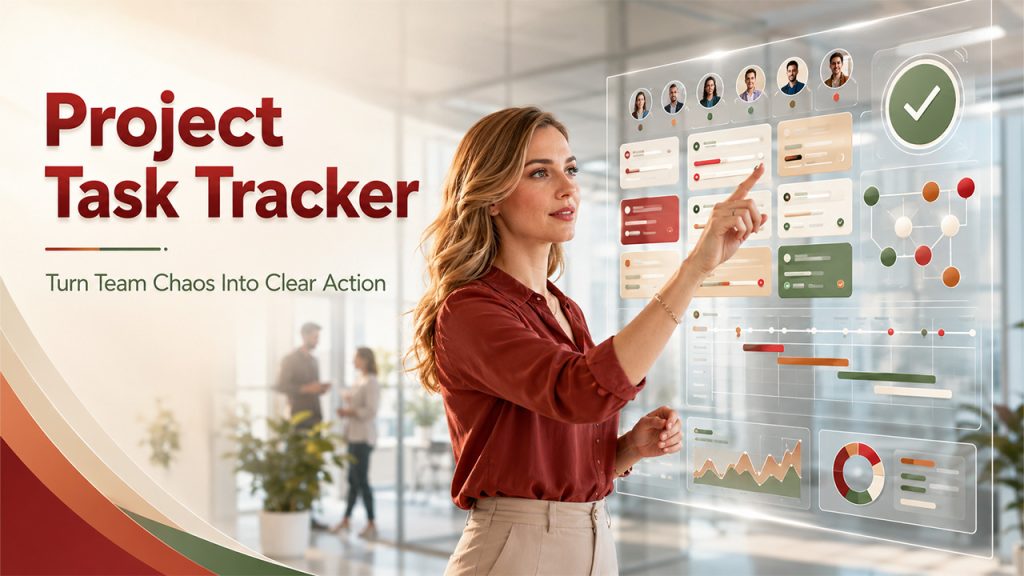






What Makes a Project Task Tracker "Good" in 2026?
A project task tracker is no longer just a digital to do list. In 2026 it is the operational core of project management — where teams assign tasks, set due dates, track progress, store context, and understand project status in real time.
Project management software has evolved from simple lists into full platforms with project timelines, workflow automation, collaboration tools, dashboards, resource allocation, and AI-powered assistance. A personal task app might work for one person, but it will not support a project team coordinating launches, sprints, or operations across multiple projects.
The best project management software is not the one with all the features on a comparison page. It is the task management tool that fits your project workflows, team size, project complexity, security needs, and working style. A software development team may need backlog views and sprint boards; a marketing team needs campaign calendars; an operations team needs recurring checklists and workflow automation.
This guide helps you evaluate Microsoft Project, modern SaaS platforms, and AI-native workspaces like BridgeApp so you can choose a tracker that actually helps people complete tasks instead of creating another system to maintain.
Key Takeaways
- A good project task tracker is project management software that helps teams manage tasks, deadlines, ownership, and context across multiple projects without turning work into chaos.
- The must-have key features include lists, a kanban board, calendars, gantt charts, team collaboration, file storage, workflow automation, reporting, and security controls.
- Teams outgrow Excel, a free task tracking template, or a basic to-do list once they manage work with 5+ people, cross functional projects, or multiple projects in parallel.
- Usability and team adoption are critical — even powerful project management tools fail if team members do not use them consistently.
- BridgeApp is an AI-native project management tool that unifies chat, tasks, docs, databases, calls, and AI agents to reduce context switching and turn conversations into action.
Core Characteristics of a Good Project Task Tracker
Regardless of brand, any serious task management software should make work easier to see, assign, update, and improve.
- Intuitive interface. A new user should manage tasks, update task status, and find their work within an hour. Usability is the top adoption pain point for roughly 39% of professionals evaluating management tools.
- Flexible task structures. Support for project tasks, subtasks, recurring tasks, task dependencies, priorities, due dates, custom fields, and tailored statuses.
- Multiple views. A kanban board for flow, gantt charts for timelines, lists for scanning, calendars for scheduling — Asana, Trello, and Microsoft Project are familiar examples.
- Collaboration close to the work. Comments, @mentions, file attachments, notifications, and approvals keep decisions tied to the work.
- Performance and reliability. If people avoid updating tasks because the system is slow, project tracking becomes inaccurate.
- Scalability. A small team may need only a board and a few fields. Larger teams need filters, permissions, project portfolio management, resource management, portfolio management features, and visibility into project health.
- Security and admin control. Role-based access, external collaborator controls, audit logs, encryption, and data residency options.
A good tracker should feel lighter than the work it manages. If the tracker becomes the project, adoption will suffer.
Essential Features to Look For
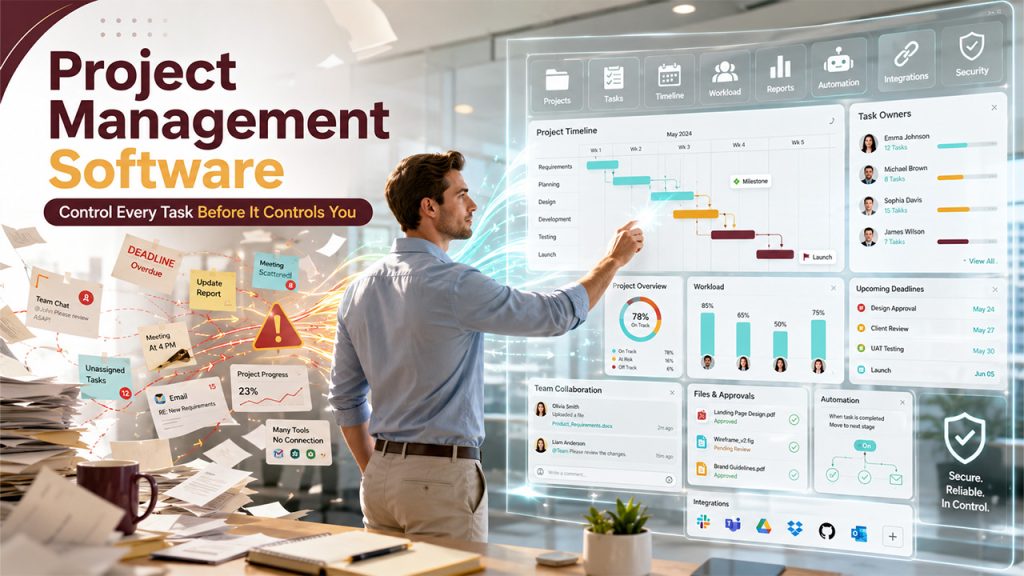
1. Planning and scheduling
Start and due dates, milestones, project timelines, task dependencies, calendar views, gantt charts, deadline alerts. For simple work, a list or board is enough. For managing complex projects with interdependent phases, gantt charts and dependency mapping become essential.
2. Task execution and ownership
A strong task management system makes ownership obvious. Every task should answer: who owns it, what is the priority, what is the task status, when is it due, what context is attached, and what blocks completion. Managers should be able to assign tasks fairly and see how many tasks each person carries — this is where workload views, capacity planning, and resource management tools matter.
3. Managing projects at scale
A tool that works for one project can fail when you start managing multiple projects. Look for portfolio dashboards, filters by project/owner/priority, cross-project reporting, custom fields, project health indicators, and rollups of tasks completed and overdue work. The best platforms combine visual boards with automated progress reporting, so leaders can track project progress without manual updates from each project manager.
4. Collaboration and file storage
A good tracker keeps work, conversation, and context together — comments, @mentions, file storage, document links, approvals, and real-time collaboration. If a designer uploads an asset in one tool, a PM discusses it in another, and a developer gets the requirement in a third, project data becomes fragmented.
5. Reporting and dashboards
Reporting should not require a weekly spreadsheet ritual. The tracker should surface project progress, project performance, overdue tasks, blocked work, workload, time tracking, and executive summaries. For agencies and consulting teams, time tracking is essential for billing and profitability.
6. Integrations and extensibility
The best project management tools connect with the existing tools your team already uses — email, calendars, Slack or Microsoft Teams, Microsoft 365, Google Workspace, code repositories, CRM, file storage, and BI tools. This matters especially for companies deep in the microsoft ecosystem or teams moving away from standalone microsoft project usage.
7. Workflow automation
Workflow automation saves administrative hours: auto-assigning tasks from intake forms, reminders before due dates, status changes when subtasks are complete, recurring monthly checklists, blocked-work notifications. Automation is one of the clearest ways a tracker saves time instead of simply organizing work.
8. Security and data sovereignty
Look for role-based permissions, external collaborator controls, audit logs, encryption, region-specific hosting, and cloud, private cloud, on-premise, or hybrid deployment. For regulated organizations, data sovereignty is increasingly a deciding factor.
How Good Task Trackers Support Different Types of Work
A good tracker adapts to different industries instead of forcing everyone into the same process.
- Software development. Sprint planning, backlog grooming, bug tracking, roadmaps, and code-repo integrations. A software development team often relies on a kanban board for flow and backlog views, so software developers know what is coming next.
- Marketing and creative. Campaign calendars, creative briefs, asset approvals — a campaign might move through "briefed," "in design," "in review," "approved," "scheduled."
- Operations and support. Recurring tasks, checklists, incident response, SLA tracking, and handoffs — automation creates routine work and alerts stakeholders when a process is delayed.
- Professional services. Delivery tasks, project budgets, billable hours, client approvals, resource allocation. Time tracking is critical because profitability depends on understanding where time goes.
- Cross functional teams. Product, engineering, design, support, and sales may all contribute to one launch. If each team works in a separate tool, project managers spend too much time reconciling updates instead of managing complex projects.
- AI-assisted work. AI can create tasks from meeting notes or chat — useful for fast-moving cross functional projects. BridgeApp's AI agents, for example, create tasks from conversations, generate reports, populate databases, and execute custom workflows.
Why Spreadsheets and Basic To-Do Lists Stop Working

A task tracking template can help a small team get organized, and a free task tracking template might be enough for a short one-person project. But spreadsheets stop working once teams need real ownership, real-time collaboration, and cross-project visibility.
- Version chaos. Multiple file copies create confusion about which version is current.
- Limited collaboration. Basic lists rarely support structured comments, @mentions, notifications, or task-level decision history.
- Weak structure. No native support for task dependencies, workload views, resource allocation, automated reminders, or cross-project dashboards.
- Scalability breaks down. Once a team grows beyond 5–7 people or manages multiple projects, the volume of updates and dependencies overwhelms a spreadsheet. Around 14% of teams still use Excel for project planning, and 11% have no project management solution at all — both become harder to sustain as work scales.
- No single source of truth. A spreadsheet shows rows of work but rarely captures discussions, decisions, blockers, and project health. That is why teams eventually move to dedicated project management software or an all-in-one workspace like BridgeApp.
How AI-Native Workspaces Are Redefining Task Tracking
AI-native project management is the next stage after traditional SaaS. AI is not bolted on as a button — it is embedded in the architecture, with access to tasks, conversations, documents, databases, and workflows.
This matters because most project work starts as unstructured information: a request in chat, a decision in a meeting, a risk inside a long thread. A good AI-native system turns that into structured work.
- Conversations to tasks. AI agents transform chat messages, meeting recordings, and long threads into structured tasks with owners and due dates. BridgeApp reports task creation from chat saves about 10 minutes per task versus manual PM work.
- Automatic summarization. AI condenses project updates, threads, and meetings into status reports — around 20 minutes per meeting summary and 5 minutes per long thread in BridgeApp.
- Cross-tool context. AI that references knowledge bases, databases, and prior chats can suggest priorities, detect duplicate work, and answer questions faster.
- Less context switching. BridgeApp unifies channels, tasks, documents, calls, databases, and AI automation in one environment, so teams keep more context in one place instead of jumping between chat, docs, and trackers.
- Measurable impact. 40% productivity increase, 60% reduction in context switching, 4.6 hours saved per employee per week. For a 250-person team, documented annual savings reach around $1.656 million based on routine automation at a $30/hour average rate.
AI should not replace project managers — it should remove repetitive work so they can focus on planning, prioritization, risk management, and data driven decision making.
BridgeApp: An AI-First Project Task Tracker for Modern Teams
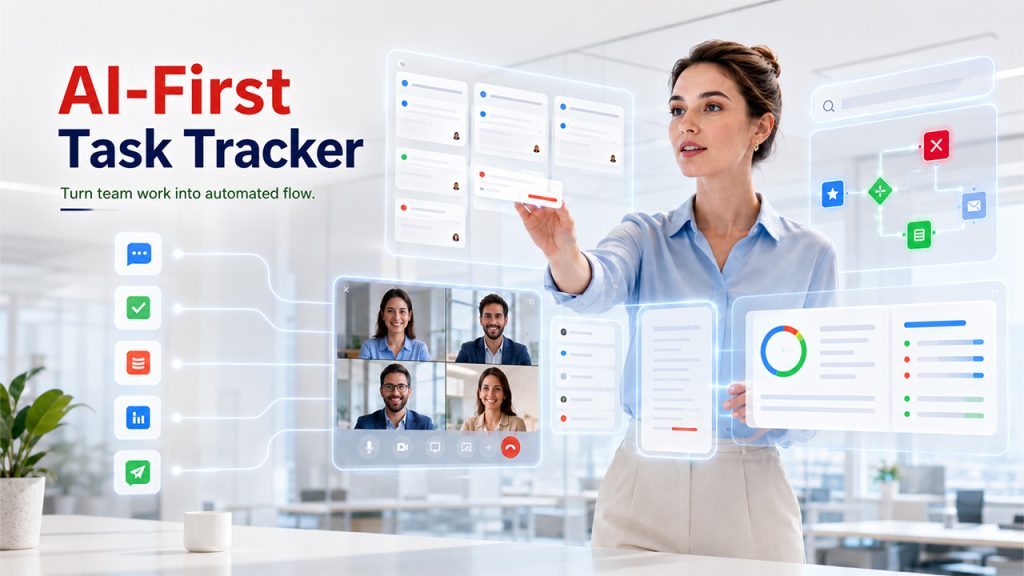
BridgeApp is an AI-native digital workspace — a next-generation corporate operating system that includes a task tracker alongside communication, knowledge management, databases, calls, and AI automation.
- Communication and project execution in one place. Channels and threads, built-in audio and video calls, Kanban / Backlog / List task views, and a collaborative document editor — so teams manage projects without juggling 6–7 separate apps.
- AI-powered workflow automation. A visual no-code builder lets teams create custom AI agents that act as autonomous teammates handling repetitive actions. Non-technical users can build workflows for any business process: creating tickets from chat, generating weekly reports, populating databases, or responding in chats.
- Broad AI model choice and MCP support. Access to all major AI models on the market, with agents that can connect to external MCP servers (multiple MCPs per agent).
- Flexible deployment. Cloud, private cloud, on-premise, and hybrid — plus a GDPR-compliant EU-hosted option and ISO/SOC2 alignment path. Relevant for organizations with strict data sovereignty requirements.
- Measurable benefits. 40% productivity gain, 60% context switching reduction, 4.6 hours saved per employee per week, typical 3-month ROI.
- Clear pricing tiers. A free plan with unlimited members covers task management, documents, databases, calls, AI Builder, messenger, and search. Pro (€9/user/month monthly, €7.5 yearly) adds messenger integrations, advanced search, role-based access, unlimited databases, real-time collaboration, time tracking, and custom fields. Enterprise adds on-premise, white labeling, BYOK, account manager, priority support, and uptime SLA.
- Not a pre-built module for every department. BridgeApp does not ship pre-built document repositories, compliance tracking modules, or pre-configured legal or HR workflows — it provides flexible tools to design workflows tailored to your needs.
How to Evaluate and Choose the Right Project Task Tracker
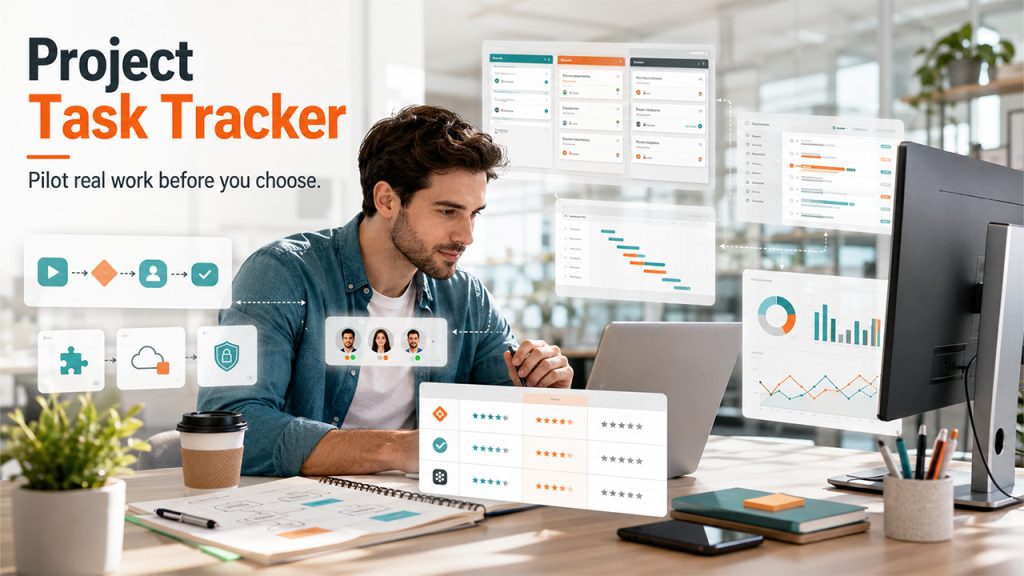
Choose a tracker like a structured project, not a random app trial.
- Map your workflows. Document how work enters the system, who approves it, how tasks are assigned, and how updates are reported. Include project managers, team leads, and individual contributors to capture real behavior.
- Translate pain points into requirements. Losing decisions in chat → prioritize task-level comments and searchable conversations. Leaders lacking visibility → prioritize dashboards. Copying data between other tools → prioritize integrations and automation.
- Shortlist 3–5 tools. Mix traditional project management tools, modern task management software, and at least one AI-native workspace such as BridgeApp.
- Use real trials. Set up a pilot project with actual due dates, owners, files, and reporting needs — not fake sample tasks.
- Run a 1–2 week pilot. Have the team track tasks, update status, attach files, run reports, and test automations. Measure adoption speed and whether the tracker makes work clearer.
A simple scoring sheet keeps the comparison honest:
| Evaluation area | Weight | What to check |
| Ease of use | 25% | Can new users update tasks in just a few clicks? |
| General features | 20% | Tasks, due dates, files, comments, views, dashboards |
| Advanced features | 15% | Automations, AI, custom fields, portfolio views |
| Integrations | 15% | Existing tools, calendars, email, chat, code, CRM |
| Security | 15% | Permissions, admin controls, deployment, compliance |
| Support and pricing | 10% | Support quality, pricing fit, onboarding help |
The best tracker is the one your team will actually use. A platform with all the features but poor adoption is worse than a simpler tool that keeps work visible.
Implementing a New Task Tracker Without Disrupting Your Team
Rolling out a new tracker is a change management exercise — especially for teams moving from spreadsheets, a task tracking template, or legacy standalone microsoft project setups.
- Phased rollout. Start with one pilot team, configure views and permissions, learn what works, then expand.
- Templates and standards. Shared templates, naming conventions, and status rules keep multiple projects consistent.
- Short onboarding. Walkthroughs and office hours showing how to create tasks, assign owners, update task status, and find work — keeping the learning curve low.
- Start automation small. High-impact automations first — intake form assignments, due-date reminders, blocked-task notifications.
- Avoid tool overload. Replace old workflows where possible instead of duplicating them.
- Review quarterly. Adjust fields, dashboards, permissions, and AI agent workflows as project management maturity grows.
- Connect adoption to strategic objectives. A tracker should help the company deliver work faster, improve project performance, and reduce manual reporting. If teams cannot see how the system supports strategic objectives, adoption will fade.
Conclusion
A good project task tracker is not the one with the longest feature list. It is the one that helps your team track project work clearly, collaborate in context, and make better decisions across multiple projects. Map your workflows, list your real problems, and test tools with live work. If your team is ready to move beyond spreadsheets and disconnected collaboration tools, consider an AI-native workspace that brings communication, tasks, documents, databases, and automation into one place. The right tracker should make project management feel lighter, not heavier.
Frequently Asked Questions
Q1. What is the difference between a task tracker and full project management software?
A task tracker focuses on listing, assigning, prioritizing, and updating work items. Full project management software adds project timelines, resource management, budgeting, reporting, project portfolio management, and advanced planning.
Q2. Do I still need Microsoft Project if I use a modern online task tracker?
Microsoft Project is still valuable for schedule-heavy projects, especially inside the microsoft ecosystem. But many teams can replace legacy desktop tools with cloud-based project management software offering similar scheduling plus stronger collaboration, automation, and real-time updates.
Q3. How important are gantt charts for managing projects?
Important for many dependencies and sequential phases — construction, enterprise IT, regulated implementations. For smaller work, Kanban or list views are easier to adopt. The ideal tracker offers gantt charts when needed without forcing every team to use them for all the tasks.
Q4. Can a single tool really handle multiple projects effectively?
Yes, with portfolio views, filtering, cross-project reporting, permissions, and dashboards. All-in-one workspaces like BridgeApp are designed for tasks, communication, documents, databases, and AI workflows across multiple projects without constant app switching.
Q5. How do AI features practically help with managing projects?
AI helps most when it removes repetitive admin — summarizing meetings into action items, creating tasks from chat, generating weekly status reports, and answering database questions through chat.