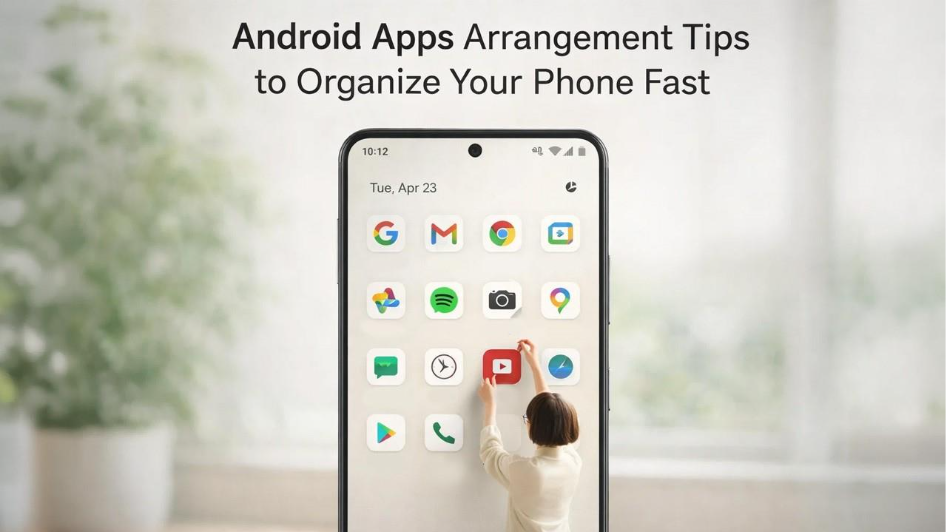






Your phone has 80 apps, and you use only 12 of them regularly. But when you need one of the 68, you spend 30 seconds scrolling, squinting, and silently questioning your life choices. That's not a phone problem; it’s a design problem. Every app you downloaded, and every folder that you created became a digital junker. Researchers call this cognitive friction; the small but real mental cost of a disorganized environment.
What most people don't realize about organizing Android apps is that it's not about a pretty home screen. It's about fewer micro-decisions every time you pick up your phone. When apps are where you expect them, you stop thinking about where things are and focus on what you actually came to do. So here are a few approaches for Android apps arrangement. Mix and match what works for you and skip what doesn't.
Top 10 Android Apps Arrangement Methods for a Cleaner Phone
Organizing your apps doesn’t require a complete overhaul; just a few smart changes can make a big difference. Here are 10 simple Android app arrangements to help you create a cleaner, faster, and more intuitive phone experience.
Arrange Android Apps by Usage Frequency
This is the most instinctively logical approach and a great starting point. The bar in the bottom that stays persistent across all home screens should hold your top four or five daily use apps. For most people, it’s the phone app, messaging, a browser, and maybe a gallery or navigation app. These never move, no matter how everything else shifts around them.
How to move apps to your dock or home screen:
- Long-press the app icon you want to move
- Drag it to the position you want on the home screen or down into the dock
- Release to drop it in place
- Repeat until your most-used apps are within one tap of unlocking
Organize Android Apps into Folders by Category
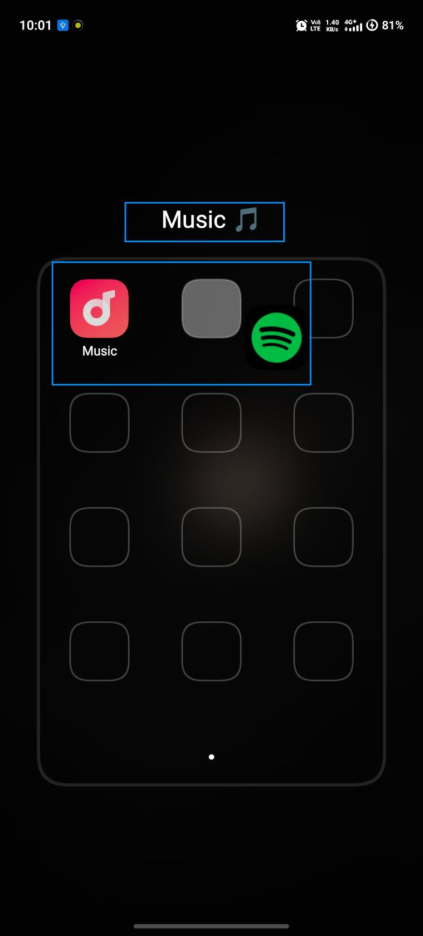
Folders are the oldest trick in the android apps' arrangement playbook, and they still work when done with intention. The mistake most people make is creating folders reactively and stuffing random apps in just to clear space and ending up with bloated folders that are just as hard to navigate as cluttered screen.
How to create a folder in Android:
- Long-press any app icon until it lifts
- Drag it slowly on top of another app icon and hold it there
- Android will automatically create a folder combining both apps
- Tap the folder name field at the top and type your chosen category name such as Social, Health, Finance etc.
- Continue dragging other apps into the folder the same way
- Press the home button or tap outside the folder to close it when done
Keep each folder to nine apps or fewer, so everything stays visible on a single folder screen without an extra swipe inside.
Arrange Android Apps by Workflow or Daily Routine
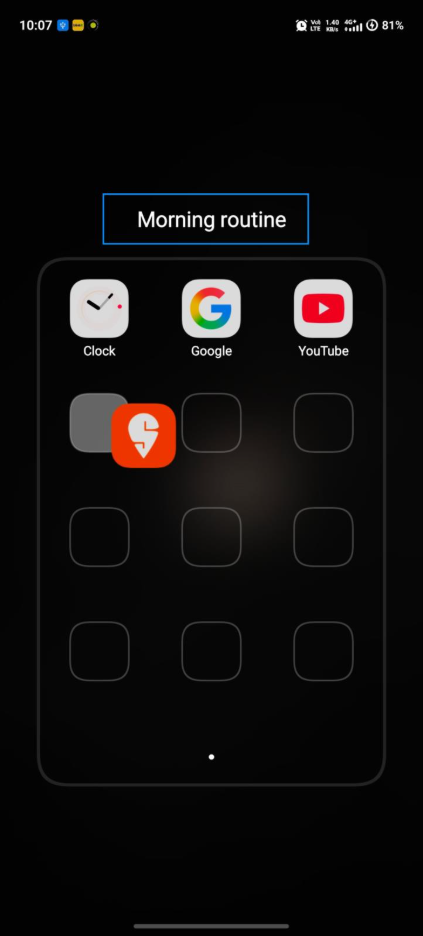
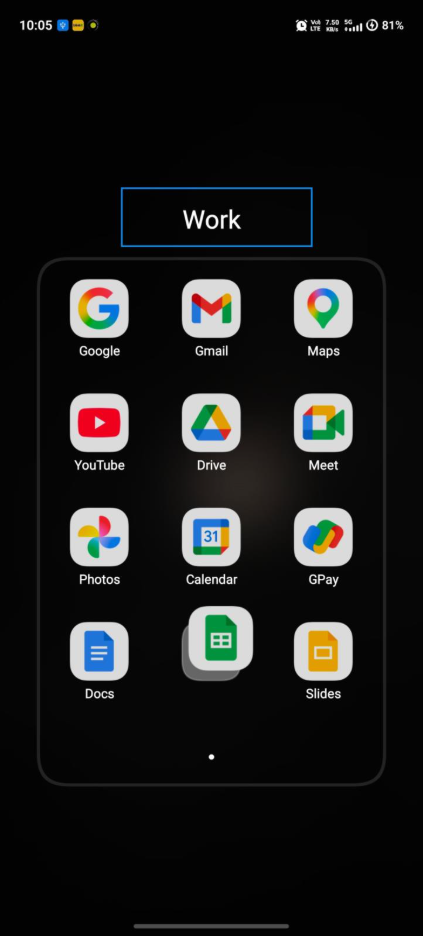
Categories like “Social” or “Finance” are logical, but they’re organized around what apps are, not how you use them. A more advanced approach is arranging apps by the context and workflow, grouping apps around the moments of your day rather than their function type.
For example:
- A morning folder: Alarm, weather, news, meditation or coffee order app
- A work folder: Email, Google Drive, Excel, Zoom or Microsoft Teams
How to Setup Context-based Folders:
- Identify two or three key moments or modes in your daily routine (morning, work, evening)
- List the apps you actually use during each of those moments
- Create a folder for each context using the folder method above
- Name each folder after the context like "Morning", not the category.
- Place these context folders on your main home screen in the order you typically move through your day, left to right
Use the App Drawer for Better Android Apps Arrangement
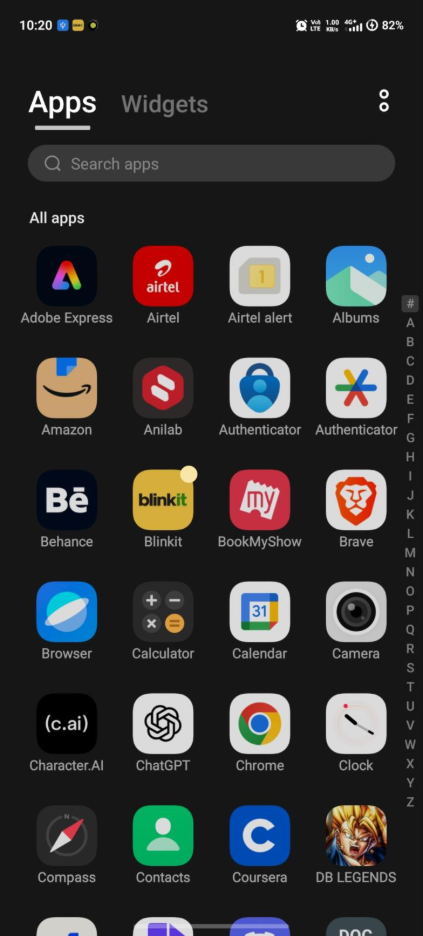
Your home screen is not meant to hold your apps. That's the job of an app drawer. The app drawer (accessed by swiping up from the bottom on most Android devices) is your complete, alphabetically sorted app library. Every app lives there automatically. Your home screens, by contrast, should only hold shortcuts to apps you want fast access to.
How to access and tidy your app drawer:
- Swipe up from the bottom of your screen to open the app drawer
- Tap the three-dot menu or settings icon inside the drawer (varies by device)
- Select sort and choose alphabetical order if not already set
- Long press any apps you want fast access to and select Add to Home Screen
- Apps that you rarely use, leave them in the drawer only and remove their home screen shortcut by long pressing it and selecting remove.
If you want to go a step further, you can also turn off background app refresh for those rarely used
Sort Android Apps Alphabetically for Easy Access
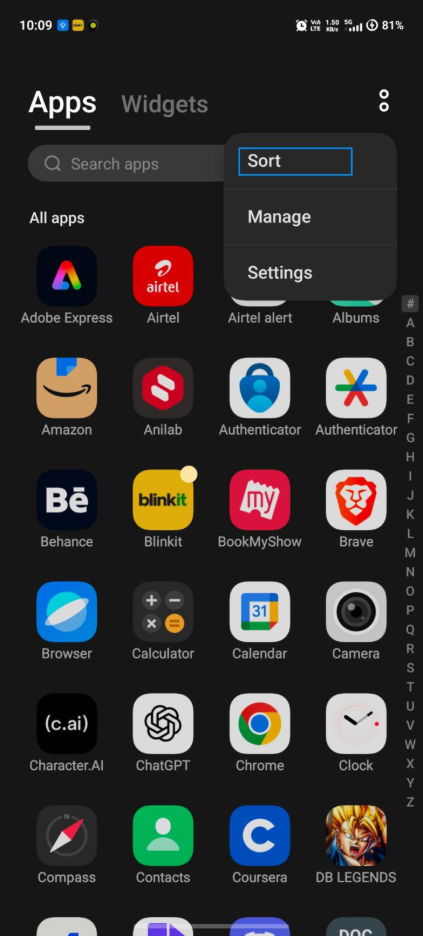
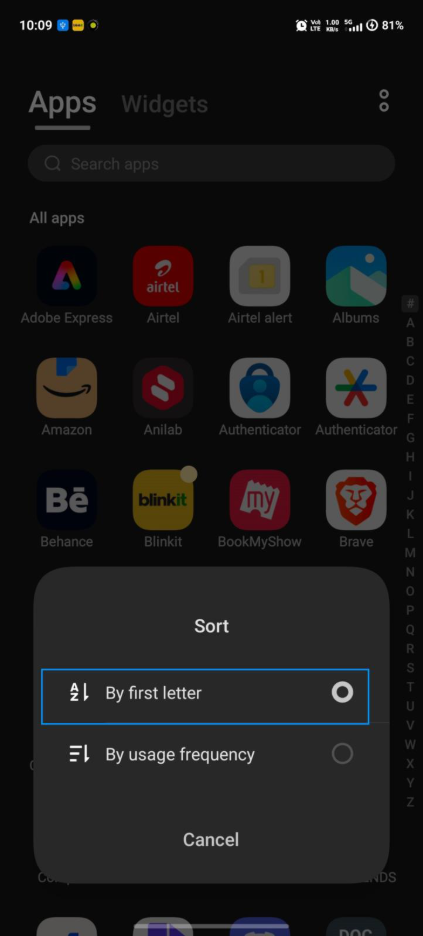
Alphabetical arrangement is underrated especially for those people who have too many apps to manage thematically and just want a predictable system. Most Android launchers let you sort the app drawer alphabetically automatically. Some people take this further and arrange their home screen folders alphabetically too. The advantage is that you always know exactly where to look: if you want Spotify, you go to S. No need to think.
This works best as a system for the app drawer rather than the home screen, since visual scanning (not alphabetical scanning) is more natural on a grid layout.
How to sort your app drawer alphabetically:
- Open the app drawer by swiping up from the home screen
- Tap the menu icon (usually three dots or lines) in the top corner
- Select Sort by name or Alphabetical order
- Your app drawer will instantly reorganize A to Z
- On Samsung devices, go to the app drawer, tap the three dots in the top right, and select Sort then Alphabetical order
Note that this sorts the drawer automatically. However, home screen icons will still need to be arranged manually.
Use Color-Based Android Apps Arrangement for Faster Navigation
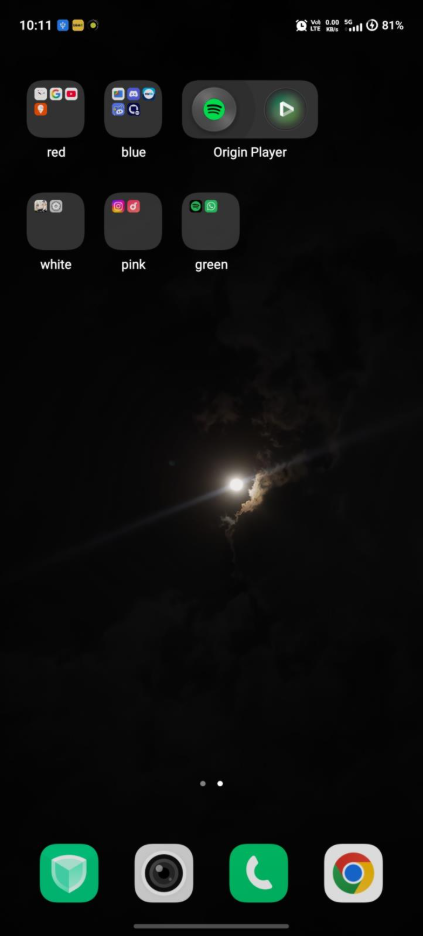
This one lies at the intersection of aesthetics and functions. Color coordination means grouping or arranging apps so that visually similar icons cluster together. This makes your brain recognize apps by color and shape pattern before it even reads the name.
Some Android launchers and icon packs support this natively. Alternatively, you can manually arrange apps so that warm-colored icons (reds, oranges) sit together and cool-colors (blues, greens) in another zone, and so on. It's not a functional system on its own but combined with other methods like frequency-based or category-based arrangement; it adds a visual layer that makes scanning your screen faster and more intuitive.
Organize Android Apps Across Multiple Home Screens
Instead of letting home screens multiple randomly, assign each one a clear purpose and treat them like rooms in a house. A simple three-screen setup that works for many people:
| Screen | Purpose | What Lives Here |
| Screen 1 (Main) | Daily essentials | Most used apps, widgets, dock |
| Screen 2 (Work) | Productivity | Work apps, calendar, Email, notes |
| Screen 3 (Personal) | Life & Leisure | Entertainment, social, health, shopping |
How to create and manage home screens on Android:
- Long-press on any empty area on your current home screen
- You will see a thumbnail view of all your current screens
- Tap the + icon to add a new screen
- To delete a screen, long-press its thumbnail and drag it to the trash or tap the remove option
- To reorder screens, long-press a thumbnail and drag it left or right
- Assign each screen a clear role before populating it. First, decide its purpose and then add apps
Use Widgets to Improve Android Apps Arrangement
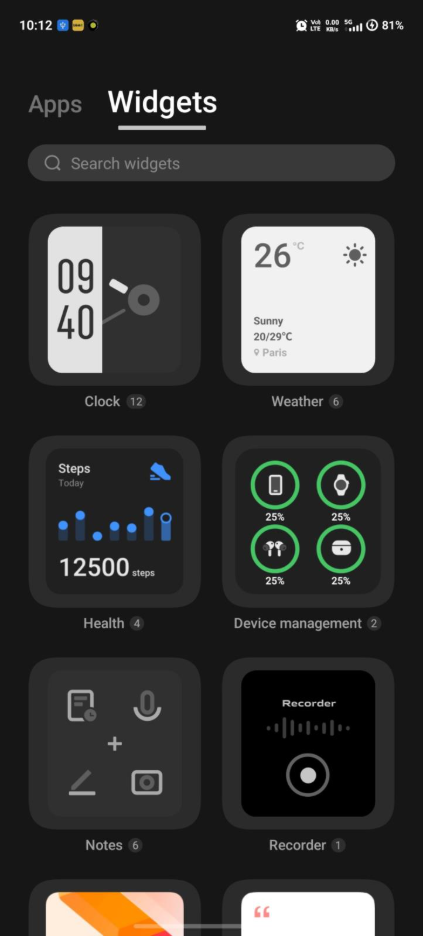
Widgets are one of Android’s most powerful and underused arrangement tools. Rather than opening an app to check something, a widget surfaces that information directly on your screen. If used well, widgets can eliminate several app opens per day. A calendar widget shows your next three meetings at a glance. A Spotify widget lets you control music without switching apps.
How to Add a Widget on Android:
- Long-press on an empty area of your home screen
- Tap Widgets from the options that appear
- Browse or search for the app whose widget you want
- Long-press the widget style you want and drag it onto your home screen
- Resize it by dragging the edges once it's placed
- Tap outside the widget to confirm its position
Limit yourself to two or three widgets maximum on any single screen to avoid visual overload.
Hide or Disable Unused Apps for Better Organization
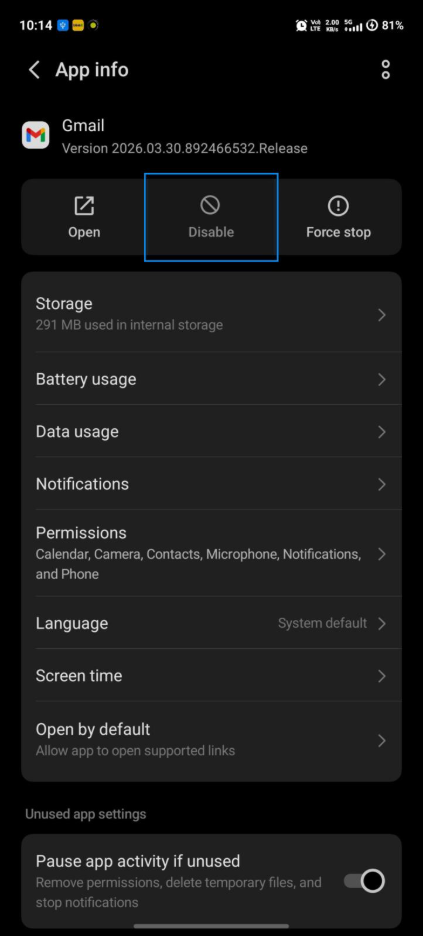
A genuinely underused android apps arrangement strategy is simply making apps disappear. Not every app on your phone can be uninstalled, especially pre-installed system apps. If you're unsure whether an app is safe to disable, it's worth understanding what it actually does first. For example, a guide on whether to remove Google Partner Setup shows exactly how manufacturer-installed apps work and what happens when you disable them.
How to disable or hide apps on Android:
- Go to Settings on your device
- Tap Apps or Application Manager (wording varies by manufacturer)
- Scroll to find the app you want to hide or disable
- Tap the app and select Disable to stop it running without uninstalling
To hide apps from the app drawer, check if your device's home screen supports hiding apps natively.
- On Samsung, go to Settings > Home Screen > Hide Apps.
- If your device doesn't have this option built in, installing a third-party launcher like Nova Launcher gives you that control: go to Nova Settings > App Drawer > Hide Apps and select the apps you want invisible.
Use Custom Launchers for Advanced Android Apps Arrangement
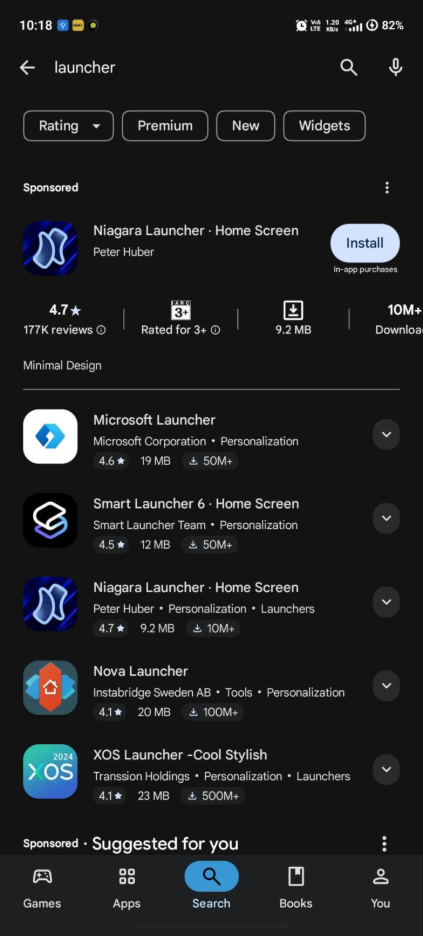
If Android’s default home screen feels limiting, a custom launcher unlocks a completely different level of arrangement control. Launchers replace your home screens entirely and give you granular control over grid size, icon appearance, folder behavior, and more.
How to install and set a custom launcher:
- Open the Google Play Store and search for your chosen launcher (Nova, Niagara, or Lawnchair)
- Tap Install and wait for it to download
- Once installed, press the Home button on your device
- A prompt will appear asking which app to use as your home — select your new launcher
- Tap Always to set it as default, or Just Once if you want to test it first
- Open the launcher's own settings app to begin customizing grid size, icons, gestures, and folder behavior
To switch back to your original launcher at any time, go to Settings > Apps > Default Apps > Home App and reselect your original launcher.
Final Thoughts: Choosing the Best Android Apps Arrangement Method
There's no single correct way to arrange apps on Android. The right system is the one where muscle memory takes over, and your phone stops being something that you have to navigate and starts being something you simply use with ease. Start with one method from this list. Frequency-based arrangement and intentional home screen zones are the easiest entry points for most people. Spend a week with it and notice what still creates friction. If it doesn’t work out for you, then refine it.
The goal isn’t a perfect home screen. The goal is fewer wasted seconds, less mental overhead, and a phone that actually supports the life you’re trying to live, not one that quietly clutters it.