





When your iPhone flashes “No Location Found,” it’s easy to feel frustrated, especially if you’re using the Find My app to check on someone or track down a missing device. You might be worried about a family member or just want to share your location for safety purposes, and suddenly the app stops showing real-time location updates. Stressful, right?
But there's nothing to worry about. Usually, this error comes down due to settings, a weak connection, or a minor software glitch. Most of the time, you can sort it out yourself without needing professional help.
This in-depth guide explains:
- What “No Location Found” actually means
- Why does it happen on iPhones
- Step-by-step solutions that work
- Advanced troubleshooting tips
- When to contact Apple Support
What Does “No Location Found” Mean on iPhone?
When an iPhone shows “No Location Found”, it means that Apple’s location services can’t retrieve or update where the device is currently. You’ll usually see this message in the Find My app when trying to track a device or person.
It doesn’t always mean the phone’s lost or switched off. Instead, it indicates that the iPhone isn’t able to share its location with Apple’s servers at that time. Here’s what you should know:
- The device may still exist and be functional
- Location data is simply unavailable right now
- The issue can be temporary or persistent, depending on the cause
Difference Between “No Location Found” and “Location Not Available”
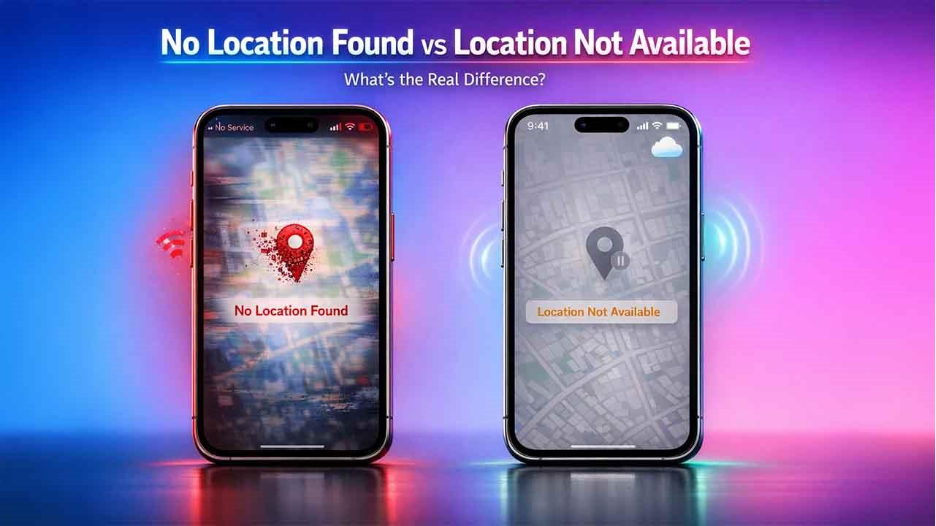
These two messages are often confused, but they mean different things:
- No Location Found: The iPhone cannot determine or send its location at all.
- Location Not Available: The phone is reachable, but location sharing is paused or restricted.
Understanding this difference helps you narrow down the root cause more quickly so that you can take appropriate measures.
Why Does the “No Location Found iPhone” Error Occur?
Multiple reasons can be attributed to this error. Most of them fall into five main categories:
1. Location Services Disabled on iPhone

Your iPhone needs Location Services such as GPS, Wi-Fi, and cell towers to determine its current position. If Location Services are turned off either manually or restrictions block them, Find My stops working.
This can happen after:
- Changing privacy settings
- Updating iOS
- Screen Time restrictions
2. The iPhone Is Offline, Powered Off, or Has No Internet

To track your iPhone in real time, it must be powered on and connected to Wi-Fi or cellular data. If it’s switched off, out of battery, or stuck somewhere with no signal, Find My won't be able to locate it and will show the “no location found” message.
3. Airplane Mode Enabled Blocking iPhone Location Sharing

When you turn on Airplane Mode, your iPhone disables cellular signals, Wi-Fi, and GPS assistance. With Airplane Mode active, your phone can’t send out its location.
4. Find My or iCloud Settings Not Configured Correctly
Find My needs a few things to function, such as:
- You have to be signed in with the correct Apple ID
- iCloud is being signed in to or is active
- Location sharing permissions must be correctly set
If you’re logged into the wrong account or you’ve switched off Find My, your device stops sharing its location.
5. iOS Bugs or Outdated iOS Version Causing Location Errors
Sometimes software bugs get in the way, interrupting background processes like GPS or iCloud syncing. This tends to happen right after a big iOS update or if a software installation didn’t finish properly.
How to Fix “No Location Found iPhone” (Step-by-Step Guide)
Follow these fixes in order to resolve the error. Most users resolve the issue within the first few steps.
1. Turn on Location Services on iPhone
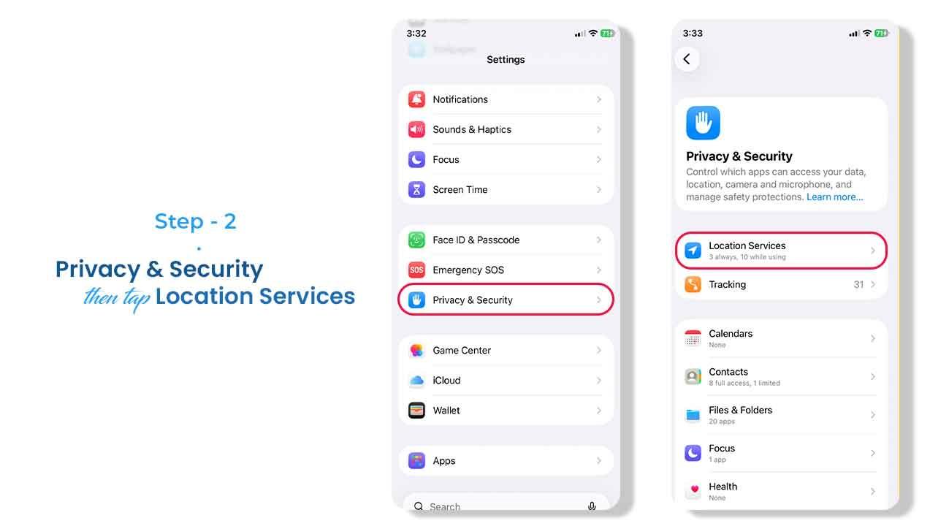
1. Open Settings
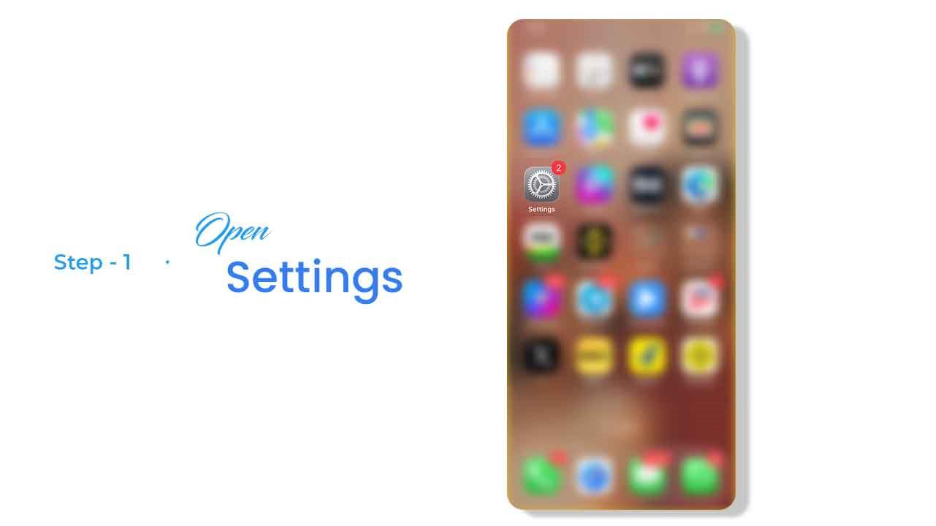
- Head to Privacy & Security, then tap Location Services
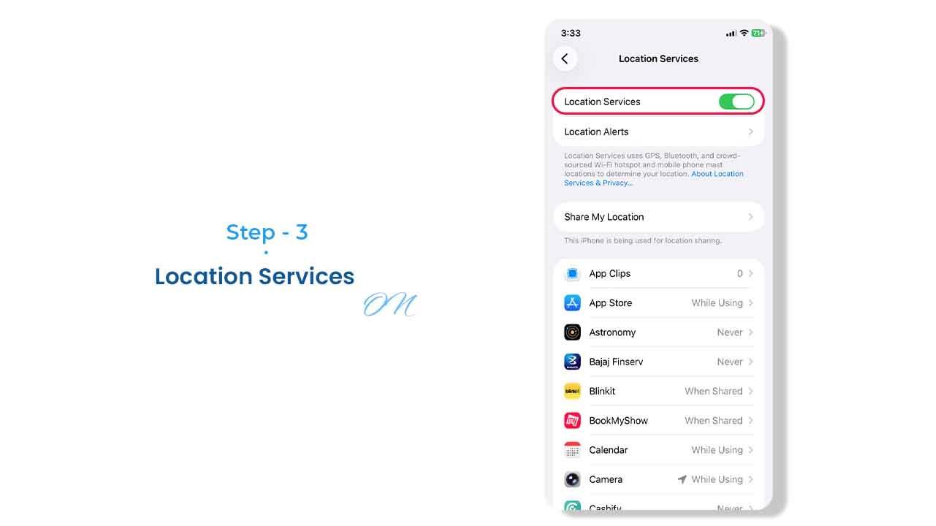
- Switch Location Services ON
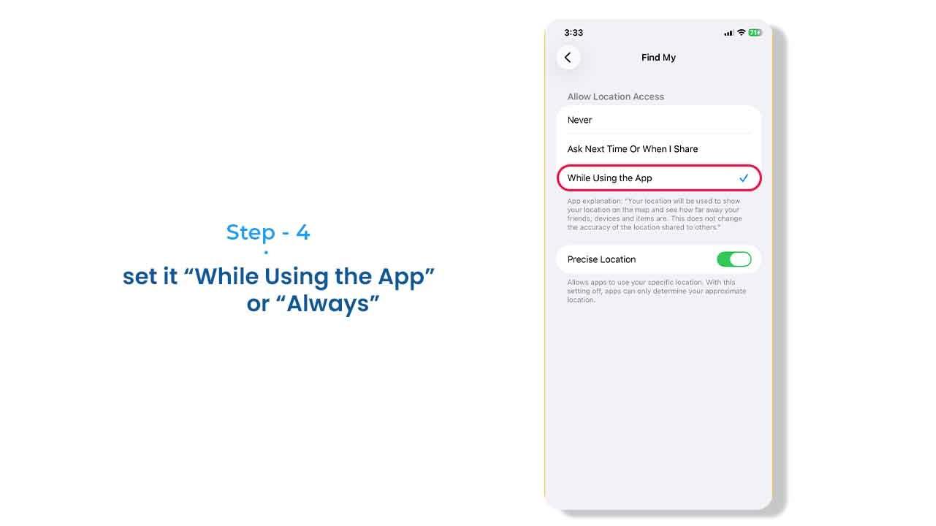
- Locate the Find My option and set it to “While Using the App” or “Always.”
- Turn Precise Location ON
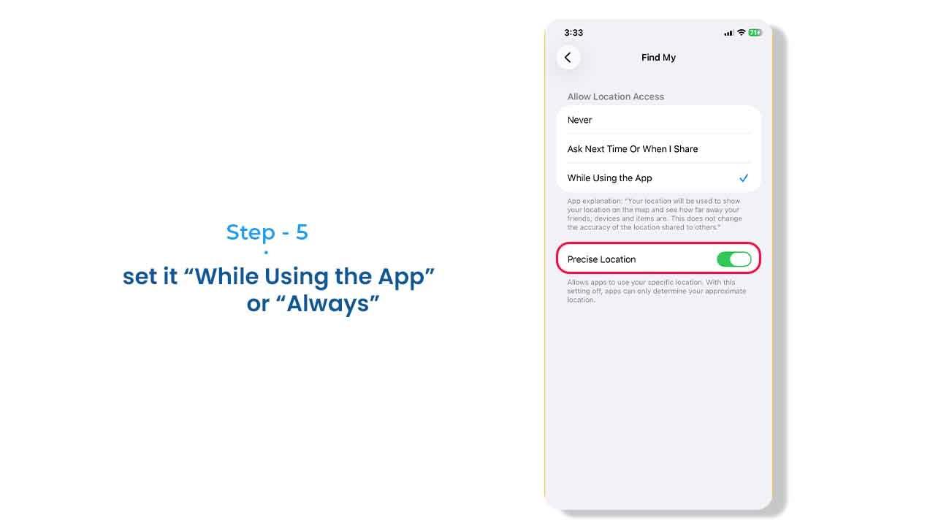
This lets your iPhone track and share accurate GPS data.
2. Check Wi-Fi or Mobile Data Connection on iPhone
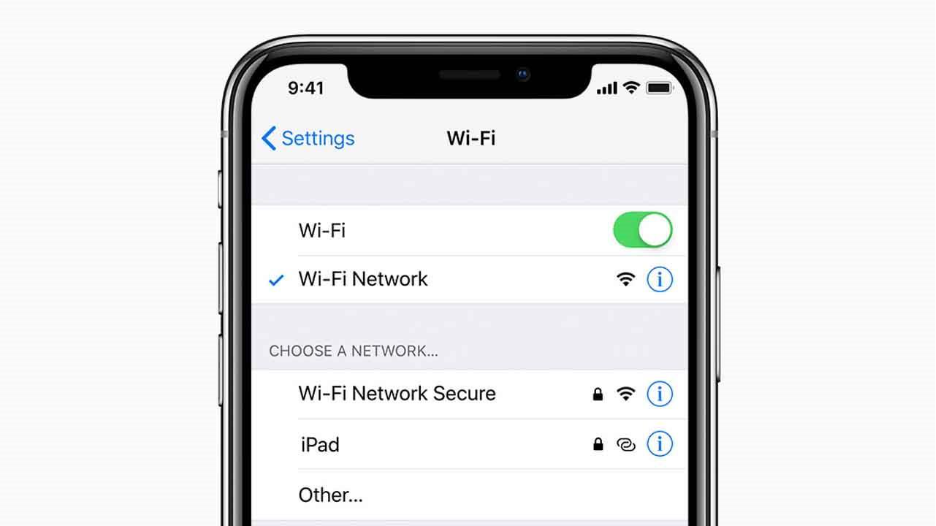
Location sharing needs an internet connection. If it is acting up, try:
- Switching between Wi-Fi and mobile data
- Turning data off and back on
- Moving to an area with a better, stronger signal
If you see “no location found on your iPhone,” your device is probably offline.
3. Disable Airplane Mode
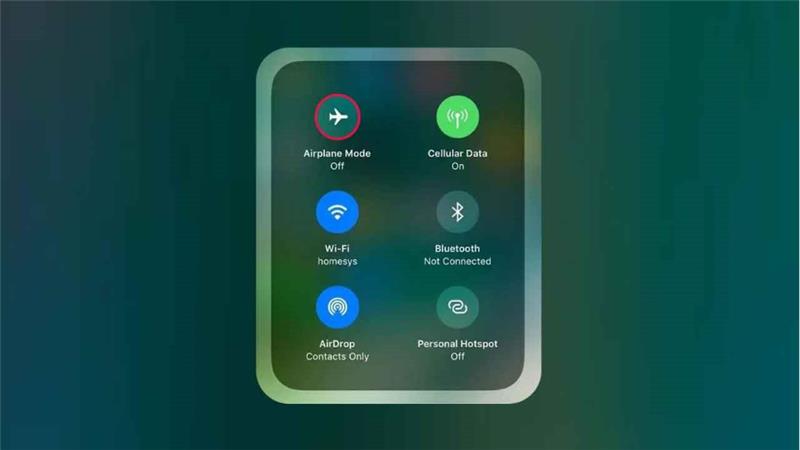
Swipe down to open Control Center and check that Airplane Mode is off. Even a quick activation can interrupt location services.
4. Restart iPhone to Fix No Location Found Error
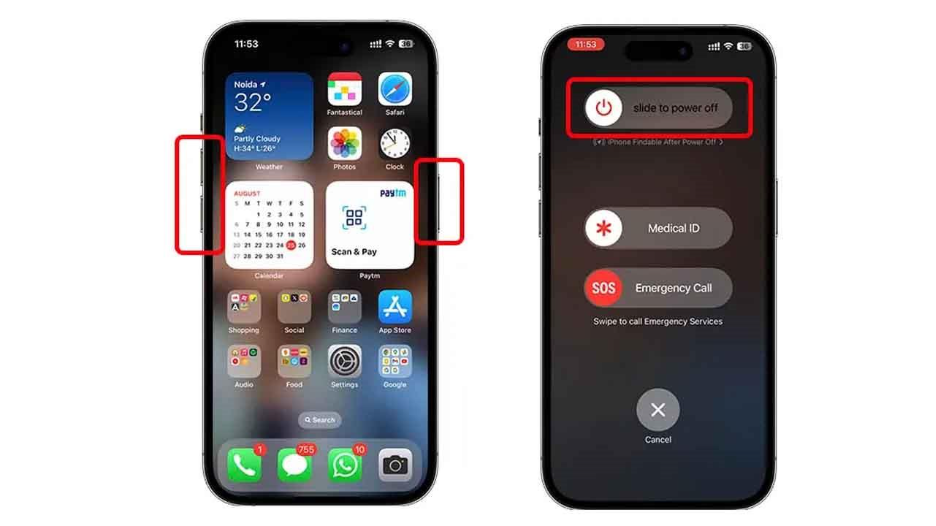
A simple restart refreshes system services and clears temporary bugs.
- Hold Power + Volume
- Slide to power off
- Wait 30 seconds and power it back on to see if things improve
If the issue persists, you may also need to clear the app cache on your iPhone to resolve Find My app glitches.
5. Check Date & Time Settings
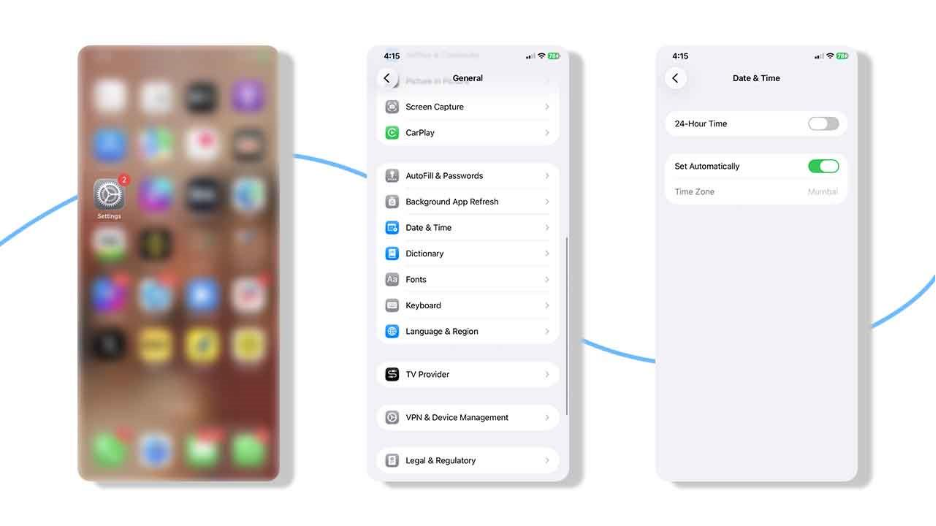
If your iPhone's clock system is incorrect, then it can disrupt Apple server communication.
- Go to Settings, tap General, and then go to Date & Time
- Enable Set Automatically
6. Turn Off Low Power Mode
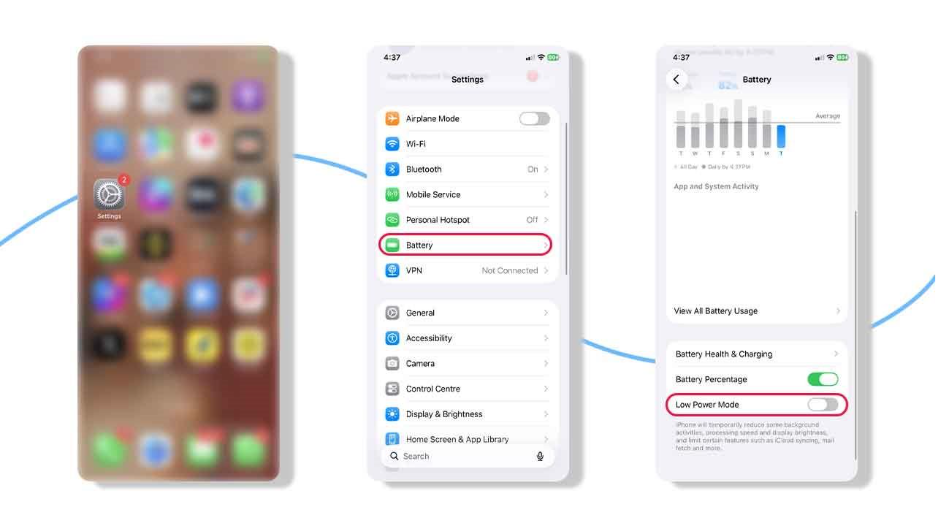
Low Power Mode stops background activity, including location updates, to save battery.
- Open Settings, navigate to Battery
- Turn Low Power Mode OFF
7. Verify Find My and iCloud Settings
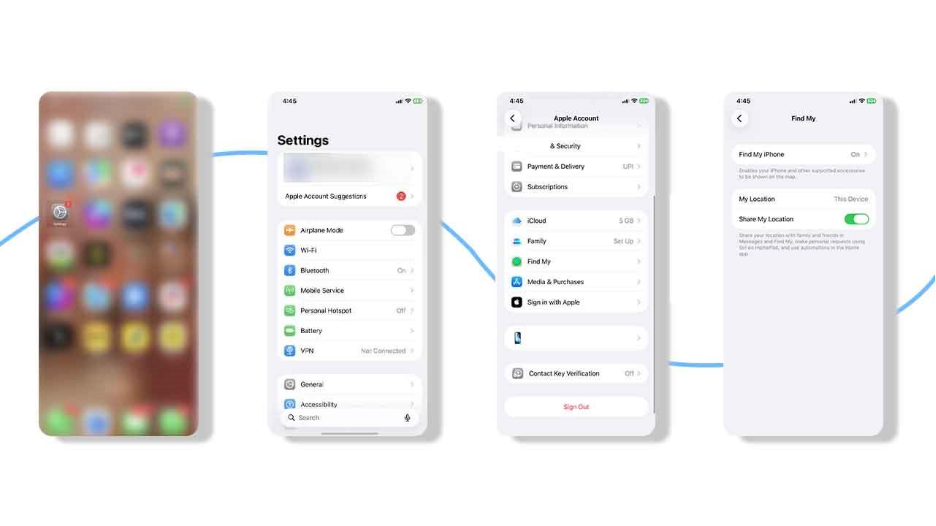
Double-check that you’re using the right Apple ID.
- In Settings, click on your Apple ID
- Locate and tap Find My
- Make sure to turn on:
a. Find My iPhone
b. Share My Location
8. Sign Out and Sign Back Into iCloud
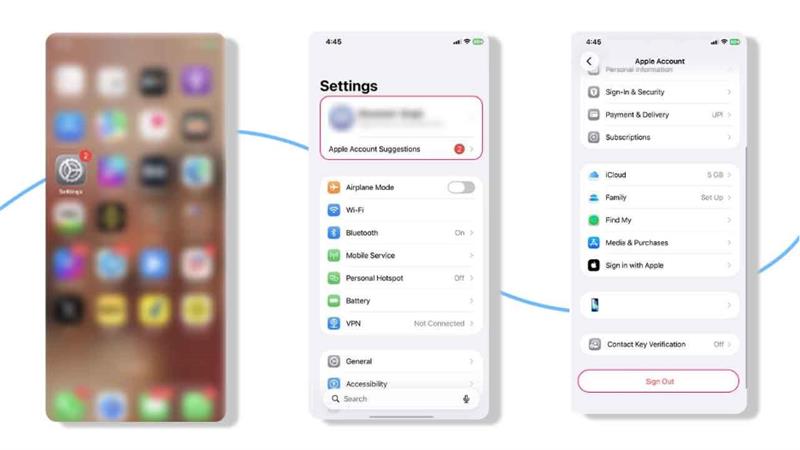
Sometimes, signing out of iCloud and back in fixes persistent errors or problems.
- Go to Settings, tap your Apple ID
- Click on Sign Out
- Restart the iPhone
- Sign in again and re-enable Find My
9. Update iOS to the Latest Version
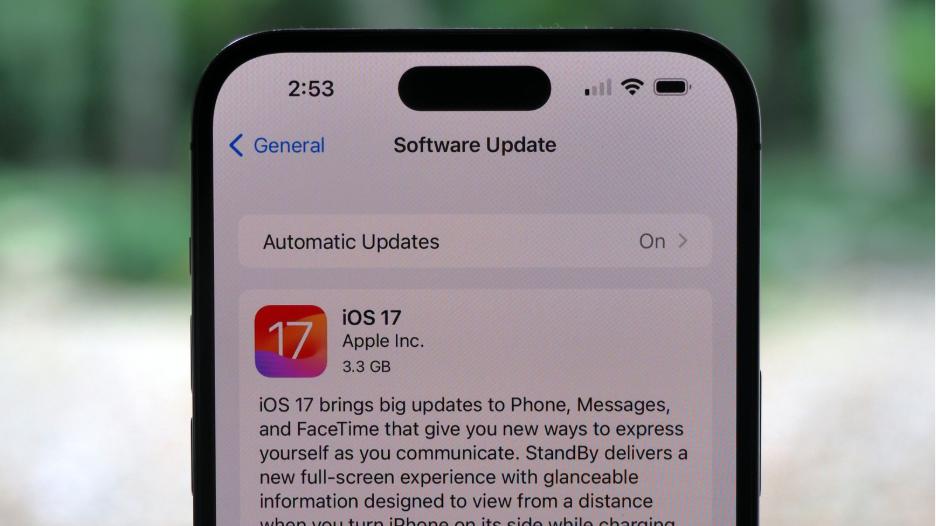
Apple regularly fixes known bugs with software updates that affect location services.
- Go to Settings, tap General
- Then click on Software Update
- Download and install any new available updates
If your update fails due to insufficient storage, free up space on your iPhone before proceeding.
10. Reset Network Settings to Fix No Location Found iPhone
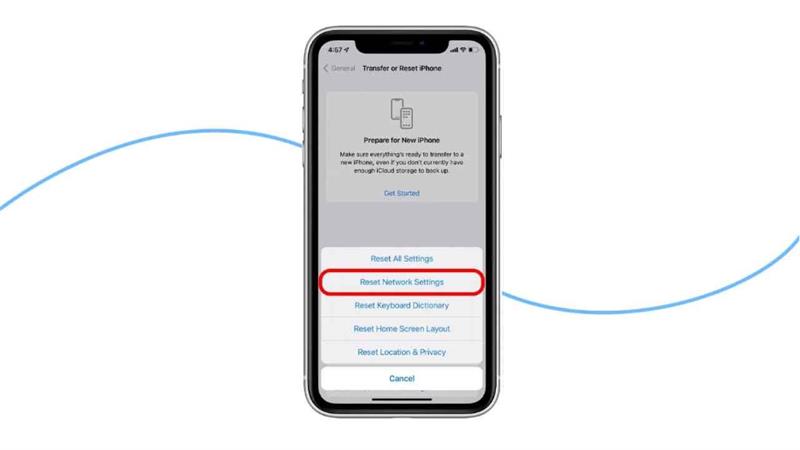
If you think the issue is related to the network, then:
- Go to Settings → General
- Navigate to Transfer or Reset iPhone
- Tap Reset, then Reset Network Settings
However, remember this erases saved Wi-Fi passwords.
Advanced Troubleshooting Tips for “No Location Found iPhone”
When the “No Location Found” error still persists even after the quick basic fixes, you're probably dealing with something deeper than a simple settings tweak. Here’s how to dig into the system-level issues, permissions, and background services that directly control how Apple handle location.
1. Enable Precise Location for Find My on iPhone
Precise Location isn’t just a fancy option; it’s essential. When it’s off, Find My struggles to get your accurate GPS data, resulting in the no location found on the iPhone even when the phone is online.
How to check:
- Open Settings, then Privacy & Security, and go to Location Services
- Tap Find My from the list
- Set access to Always or While Using the App
- Turn Precise Location ON
A lot of people overlook this, but it’s usually the thing that solves the problem.
2. Check Screen Time & Privacy Restrictions
Screen Time can block location sharing quietly, especially on iPhones managed by parents or offices.
Here's what to do:
- Go to Settings, then Screen Time
- Tap Content & Privacy Restrictions and then Location Services
- Make sure that Location Services are allowed
- Check that Find My is not restricted
Many users miss this because no warning is shown when restrictions block location access.
3. Refresh iPhone Location Services to Clear System Glitches
Sometimes Location Services looks like it’s on, but due to a system glitch, it fails in the background.
Here's how to fix this:
- Open Settings, go to Privacy & Security, then Location Services
- Turn Location Services OFF
- Restart the iPhone
- Turn Location Services ON again
This resets the entire location framework and clears persistent errors more often than you’d think.
4. Sign Out and Back Into iCloud (High-Impact Fix)
If iCloud syncing is stuck or corrupted, Find My cannot transmit location data.
Steps to follow:
- Go to Settings, then tap your Apple ID
- Click on Sign Out
- Restart the iPhone
- Sign back in and re-enable Find My
This resolves many long-standing no location found issues tied to account sync problems.
When Should You Contact Apple Support?
You should reach out to Apple if:
- Location never updates, even with all the correct settings
- GPS doesn’t work in any app
- You can't get iOS updates to install
- The device was recently dropped or exposed to water
In rare cases, a GPS hardware failure may cause no location found on iPhone issues.
Conclusion
The “No Location Found” iPhone message is usually the result of settings, connectivity issues, or temporary system glitches rather than a serious device problem. By checking location permissions, iCloud and Find My settings, and applying the advanced fixes outlined above, most users can restore accurate location sharing quickly. Keeping iOS updated and reviewing privacy or Screen Time restrictions regularly can help prevent this issue from returning and ensure reliable location tracking when it matters most.