





Otter AI Notetaker has emerged as a prominent platform for automatically transcribing Google Meet, Zoom, and Microsoft Team meetings in real-time. While this feature provides convenience for capturing notes and action items from meetings, there are moments when you would want to disable it. The reasons for disabling Otter AI can be several, whether it is because of meeting sensitivity, or simply to minimize the number of participants available in your calls.
If you find the Otter AI’s presence in your meetings unnecessary or uninvited, or if you think you do not need automatic transcription for specific gatherings or meetings, then this guide will be useful for you. You will learn various ways through which you can turn off Otter AI Notetaker from your meetings.
Reasons for Disabling Otter AI Notetaker
Before delving into the how-to, it is important understand the common scenarios where turning off Otter AI Notetaker makes sense:
- Privacy and Confidentiality: Some meetings involve confidential business discussions, sensitive information, or personal matters that should not be transcribed or recorded. HR, Legal, and executive meetings generally fall into this category.
- External or Client Meetings: Not all participants in the meeting will be comfortable with AI transcription tools. When you are meeting with partners, clients, or external stakeholders, you might wish to disable the recording to align with their preferences.
- Internal or Casual Conversations: Not every meeting needs a transcript. Brainstorming sessions, fast check-ins, or informal team catch-ups might require the formality of automated notetaking.
- Technical Problems: Sometimes Otter Notetaker AI can be slightly disrupting, especially if numerous participants have enabled it simultaneously, leading to multiple bots joining the meeting at the same time.
- Professional Appearance: Making the AI bot join your meetings can sometimes be confusing or unprofessional to participants who are not familiar with the tool.
Understanding Otter AI Notetaker Settings
Otter AI provides numerous layers of control to help you control how and when its Notetaker is joining your meetings. The main settings are described as follows:
- Auto-Join Settings: This defines whether Notetaker joins the meetings automatically as per the synced calendar events. You can configure it to join all the meetings with the relevant video links, only the meetings you choose manually, or turn it off completely.
- Individual Meeting Controls: Even if auto-join has been enabled, you can switch the Notetaker on or off for specific calendar events, providing you with a greater level of control meeting-by-meeting.
- Live Meeting Removal: If Notetaker has joined a meeting already, you have the option of removing it between the session via the Otter dashboard or directly from the video conferencing platform.
- Chat Message Settings: You can effectively control whether Notetaker sends chat at the time of meetings, which can include links to live transcripts and other notifications.
Understanding such diverse control points will enable you to select the right approach for your requirements.
How to Disable Otter AI Notetaker Chat Messages in Meetings?
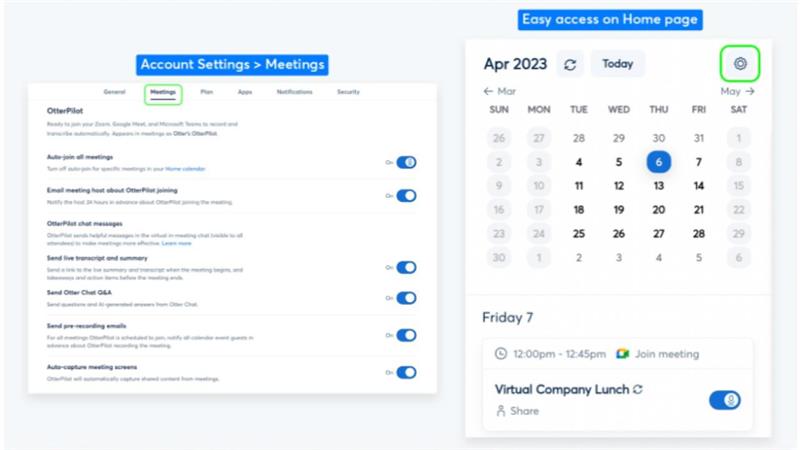
During Google Meet, Zoom, or Microsoft Team meetings, Otter AI Notetaker can regularly send you chat messages that also include links to the live summary and transcript, Otter chat questions and answers, and action items. You have the option to easily turn it off and disable the Notetaker chat options at any time.
1. You can find all your Notetaker settings by going to Account Settings and then selecting the Meetings Page. You can also select a gear icon available on the Homepage Calendar.
2. Under the Notetaker Chat Messages, you will find two main settings that you can manage:
- Send Otter Chat Q&A.
- Send a live transcript and summary.
3. Once you toggle off the above two settings, you will no longer receive Notetaker Chat Messages during online meetings.
How to Stop Otter AI Notetaker from Joining Your Meetings Automatically?
Otter AI Notetaker is a top feature that can automatically join your Google Meet, Zoom, and Microsoft Teams meetings through your synced calendar events to ensure a meeting transcription in real-time. There might be moments in your daily work life where you would want to disable this feature. In this section, you will get easy instructions with screenshots on how you can stop Notetaker from joining your meetings automatically.
1. Log in to Otter.ai.
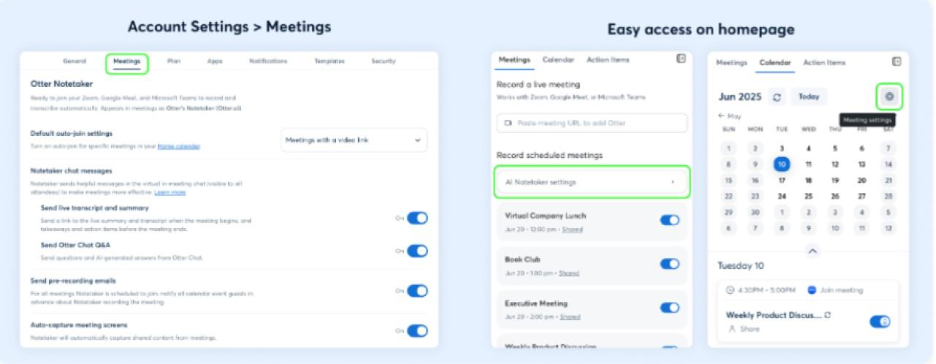
2. There are numerous ways through which you can access your meeting settings:
- Go to account settings, then go to meetings, and then access all the Notetaker settings including auto-join.
- Select the menu “AI Notetaker Settings” on the homepage Meetings tab.
- Choose the option “Gear Settings Icon” in the top corner of the homepage calendar tab.
3. Choose the option “Meetings I Manually Select.”
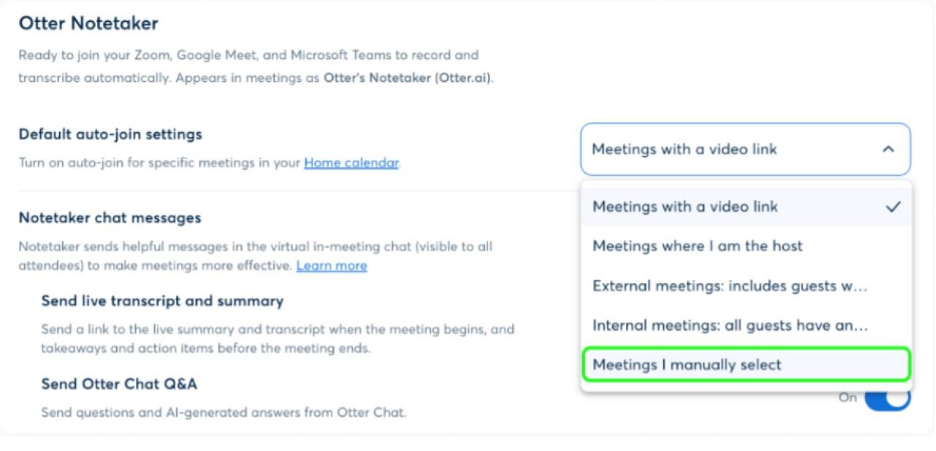
4. That’s it. Once you do this, Notetaker will not join your synced calendar events automatically.
Tips to Know:
- Events that were manually toggled on or off previously will retain the setting.
- If you toggle auto-join on or off, it will only affect the meetings where you did not change the setting manually.
- Review all the calendar events after handling this setting to see if you have made changes to the previous events.
Conclusion
Managing Otter AI Notetaker settings provides you with total control over meeting transcriptions. Irrespective of whether you need to disable auto-join features, turn off chat messages, or remove the bot from the present sessions, these simple steps make sure that you ascertain total privacy and professionalism in your online meetings. By comprehensive numerous control options available via the Otter AI’s settings, you can personalize the tool to align with your particular requirements, enabling it when transcription is useful while turning it off during casual or sensitive discussions that do not need automated documentation.
Frequently Asked Questions
Q1. Do I have the option to disable Otter AI Notetaker for particular meetings only?
A- Yes, you can easily toggle Notetaker on or off while ensuring auto-join enabled for others.
2. Does disabling auto-join impact my prior scheduled meetings?
A- No, events that were toggled manually will retain their settings. Auto-join will only affect the meetings that were not manually adjusted.
3. What is the process of removing Otter AI Notetaker from a meeting that is in progress already?
A- Remove it via Otter AI dashboard or you can also disable it directly from the video conferencing interface during active session.
4. Can Otter AI Notetaker be stopped from sending chat messages without disabling transcription?
A- Yes, you can toggle off the chat settings in Notetaker AI while keeping the transcription active.
Q5. Which video conferencing platform does Otter AI Notetaker support?
A- Otter AI Notetaker works with Zoom, Google Meet, and Microsoft Teams.