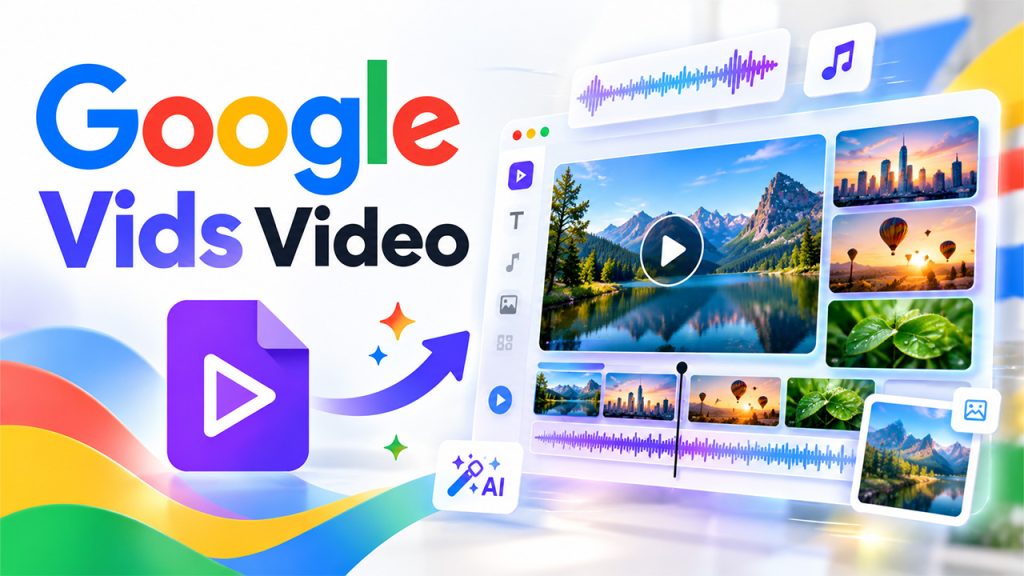






Now imagine that slideshows have come to life in the form of a short video. It has voice, background music, and moving scenes. And this is all without using a single editing tool or spending hours. That's what Google Vids Video does. You just have to tell it what you want, and it will turn your written prompt into a video. It's useful for those people who know what they want but have no time to learn complicated software. It's a simple tool. If you can type a few simple sentences, you can make a video in just a few minutes.
What Is Google Vids Video?
Google Vids is a video maker from Google. It is an AI-powered video generator that lets you turn written prompts into videos with images, voiceovers, and background music. It is similar to Google Slides. This AI-powered video creation tool runs on a mix of Google models, including Gemini, Imagen, and Lyria. You can use it for product demos, team updates, meeting recaps, and onboarding clips. Like most AI video platforms, it isn’t built for big-screen movies.
How to Use Google Vids Video: A Step-by-Step Guide
Google Vids offers you multiple ways to get started. You can begin from scratch, use a ready-made template, or use a Google Docs or Slides file. Follow the steps below to generate an AI video:
- Open Google Vids: Type vids.new into your browser. It takes you straight to Vids. You can also use docs.google.com/videos, but this URL is longer and it adds an extra step.
- Choose Your Video Format and Starting Point: The welcome screen asks how you want to begin.
- Orientation: Landscape is the default. Choose Portrait for phone-style videos or Square for social posts.
- Starting method: You can start with a blank video, an avatar, a Google Doc, or Google Slides.
- Click Create AI videos to start using the Google Vids video generator.
- Write a Prompt: Describe the video you want in the message bar on the right side. Keep it plain and specific. For instance, “A one-minute welcome video for new team members” works better than “make a video.” If you have images you’d like to use, drag them into the Ingredients area. If you want to change the video model, resolution, and length, use the dropdown.
- Preview and Refine AI-Generated Clips: Hover over the clip to preview it. It will show you a few options:
- Insert adds the clip to your canvas.
- Extend lets you tell Vids what should happen next.
- Edit lets you change the clip with a new prompt.
- Recreate runs the same prompt again for a fresh result. Think of it as asking for another draft.
- Add and Organize Video Scenes: Click the plus sign on the timeline, or press Ctrl+M. Each scene works like a slide, so a longer video is just a chain of short ones. Keep each scene focused on one idea. It makes the whole video easier to follow.
- Edit Transcripts, Animations, and Audio: Click any scene, and a floating toolbar appears. It will show you these options:
- Transcript: Cut or add words, and the video updates to match.
- Animation: Choose how a scene slides, fades, or pops onto the screen.
- Audio: Balance the voice against the music, so nobody has to strain to hear.
- Loop and format: Repeat a clip or resize and reposition it on the canvas.
- Export and Share Your Finished Video: Open the File menu when you’re happy with the result. You can download the video, export to Drive, or YouTube.
Key Features of Google Vids Video
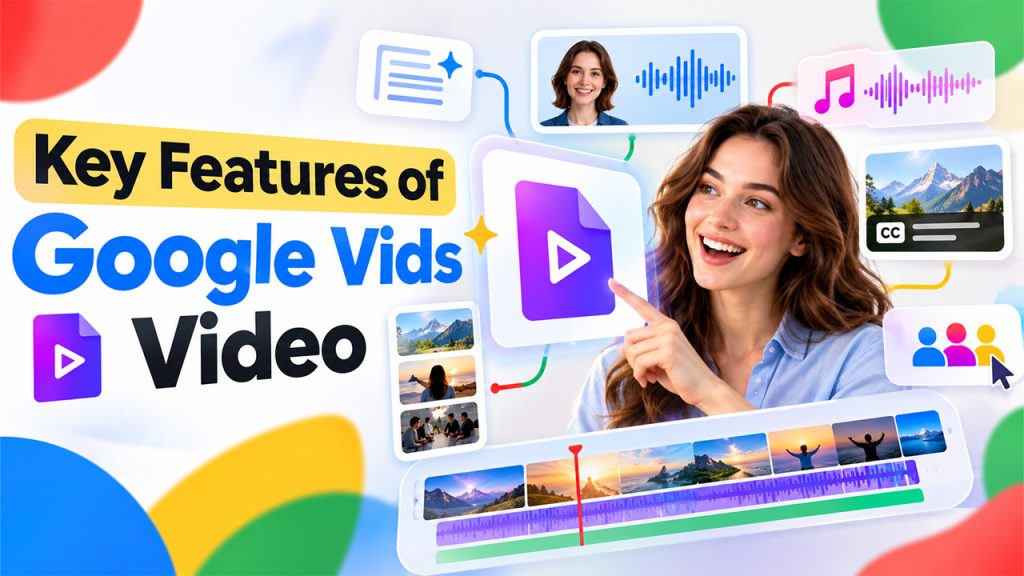
Google Vids Video offers more than prompt-based video creation, with AI-powered tools for scripting, voiceovers, music, captions, and collaboration that make video production easier.
- AI Scriptwriting and Prompt Assistance: You don't have to stare at a blank page and think about what or how to write. Just describe your goal and Gemini helps you write the script. And you can change anything whenever you want.
- AI Avatars and Voiceovers: If you are camera-shy, you can use an avatar, either realistic or cartoon to be on camera. Moreover, if you prefer only voice, you can add an AI narrator instead. Either way, Google Vids turn your words into speech.
- AI-Generated Music and Audio: Vids can also create music using AI. You just have to describe the song you want, including the mood, genre, and instruments. In case you don't like AI-made music, you can add your own lyrics.
- Automatic Video Captions: There are many people who watch videos on mute. They prefer to read captions to follow along. Google Vids adds captions to your videos that are easy to understand.
- A Wide Media Library: You have multiple options to choose from. You can add stock photos, videos, and music. Additionally, you can also use screen recordings, AI-generated visuals, and Google Slides presentations. You can also use files from Drive.
If you want a cartoon or anime style for a clip, a tool like Lensgo AI can create it, and you can upload it to your project.
- Team Collaboration and Video Sharing: Vids live inside Google Workspace. This allows your teammates to edit and comment together, much like in Docs. Finished videos can be shared on Drive, YouTube, or in emails.
Google Vids Video Pricing: Plans and AI Credits
Google Vids Video is free to start. The main difference between plans is how many AI credits you get each month for generating clips and avatars.
| Plan | Cost | What You Get |
| Personal Google Account | Free | Core features plus a small number of monthly AI credits |
| Google AI Plus | Paid (lowest tier) | Same Vids limits as the free personal plan |
| Google AI Pro | From $19.99 per month | Higher AI limits for frequent video makers |
| Google Workspace Plans | Part of your Workspace plan | Included, but your admin decides who can use Vids and its AI features |
The free plan works well if you make videos occasionally. However, someone who makes videos every week is more likely to exhaust credits quickly. That's when you can consider upgrading the plan. Also, note that plans and limits change often, so look at Google's pricing page before you commit.
Conclusion
Earlier, making videos used to be a long process and only a few people with editing skills could do it. However, now video is slowly turning into something everyone can make, that too, within minutes. Google Vids Video is a good sign of where things are heading. AI tools like it will keep evolving, and the gap between a rough idea and a finished clip will keep shrinking. Take it slow. You don't have to master every feature on day one. Make one short video this week, watch how the AI responds to your prompts, and adjust from there. Practice teaches you more than any online tutorial will.
FAQs About Google Vids Video
Yes, you can use it for free with a personal Google account. You get the basics plus a few monthly AI credits. Heavier users can upgrade to a paid plan.
Videos made in Vids can run up to 30 minutes. Videos you import can be longer, up to 95 minutes or 4GB, but you'll need to trim them to 30 minutes or less.
Yes, but you can't see it while watching. It's embedded in the video so verification tools can tell that AI made it.
You can watch Vids files on mobile. Creating and editing, though, only works in the web app.
No. You can't create or edit a Vids file offline. You can export your video as an MP4 and edit it offline in other software.