




Have you ever had a good conversation with an AI chatbot? Often, we find the interaction with chatbot valuable, do not save it, and later on regret not saving it. Perhaps, a chatbot helped you draft content, or a support bot provided you with directions that you cannot remember. This happens all the time. These chatbots now play an instrumental role in our lives; they provide you with ideas, shortcuts, and fast and helpful answers that we cannot afford to lose. Essentially, this blog is a detailed guide on AI chatbot conversations archive. You will understand what they are, why you need to keep them, and how you can easily find and save them without going into too many technical details. They can be like old notes that can help you in the future.
Understanding Chatbot Conversations
When you interact with an AI in everyday life, you ask a question and get assistance with something. This is known as chatbot conversation in simple terms. Sometimes, the answers are short; you just need to add a few lines. In most situations, it turns out to be a long interaction where you are just exploring ideas with the help of a machine. Interaction with chatbot can occur anywhere, i.e., in an app, on a website, or on platforms such as Gemini, ChatGPT, or live support chat of the company. The AI understands your prompt, context, and answers instantly. An AI is like a knowledgeable friend who knows something about everything.
You must have used a chatbot at some point in your life. Whether it is for writing an email or tracking a package, AI chatbots serve diverse use cases in the industry. Users prefer to save these chats not because of sentiment, but because there are useful details in the chat. There can be a quick fix, a clever idea, or something that you do not want to lose.
Why Do You Want to Save Chatbot Conversations?
Here is what you should know: choosing to save these chats is not about saving memories. It is about not losing valuable details buried in your chat. You might want to switch to a specific reply that worked and won you the deal or the one command that proved to be effective. This is especially true if you are using ChatGPT-driven tools. Some people consider old AI chats to be research logs or personal chats.
If you effectively save your conversations, your life will be much easier. You can quite easily scroll through, copy what you require, or utilize the old prompts again instead of typing the same prompt repeatedly. These AI chats work like a small “AI Chatbot Conversations Archive”. You did not even have to work hard to create it; you created it just by chatting.
How to Save Chatbot Conversations?
You might feel that saving chatbots is quite technical, but it is not. The exact process can vary from one platform to another, but the point is the same across all platforms.
ChatGPT: In ChatGPT, you will find your old conversations appearing in the sidebar. You do not have to lift a finger; they will appear there automatically unless you have turned off the chat history. If you need a backup, perform the following steps:
- Go to the “Settings.”
- Search for “Data Control.”
- Select “Export Data.”
- You will receive a download link in your email. It is a file containing all your conversations with ChatGPT.
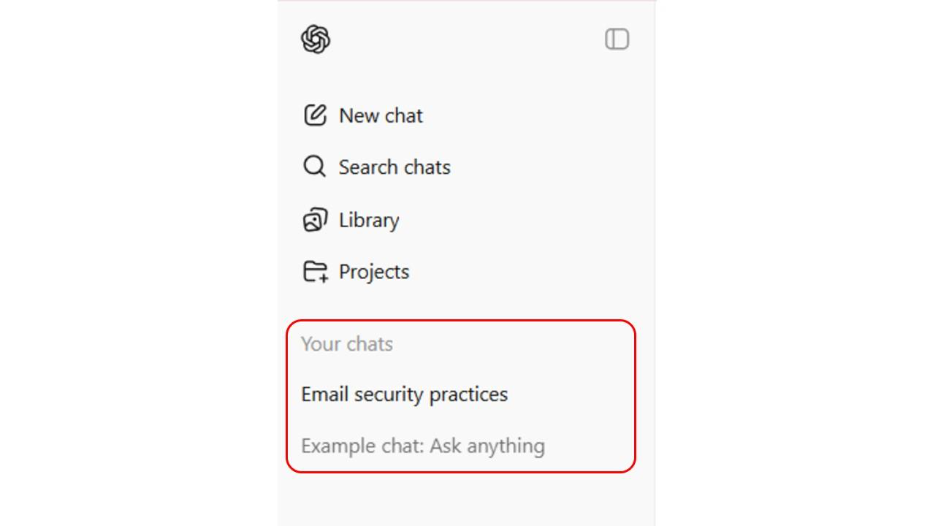
Figure: Your ChatGPT Chats

Fig: Export data from ChatGPT

Gemini: As far as Google Gemini is concerned, it saves all data on its own. Your chats appear in Google account, and you can easily view them at any point of time. If you like having all the important and relevant details in a single spot, you can easily do that. Just copy the chats that are important for you and save them in the folder or notes app. This will help you minimize the possibility of losing data if somehow the data disappears in future.

Fig: AI Chats in Google Gemini
Microsoft Copilot: In Microsoft Copilot as well, the saved chats appear on the left sidebar. You can search for any chats using the search bar. Just like ChatGPT, if you want to delete or rename any chats, you can do see by selecting the three dots appearing on each chat. You will also find a list of your AI agents on the left-hand side. (Check our blog on “Runner.H”, a revolutionary platform to create AI agents.)
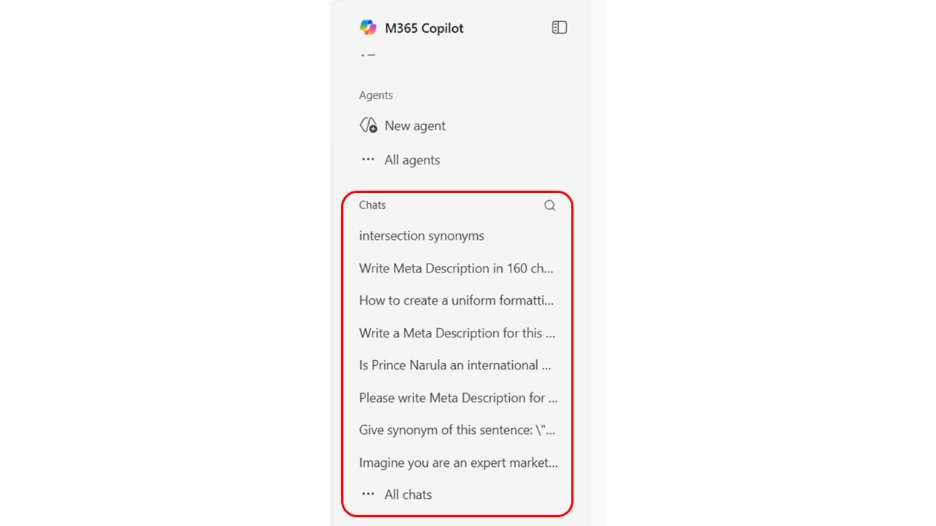
Fig: Microsoft Copilot Chats
Somehow, if you feel that your AI chatbot is not saving conversation, you can just copy and paste the chat in a Google doc or Word file. You can also take your screenshots and save them in your folder. If you do not want to learn any fancy technique or special way of saving your chats, then this is an old-school and effective technique.
Right Way to Store as Well as Organize Saved Conversations
These AI chats are nothing but data. And, as is true with any data, saving them at different places will do you more harm than good. In a hectic and fast-moving workflow, it is quite possible to save your chats at different places, thinking that you will organize them later. However, before you know it, you might end up saving your chats in disarray. Having a small folder can be helpful. You can even name it as “Chat Ideas” or “AI Notes.” You can also make a few subfolders inside. You can make one for personal stuff, one for work, and one for random experiments. Starting out, you do not have to make everything perfect. You just need to make sure that you easily find the chat you want at the right time.
If you want to be more organized, then you can utilize applications like Evernote or Notion. You can also explore various AI note-taking apps that can help you streamline these chats and notes. For example, you can use “Freed AI” if you are in the healthcare industry. This is better than scrolling through hundreds of nameless files. Keep in mind that you do not need any fancy organization. The end objective is to keep your chats organized so that you can refer to them when you need them.
Can You Access Old AI Chats in the Future?
Yes, you can. As long as you did not utilize incognito mode or delete your chats. Name any platform be it Open AI’s ChatGPT, Microsoft Copilot, or Google Gemini, they all help you save your history by default. All you need to do is sign back in and view all your chats easily. However, what you must be careful about right now is not to turn off your history; all your chats will be gone. Once you have closed your Chat window, you cannot get it back. The good practice is to always store your chats somewhere safe in an organized way. This small habit can make a world of difference in your daily workflow.
Do These Saved Conversations Remain Private?
No discussion on AI chatbots can ever be complete without talking about privacy. The majority of LLM models promise to keep your data private. However, they will use it to train the chatbot unless you manually turn it off. And they do allow you to turn off training. For example, in ChatGPT, you can perform the following steps to turn off training:
- Go to the “Settings.”
- Then, go to “Data Controls.”
- After that, select “Disable Training.”
Doing this will help you not use these chats in any learning process. Furthermore, if you are saving data locally, you can keep it protected using passwords or passkeys.
Conclusion
Saving your AI chatbot interactions is a good habit that saves crucial information that you have created. Irrespective of whether you are using Gemini, ChatGPT, or Copilot, the process is fairly simple. Most platforms help you auto-save your history, and you can manually copy or export critical interactions. What is important here is keeping these chats organized in note-taking apps or folders so you can easily find them later. With privacy settings configured properly and straightforward storage space in place, you will have a small and helpful archive of solutions, helpful ideas, and workflows ready whenever you require them.