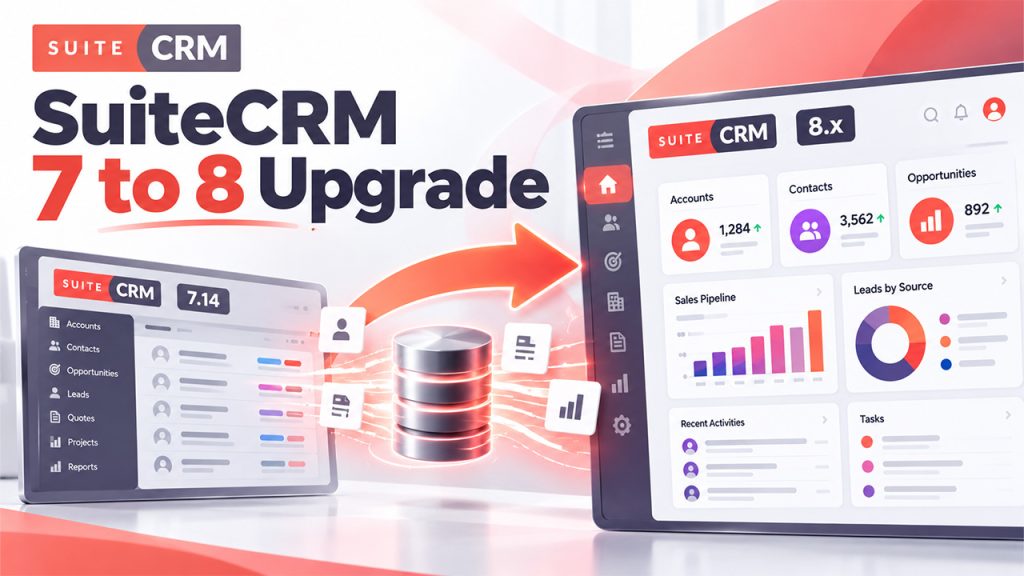






The guide explains the completed SuiteCRM 7 to 8 upgrade process, covering preparation, installation, data migration, customization handling, testing, and deployment.
SuiteCRM is among the most popular open-source customer relationship management, or CRM, platforms that enable businesses to manage leads, contacts, sales opportunities, customer interactions, and marketing activities. With the growth of business requirements, upgrading to a newer CRM architecture helps improve maintainability, support future development, and provide access to newer platform capabilities.
The transition from SuiteCRM 7.14 to SuiteCRM 8.x mainly requires more than a simple installation of new versions. The two versions differ significantly in their architecture, extension mechanisms, user interface, and customization approaches. A successful migration requires careful planning, compatibility checks, data validation, and comprehensive testing.
The official migration path runs from 7.14.x to SuiteCRM 8.7 or later, and it's not a one-click upgrade. Users will need to copy their legacy instance into the new structure, manually replace vendor and include folders, run console commands, and merge view metadata—all while ensuring their custom logic hooks, scheduled jobs, and PHP code survive the jump from PHP 7.4 to 8.1 or higher.
Need to Upgrade from SuiteCRM 7.14 to 8.x
Upgrading from SuiteCRM 7.14 to SuiteCRM 8.x enables businesses to easily modernize their CRM platform, improve maintainability, and prepare for future development. SuiteCRM 8 introduces a redesigned user interface, along with a modernized application architecture that differs from SuiteCRM 7.
Some of the key factors why users upgrade from SuiteCRM 7 to 8 are as follows:
- Modern Architecture: SuiteCRM 8 separates important application components, providing a different foundation for development and maintenance.
- Improved User Experience: The updated interface offers a more contemporary experience for users performing everyday CRM tasks.
- Updated Extension Approach: Developers can use the newer platform extension mechanisms rather than relying exclusively on legacy customization patterns.
- Long-term Maintainability: Moving to a supported release compatible with your infrastructure can simplify future maintenance and security planning.
- Future Development Opportunities: Organizations can evaluate newer platform capabilities when planning integrations and business process improvements.
Benefits of Upgrade
Some of the major benefits of upgrading SuiteCRM 7 to 8 are as follows:
- Modern Architecture: The upgrade offers an updated application structure that supports ongoing development and maintenance.
- Improved User Experience: Offers a redesigned interface for smoother CRM navigation and daily operations.
- Enhanced Customization: Enables developers to adapt and extend CRM functionality using SuiteCRM 8 supported extension mechanisms.
- Better Maintainability: Helps simplify future maintenance when using a compatible, supported release.
Pre-Upgrade Checks Before Migration
Before starting the SuiteCRM 7 to 8 upgrade, users should perform these checks to ensure a smooth and reliable migration. Some of the key checks before migration are as follows:
- Check System Requirements: Verify PHP, database, web server, and dependency compatibility with the target SuiteCRM 8.x release.
- Review Customizations: Identify custom modules, fields, workflows, logic hooks, and third-party extensions that may require modifications.
- Back Up Data: Create complete backups of the database, application files, uploaded documents, and configuration settings.
- Check Data Integrity: Identify duplicate records, missing relationships, and inconsistent data that could affect migration.
- Verify Integrations: Review external APIs, email services, scheduled jobs, and connected applications.
Steps to Upgrade SuiteCRM 7 to 8
The steps to migrate SuiteCRM 7 to 8 are as follows:
- Step 1: Download and Unzip the Migration Package
Download the SuiteCRM 8 migration package for the target version. In the migration package, the user will be able to see separate downloads for fresh installs and upgrade packages.
Choose the one labelled Upgrade from 7.14.x. Unzip it to a new directory that will become the SuiteCRM 8 root.
- Step 2: Copy the 7.14.x Instance into Public/Legacy
Copy the SuiteCRM 7.14.x instance folder into the public folder of the SuiteCRM 8 destination, then rename the copied folder to legacy.
- Step 3: Replace Vendor, Include, and deprecated.php
SuiteCRM 8.7+ introduced breaking changes to core including files and the Composer vendor directory.
Replace /public/legacy/vendor with the vendor folder from tmp/package/upgrade/legacy-migration/vendor, replace /public/legacy/include with the include folder from tmp/package/upgrade/legacy-migration/include, and replace /public/legacy/deprecated.php with the deprecated.php file from tmp/package/upgrade/deprecated.php. This step ensures that the legacy instance can talk to the new Symfony runtime, and that deprecated SugarCRM functions are shimmed.
- Step 4: Set file permissions
Set permissions so that the command-line user has read and write access to the instance files. On a typical LAMP stack, run sudo chown -R www-data:www-data /var/www/suitecrm8 and sudo chmod -R 755 /var/www/suitecrm8, adjusting the user (www-data, apache, nginx) to match the web server.
- Step 5: Run the prepare command (setup-legacy-migration)
From /var/www/suitecrm8, execute./bin/console suitecrm:app:setup-legacy-migration. The script will prompt to:
- Set session_dir to an empty string '' in the legacy config (user can reconfigure sessions after migration).
- Update site_url to the address user can use to access SuiteCRM 8, appending /public if the vhost does not point directly to the public directory (e.g. https://crm.example.com/public).
- Update the RewriteBase in /public/legacy/.htaccess. If the vhost points to the public, set RewriteBase /legacy; otherwise, prepend the path, e.g. RewriteBase /crm/public/legacy.
This step writes an .env.local file in the 8.x root and patches legacy configuration so the hybrid environment can boot.
- Step 6: Run the Upgrade Command
From SuiteCRM 8 instance root, run./bin/console suitecrm:app:upgrade -t SuiteCRM-8.7.0, replacing SuiteCRM-8.7.0 with the name of the downloaded package. The script copies metadata, migrates to the database schema, and installs the new Angular front end. Depending on the size of the database, this can take two to fifteen minutes. Watch for errors; if the script stops, check logs/ and the console output before retrying.
For complex data migration requirements, consider SuiteCRM data migration services helping preserve data integrity.
- Step 7: Run the Post-Upgrade Command
If the instance has customisations, ensure the custom code complies with the minimum PHP version listed in the Compatibility Matrix, then run ./bin/console suitecrm:app:upgrade-finalize. This command triggers the metadata merge for view definitions. By default, it uses a safe merge strategy; user can pass a flag to control behaviour (see the Metadata Merge Modes documentation). If the user has heavily customised detailview or editview files, review the merged output in public/legacy/custom/modules/ after finalizing completes.
- Step 8: Fix permissions again and restart the server
If they ran the migration commands as a different user from the web server user (e.g. as root), re-set permissions so that the web server can read and write the files. Then restart Apache or Nginx, to clear opcache and APCu: sudo systemctl restart apache2.
- Step 9: Log in and test
Once all steps are complete, the user should be able to log into the SuiteCRM 8 instance. Open the configured URL in a browser. Users will see the new Angular UI. Log in with the admin credentials (same username and password as 7.14). Spot-check a few modules—Accounts, Contacts, Opportunities—to confirm data migrated correctly.
Final Checklist for a Successful SuiteCRM 7 to 8 Upgrade
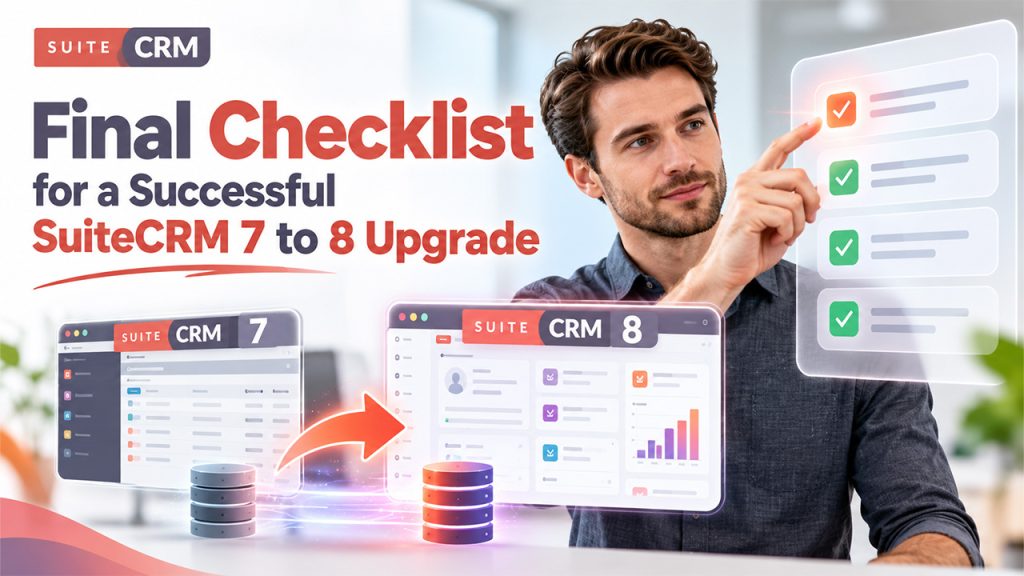
Before declaring the migration complete, confirm that the following tasks have been addressed:
- The source installation meets the migration package's version requirements.
- The target server meets the selected SuiteCRM 8 release requirements.
- Database and file backups have been created and tested.
- A staging migration has been completed successfully.
- Custom modules, fields, workflows, and integrations have been reviewed.
- Record counts, attachments, relationships, and permissions have been validated.
Common Mistakes to Avoid During Migration
Some of the common mistakes that the user should try to avoid while upgrading SuiteCRM 7 to 8 are as follows:
- Skipping Compatibility Checks: Unsupported PHP versions or database configurations can cause installation and runtime failures.
- Migrating Without Testing: A successful migration command does not guarantee that business processes work correctly.
- Ignoring Customizations: Legacy extensions and custom code may require specific changes or replacement.
- Overlooking Attachments: Documents and files may need separate verification to ensure they remain accessible.
- Changing Production too Early: Always validate the migration in a separate environment first.
Conclusion
Upgrading from SuiteCRM 7.14 to 8.x is an essential step in modernizing the CRM platform and improving long-term maintainability. Users can follow the step-by-step migration guide, enabling businesses to prepare their environment, migrate data, handle customizations, and test critical workflows. It also helps minimize downtime and any potential data loss. For a successful transition, proper planning, compatibility checks, and post-upgrade validation are essential. For complex environments, a professional SuiteCRM upgrade service can help simplify the migration process and ensure a smoother move to SuiteCRM 8.
FAQs About Suitecrm 7 to 8 Upgrade
The main benefits include a redesigned user interface, a modernized application architecture, updated customization mechanisms, and a foundation for future development and maintenance.
Your existing data can be migrated using the appropriate procedure, but preservation should never be assumed without verification.
Create a complete backup of the database, application files, uploaded documents, custom code, and configuration settings.
Review the console output and application logs, verify system requirements and file permissions, and identify the underlying error before attempting another migration.