





A computer that can impact productivity, elevate frustration, and make even simpler tasks take longer than required. A lot of users experience performance problems after updating to Windows 11 or after utilizing their PC for an extended period. The good news is that most slowdowns are caused by prevalent factors like insufficient storage, startup overload, outdated software, or background processes.
If you are aiming to fix slow computer Windows 11 issues, numerous practical solutions can aid in restoring responsiveness and speed. In this guide, let us see the most efficient methods to enhance system performance without needing sophisticated technical knowledge.
What Is Causing a Slow Windows 11 Computer?
Before you attempt to fix slow computer Windows 11 issues, it is significant to comprehend what the major causes are. Windows 11 performance problems can result from hardware-related or software-related factors.
Common reasons comprise the following:
- Low available storage space
- Too many startup applications
- Extensive background processes
- Outdated drivers
- Pending updates on Windows
- Unwanted or malware software
- Insufficient RAM for workload needs
- Old hardware components
Recognizing the root cause enables you to apply the most relevant solution and achieve the right results.
Also Read: How to Force Quit an App on Windows: Complete Guide for Unresponsive Programs
Check Background Applications and Startup Programs
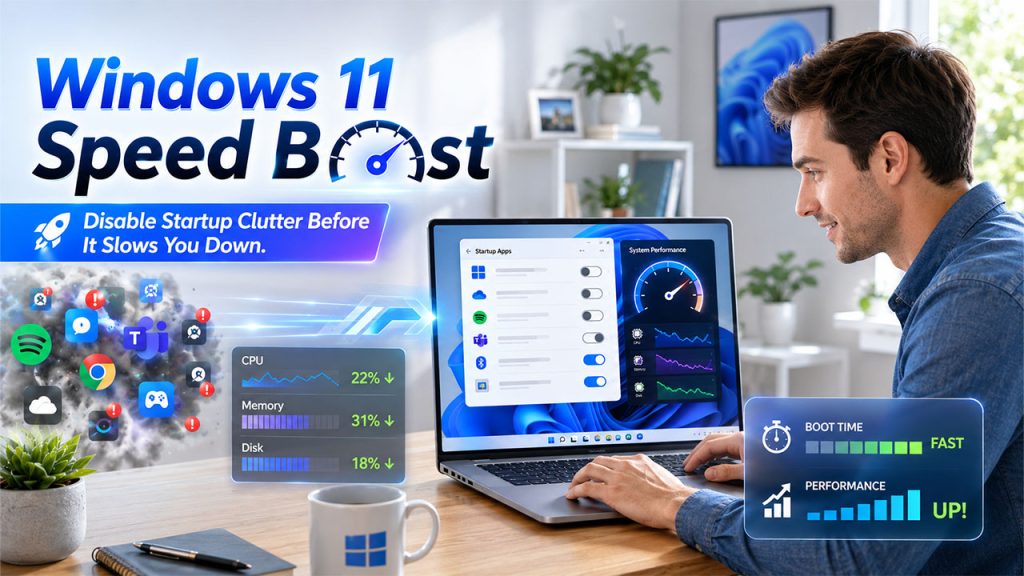
One of the most prevalent reasons users need to fix slow computer Windows 11 performance is an extensive number of apps automatically launching during startup.
How Can You Disable Redundant Startup Apps?
- Launch Task Manager utilizing Ctrl + Shift + Esc.
- Choose the Startup Apps tab.
- Go through the list of enabled apps.
- Disable all programs that are not vital during startup.
Minimizing startup applications can greatly elevate the boot times and overall responsiveness of the system.
Handle Background Processes
A lot of applications continue to run in the background even when they are being used actively.
To enhance performance:
- Close unused apps.
- Review processes that are resource-heavy in Task Manager.
- Uninstall software that is no longer required.
- Limit applications that automatically update or synchronize in the background.
Such simple modifications can free up memory, CPU, and disk resources.
Also Read: How to Fix BIOS, Windows Update & ASUS App Issues on Your Laptop
Optimize Disk Performance and Free Up Storage
Storage limitations are yet another key factor that can slow down Windows 11 systems. Ensuring adequate free space aids the operating system work in an efficient way.
Remove Temporary Files
Windows consistently creates temporary files that you collect over time.
To remove these files:
- Open Settings.
- Go to “System” and then select “Storage”.
- Choose “Temporary Files.”
- Delete unnecessary files.
Enable Storage Sense
Storage Sense deletes temporary files automatically and handles disk space.
Advantages involve:
- Minimized storage clutter
- Enhanced system organization
- Effective lasting performance
Uninstall Redundant Apps
It is a common habit for users to collect apps over time that they no longer use. Deleting redundant software can free valuable storage space and minimize activities in the background.
When looking to fix slow computer Windows 11 problems, storage optimization must always be one of the first steps.
Update Drivers, Windows, and Security

Software that is outdated can negatively impact performance, security, and compatibility.
Install Windows Updates
Microsoft consistently releases updates that consist of:
- Security Patches
- Performance improvements
- Stability Improvements
- Bug fixes
To look for updates:
- Select “Settings.”
- Choose “Windows Update.”
- Click on the option “Check for Updates.”
Update the Drivers of the Device
Drivers enable hardware components to effectively communicate with Windows.
The list of drivers you must regularly update involve are as follows:
- Storage Drivers
- Graphics Drivers
- Chipset Drivers
- Network drivers
Updated drivers can fix bottlenecks in performance and enhance the stability of the system.
Implement a Malware Scan
Malicious software can generally consume resources of the system and cause noticeable slowdowns.
Utilize Windows Security to:
- Implement a complete scan of the system.
- Eliminate detected threats.
- Track consistent security risks.
Regular security checks can also aid in ensuring optimal performance consistently.
Enhance System Performance Via Settings and Hardware Optimization
If software fixes are not sufficient, additional methods of optimization may need further assistance:
Modify Visual Effects
Windows 11 comprises visual improvements and animations that can consume resources of the system.
To minimize visual effects:
- Look for the option “Advanced System Settings.”
- Click on “Performance Settings.”
- Choose the option “Customize Individual Effects” or “Adjust for Best Performance.”
These modifications can be significantly valuable on older computers.
Check Usage in Memory
Insufficient RAM can trigger applications to respond slowly, lag, or freeze.
Key signs of memory limitations involve:
- Frequent Application Crashes
- Slow multitasking
- Delayed system responses
If memory usage remains high consistently, a RAM upgrade may enhance performance.
Consider Upgrades in Hardware
For aging computers, upgrades in the computer may ensure significant performance improvements.
Key upgrades are listed as follows:
- Replacing an old hard drive with an SSD.
- Enhancing RAM capacity
- Upgrading old hardware components whenever compatible
These enhancements can improve Windows 11’s responsiveness and boot speed significantly.
Right Practices to Avoid Future Slowdowns
Once you effectively fix slow computer Windows 11 issues, you should move forward with good system habits to help avoid performance issues from recurring.
Key practices involve the following:
- Ensure that Windows remains updated regularly.
- Delete applications that are unused.
- Periodically track startup programs.
- Routinely run malware scans.
- Ensure sufficient free storage space.
- Regularly restart your computer.
- Back up key files and make sure that the system remains organized.
Ascertain continuous performance to make sure results are consistent rather than waiting until performance decreases.
Conclusion
If your PC is sluggish, there are a lot of effective ways to fix slow computer Windows 11 performance issues. Managing startup apps, freeing up storage space, updating software, simplifying system settings, and scanning for malware can significantly improve responsiveness. In a few cases, upgrading hardware such as RAM or SSD may ascertain further benefits. By using these strategies with consistent maintenance, you can make sure that Windows 11 runs smoothly and minimize the possibilities of future slowdowns.