






You will find unlimited resources on the internet educating you on how you can create, manage, and sustain a YouTube channel. But what happens if you want to delete one? There can be plenty of reasons to delete a YouTube channel: you lack time to sustainably create quality content, you can have other pursuits to focus on, you might be facing online bullying, or there might be way too many controversial content on your channel that you want to get rid of altogether. And let’s face it. There are already 113 million YouTube channels in 2026.
Regardless of your reason, deleting a YouTube channel is a very simple process. This is a comprehensive guide that can help you through the process step-by-step. Deletion process can change and we will accordingly update our content. So, bookmark this article if you do not want to delete your account now but can do so in future.
Should You Hide or Delete Your YouTube Channel?
Starting off, you need to understand that there is a difference between hiding your YouTube channel and deleting it. You do not need to delete your channel if hiding it works for you. “Deleting a YouTube channel” is an irreversible decision, and all your content, impressions, comments, and subscribers will be gone forever.
On the contrary, hiding your channel will just make it invisible for others. No one will be able to access your channel, and your subscribers and content will remain as it is. Thus, in the future, if you want to make YouTube content again, you can simply choose to unhide your channel and start from where you left off. Hiding your channel will not delete your subscribers and content.
Before you make the decision, it is important to understand who is following your content actually. Does the audience you have accumulated show potential for future growth on YouTube? Go through our blog on “How to See Your Subscribers on YouTube?” can provide you with a clearer picture of the engagement rate and audience size. This can give you a very clear picture of whether deleting the YouTube channel was the right call.
If you have made the decision that you want to get rid of your channel altogether, let us help you with the following section-
How to Delete Your YouTube Channel?
Proceed to delete your YouTube channel with the help of the following steps-
Step 1: Log into Your YouTube Channel:
The first step is to log into your YouTube account with which you have created your channel. Just go to youtube.com and select the “Sign In” button visible at the top-right corner. Enter your credentials and log in. You can either use your Google credentials or enter your email id and password to sign into your YouTube a
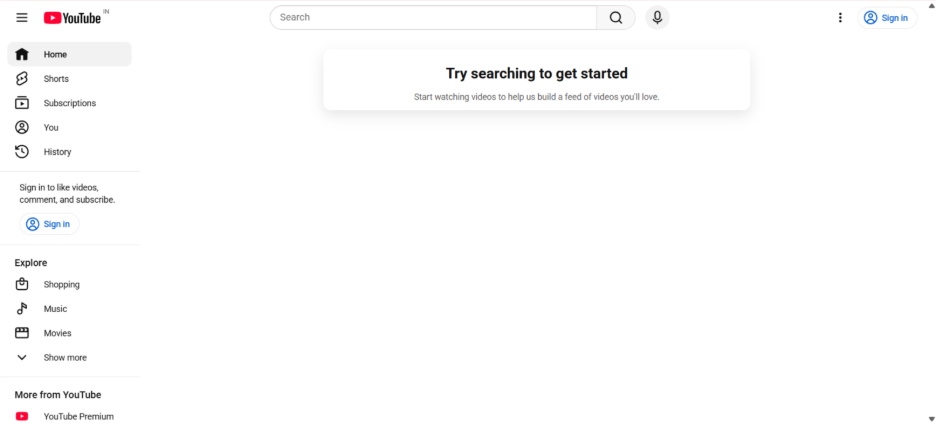
Fig: Sign In Button on YouTube Page
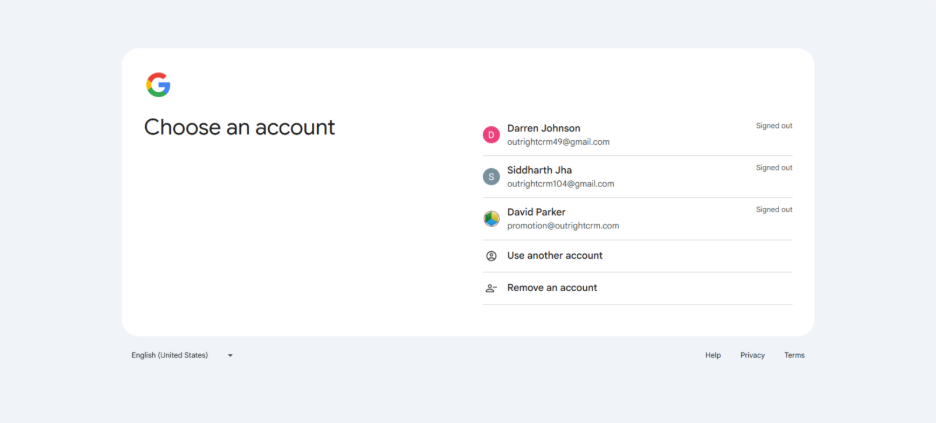
Fig: Use your Gmail or other email to login
Step 2: Go to the Settings of Your Channel:
Once you log in, click on the profile picture available on the top right corner and then select “Settings” from the drop-down menu.
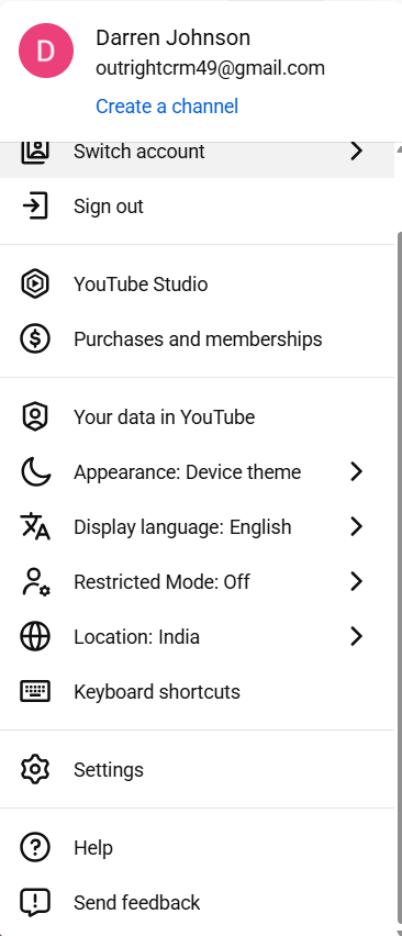
Step 3: Go to “Advanced Settings”:
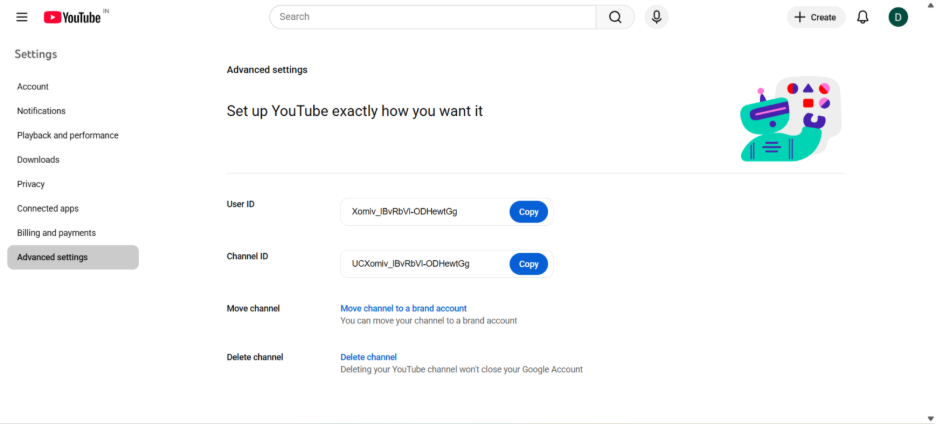
Among the options on the left-hand side, there will be an option called “Advanced Settings.”
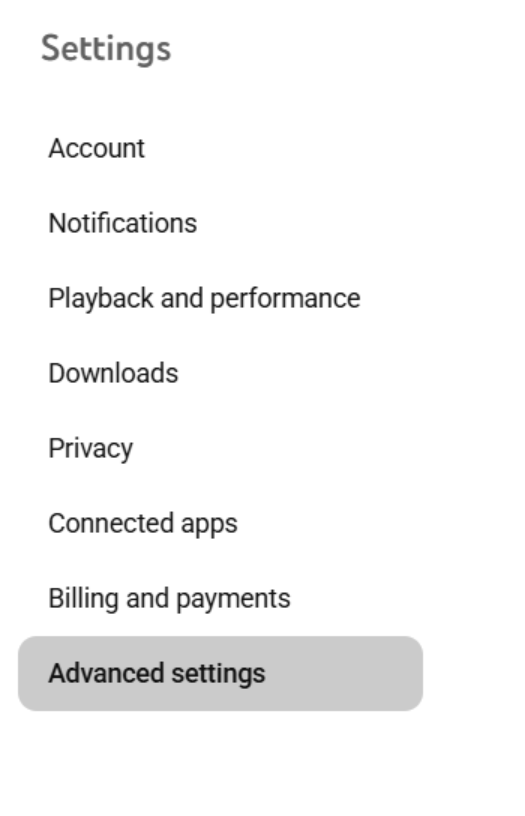
Step 4: Select “Delete Channel”:
Go down to the bottom of the page and select the button “Delete Channel.”
Step 5: Choose Whether You Want to Hide or Delete Your YouTube Account:
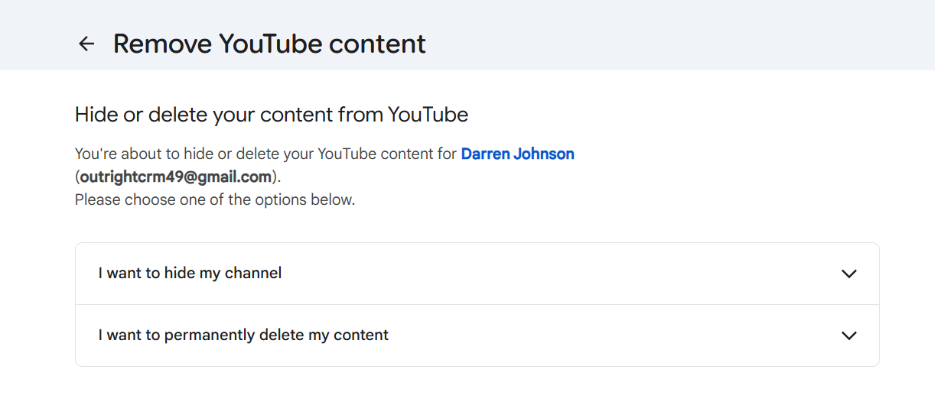
You will arrive on the screen where you will be asked to hide or delete your YouTube account. If you want to hide your account, you can select “I want to Hide Your Account” and if you want to delete your account, you can select “I want to Permanently Delete Your Account.” Since you have made the decision to permanently delete your account, select “I want to Permanently Delete Your Account.”
Read More:
How Do I Block a YouTube Channel?
How to Convert YouTube to MP3 Legally
Step 6: Confirm Your Decision:
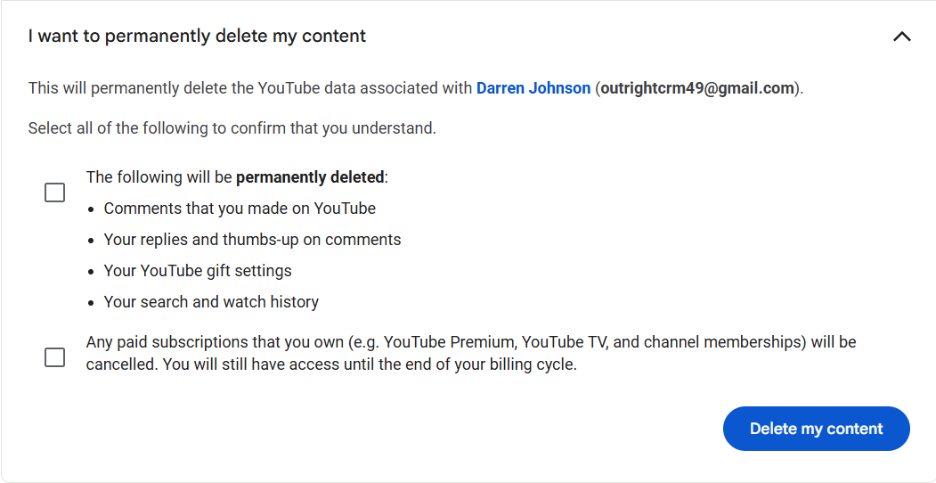
You will be asked to confirm your decision. YouTube will inform you that all the data associated with the channel will be deleted. You can provide your content by selecting all the checkboxes. The first checkbox will be about permanently deleting all your data including your replies, interactions, subscribers, comments, YouTube gift history, search and watch history, etc. The next checkbox will be about your paid subscriptions, which will be cancelled once you delete your YouTube channel. You only have access to it until next month’s billing cycle.
Step 7: Select “Delete My Content”
Choose the option “Delete My Content” and then provide your password to proceed further. Allow the deletion to complete. You will receive a confirmation email that will inform you that your channel has been deleted.
Can You Delete YouTube Channel on Your App?
If you are utilizing the YouTube app on your iPhone, you can also directly delete your channel from the app. The steps are similar to deleting a channel on the web but let us just go over them again:
Step 1: Start Your YouTube App-
Open a YouTube app on your phone and log in to your account related to the channel you wish to create.
Step 2: Proceed to Your Channel Settings-
Select the profile picture visible on the top right corner and choose the “Settings” option from the menu.
Step 3: Visit “Advanced” Settings-
Select “Advanced” settings appearing under the “Channel” section.
Step 4: Select “Delete” Channel-
Go down to the bottom of the page and select the button “Delete Channel.”
Step 5: Confirm Your Decision-
As you will see in the desktop version, you will be asked to provide confirmation to delete your channel. Select the checkbox “I want to permanently delete my content” and choose the button “Delete My Button.”
Step 6: Provide Your Password-
Provide your password to give confirmation that it is you who is deleting the YouTube account.
Step 7: Wait Till Your Channel Deletion Process Is Complete-
Completing the deletion process can take some time to complete. Once it is done, you will get an email, confirming that your channel has been deleted finally.
Conclusion
The blog educates you on “how to delete a YouTube channel.” It is a straightforward process, but it is an irreversible and permanent decision that needs careful thought before you go ahead. All your comments, videos, watch history, subscribers, and interactions will be completely wiped out with no chance to recover them. However, before you decide to remove your channel completely, it ensures that your subscribers and content are invisible to others, providing you flexibility to return whenever you are ready.
If you have assessed your options and want to move on permanently, the steps mentioned in this guide make process hassle-free and simple, both on mobile and desktop. Once you confirm the deletion and the process is done, you will receive a confirmation email. Ensure that this decision augments your long-term objectives before you select the “final button.”