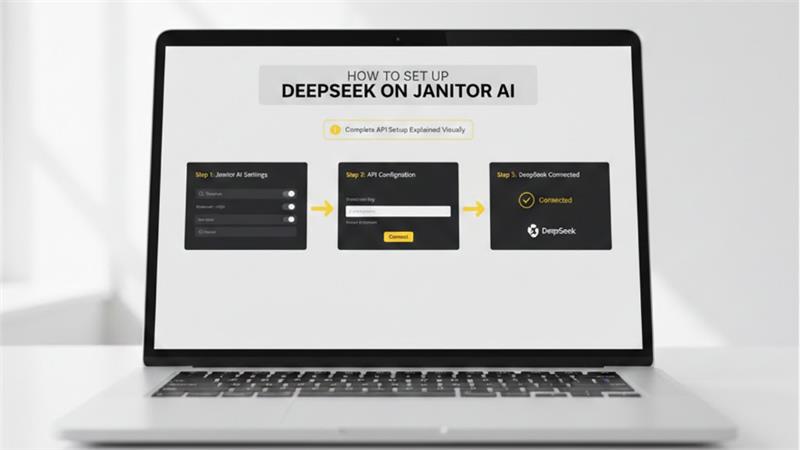






Introduction
The increasing popularity of alternative and open-source models has sparked an interest in users to explore platforms beyond conventional AI providers. One of the combinations that is gaining traction is how to set up DeepSeek on Janitor AI. This specifically interests users who appreciate sophisticated roleplay, character-driven interactions, and better prompt control.
Janitor AI enables integration with third-party models through API configuration. DeepSeek proves to be a strong choice because of its effective reasoning and capabilities to follow instructions. When it is correctly configured, this setup ensures a dependable and effective conversational AI experience without sacrificing performance or adaptability.
This guide details the process completely or clearly, emphasizing usability, accuracy, and the right practices.
What Is Janitor AI?
Janitor AI can be defined as the character-driven conversation system specialized for structured and unstructured AI conversations. It enables users to explore pre-developed or custom characters with the help of language models.
Its list of salient features involves the following:
- Creation of custom characters
- External API Integration
- System message and prompt control
- Assistant-style and roleplay conversations
It is significant to keep in mind that Janitor AI does not have its own proprietary model. Instead, it operates as an interface that integrates third-party AI providers via API configuration.
Understanding DeepSeek
DeepSeek is a well-known open-weight (model’s parameters are publicly available) LLM model known for robust reasoning, efficient token usage, and instruction accuracy. Commonly, it is accessed through supported API endpoints or compatible third-party gateways.
Main features of DeepSeek AI involve:
- Top-quality generation of text
- Consistently following the role
- High performance for longer prompts
- Works great as an assistant and is effective in roleplay applications
When DeepSeek is combined with Janitor AI, DeepSeek works as the backend model driving responses of the characters.
How to Configure DeepSeek on Janitor AI?
In this section, we will answer the question “how to set up DeepSeek on Janitor AI?” The process is quite simple, and you can do that through supported API configurations. The process does not need knowledge of coding and can be finished within a few minutes.
Prerequisites
Before you begin, you need to make sure that you meet the following prerequisites:
- An active account in Janitor AI.
- Accessibility to a DeepSeek API key via a supported provider.
- Simple knowledge of how Janitor AI works.
Step 1: Sign in to Janitor AI
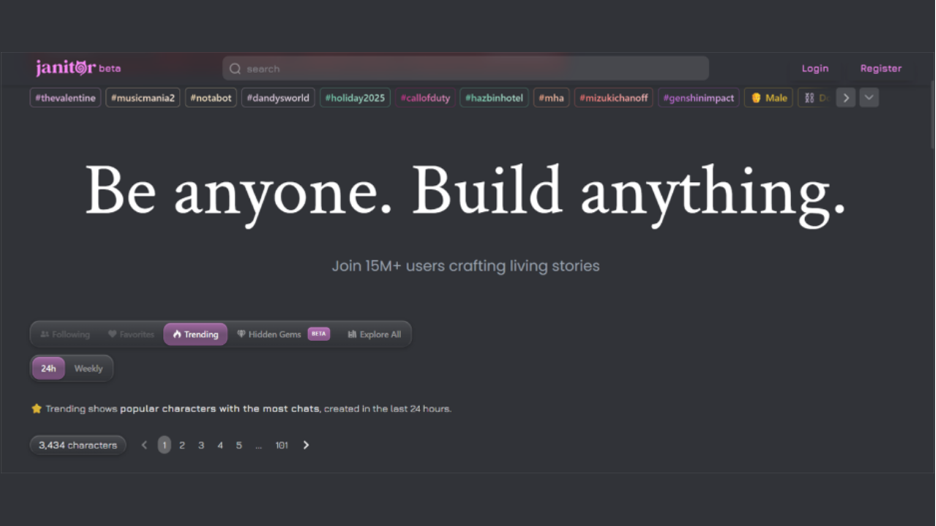
- Go to the official website of Janitor AI and select “Login.”
- Sign in through the authenticated credentials.
- Go to the dashboard once the authentication is done.
Step 2: Access API Settings
- Go to Settings
- Choose API Configuration
- Find the option where you can add or edit a custom API.
The API configuration feature empowers users to connect Janitor AI to third-party platforms.
Step 3: Add the API Details of DeepSeek
Provide the needed API data carefully.
- API Provider Name: DeepSeek
- Base URL: This is provided by the API service compatible with DeepSeek.
- API Key: Provide your authentic DeepSeek API key.
- Model Name: DeepSeek Chat or related supported model.
Make sure that there are no extra formatting errors or spaces when providing your key.
Step 4: Set Model Parameters
Adopt the behavior of model for streamlined performance:
- Temperature: Keep the values moderate to make sure that the responses are balanced.
- Max Tokens: Configure as per the conversation length requirements.
- Presence Penalty: This is optional if you want flexible responses.
Such settings impact quality of responses but do not modify stability of model.
Step 5: Save Your Configuration and Test It
- Ensure that you have saved your API settings.
- Access a new character chat.
- Send a brief test prompt.
If your configuration is successful, you will find your character responding with DeepSeek on Janitor integration without any errors.
Common Problems and Troubleshooting
Users may face issues related to setup at the time of initial configuration. Let us go through a few common problems as well as solutions.
How to Fix API Authentication Errors?
- Verify your API key.
- Ensure that the base URL is typed correctly.
- Make sure that the chosen model aligns with the documentation of the provider.
How to Fix “No Response from Character” Issues?
- Check whether the API usage limits have exceeded
- Make sure the chosen API configuration is active
- Reload your character chat
Inconsistency in Responses
- Go to your character settings and review your system prompts.
- Adjust token limits or temperature
- Avoid conflicting role instructions
Right Practices for Utilizing DeepSeek with Janitor AI
To ensure accurate and stable conversations:
- Make your system prompts clearer
- Avoid over stacking of prompts
- Ensure that your character definitions remain concise
- Consistently track API usage
Implementing such practices makes sure that the output quality is consistent when you are using DeepSeek AI Integration.
Conclusion
Having a clear knowledge on how to set up DeepSeek on Janitor AI enables users to get complete control of their AI conversations. With sensible parameter settings and correct API configuration, DeepSeek provides reliable and top-level responses via character-driven interface of Janitor AI.
This setup is preferable for structured assistance, roleplay, and lasting interactions, providing adaptability without any over complications. When it is properly configured, it ensures an efficient and stable experience resonant with user expectations.